Introduction
Managing calendars today means more than just booking a time to meet. You’re rescheduling at the last minute, chasing replies, blocking focus hours in multiple calendars like Google and Outlook, adding events from messages, and keeping everything in sync across work and personal accounts. The CalendarBridge AI Scheduling Assistant handles all of that for you. It schedules directly from email, reorganizes your day in seconds, follows up automatically, and you can even use AI to create events from screenshots or forwarded messages. For teams, it scales with organization-wide settings while still giving each employee their own assistant.
Instead of spending hours in email threads and calendar apps, you can let the assistant manage the details and keep your schedule running smoothly.
Here’s a closer look at what it can do and how to make the most of it.
Schedule Straight From Email
Normally, finding a time to meet means long reply-all chains, meeting or scheduling polls, endless calendar checks, or using platform specific tools to schedule meetings in Outlook or Gmail . With CalendarBridge, you simply CC the assistant on the thread. It proposes times, confirms once everyone agrees, and then adds the event to your calendar so the conversation ends with a booked meeting instead of loose ends.
You can talk to it naturally, the way you would with a real assistant:
- “Schedule a quick 15-minute sync with Javier and Kate next week before Wednesday.“
- “Actually make that 30 minutes.“
- “Move this to next Wednesday.“
Once you’ve scheduled with someone before, you can even keep it short:
- “Email Kate and schedule a lunch.“
For new or infrequent contacts, just include their full email so the assistant knows who you mean.
A meeting between Katrina & Jack, scheduled with AI
Schedule Meetings With Your Whole Team
If your company uses group email addresses like marketing@yourcompany.com, the assistant can schedule with the entire team at once. Just CC the assistant along with that group address, and it will propose times, follow up if people don’t reply, and finalize the meeting for everyone on the list. Envision the time you could save for tasks like scheduling an interview with a new prospect.
Don’t have a group email set up? You can still CC the assistant and list out team members individually. It works either way. You’ll just save more time if your organization already uses group addresses.
Examples:
- “Schedule a 30-minute budget review with marketing@yourcompany.com next week before noon.“
- “Book a recurring Monday standup with the product@yourcompany.com group at 10 AM.“

Handle Reschedules Automatically
When a meeting changes, you don’t need to chase everyone down. If the assistant is CC’d on the thread or emailed directly, it will suggest new times, confirm availability, and update the event so the meeting keeps moving forward without you resending invites.
You can also give it broad instructions:
- “Reschedule all my meetings for tomorrow and let people know I am out sick.”
- “Move this to next Wednesday.”
Cancel With One Command
If a meeting needs to come off the calendar completely, you can tell the assistant to cancel it and notify attendees.
Example command:
- “Cancel this for now and let everyone on the invite know.”
Configure It to Work Your Way
You decide how the assistant responds. Set preferences for tone, working hours, meeting places or meeting links and scheduling rules. Replies sound like you, not a bot.
Tips and tricks:
- Change defaults anytime from the CalendarBridge dashboard.
Use it for internal rules like:
- “Internal meetings should default to 30 minutes.”
- “Leave a 15-minute buffer between internal meetings.”
- “Do not book over company-wide blocks labeled ‘No Meetings.'”

Create Events From Screenshots or Photos
You don’t need to retype details. Simply forward a screenshot, photo, or email, and the assistant can create the event for you.
Tips and tricks:
- Snap a photo of a concert flyer and forward a screenshot of it with: “Add this to my calendar for Friday at 8 PM and add a reminder tomorrow at 9 AM to buy tickets“.
- Email the assistant a link to a social media post with: “Add this to my calendar and invite Tom and Sally.“
- Screenshot a group chat with flight info and forward it with: “Add everyone’s flights to my calendar.”
- Forward a school newsletter with: “Add the parent-teacher conference and spring concert to my calendar. Create a reminder the day before.”
- Forward a project email with: “Add all deadlines to my calendar and block time for my tasks.“
It works for personal and professional use alike. Whether it’s birthdays, a family calendar, team deadlines, community events, or travel plans, the assistant takes care of the details and puts them on your calendar.
Note: The assistant does not change your built-in calendar alerts. When you ask for a reminder, it creates a separate event at the time you specify to remind you. To invite guests, you must include their emails.


Automate Inbound Scheduling
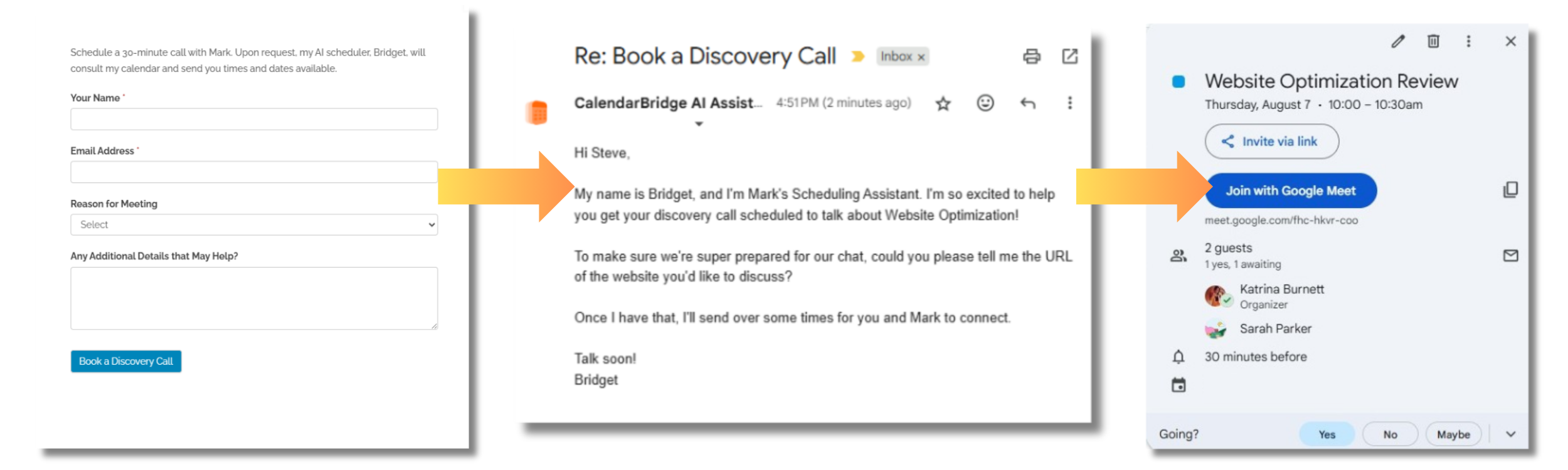
Use inbox rules to route incoming requests directly to the assistant. It can reply on your behalf, propose times, and book the meeting automatically.
Example setup:
- Forward all emails from contact@yourdomain.com with subject line “New Inquiry”
- In your configuration, add: “When receiving a forwarded email from contact@yourdomain.com, offer my availability for a 15-minute Zoom intro call next week between 10 AM and 3 PM, Mon–Thurs. Include my booking link if none of the times work.”
- If you use a specific web form to handle meeting requests or demos, add the assistant to a BCC field and it will review your availability and handle the meeting setup
Now every inquiry gets a reply, books a meeting, and updates your calendar.

Sync Across All Your Calendars
Pair the assistant with CalendarBridge’s calendar sync to check availability across Google, Outlook, iCloud, and Exchange. It prevents double booking and makes scheduling across accounts seamless. You also get the benefit of having a single unified calendar, showing all your synced events in one place for easy viewing and editing. We even have an app for mobile devices!

Follow Up So You Don’t Have To
If invitees don’t respond, the assistant sends polite reminders until the meeting is confirmed. You can also instruct it to send out a reminder the day before a meeting to reduce the number of no-shows.

Reorganize an Entire Day
You can block focus time, shift all meetings, or reorganize a full day with one request.
Examples:
- “Move all my meetings tomorrow to Friday.”
- “Block three hours for deep work this afternoon.”
Learn more about blocking time in both Google and Outlook calendar.

Organization Support for Teams
Companies can now configure the assistant at the org level. Admins set defaults for employees while each user still gets their own personalized assistant. Learn more about AI Scheduling for Organizations.

A Few More Examples of Ways our AI Assistant Helps Improve Efficiency
Ready to Save Time and Get Started with an AI Calendar Assistant of your Own?

Frequently Asked Questions
It’s a virtual scheduling assistant that books meetings, reschedules, follows up automatically, and creates events directly from emails, messages, or screenshots while keeping your calendars in sync. All for a tiny fraction of the cost!
Simply CC or BCC the assistant on an email thread. It will propose times, confirm with everyone, and add the final event to your calendar without you needing a scheduling poll.
Yes. CalendarBridge syncs Google, Outlook, Microsoft 365, iCloud, and ICS calendars so you can manage everything in one place, very similar to our Unified Calendar App.
Yes. If a meeting needs to be moved or canceled, the assistant suggests new times, confirms availability, updates the event, or cancels and notifies attendees automatically.
Yes. Organizations can set defaults and scheduling rules for employees while each user still has their own personalized assistant. It works with group email addresses or individual users.
Unlike booking links and scheduling pages, the AI assistant communicates naturally through email, follows up with attendees, adapts to changes, and adds events directly to your unified calendar, saving time and effort.
Final Thoughts
The CalendarBridge AI Scheduling Assistant isn’t just a meeting scheduler. It can reschedule, follow up, batch-manage your day, and even respond to inbound leads. The more you use it, the more time it saves.
Ready to stop wasting hours chasing down meetings? Learn more about the AI Scheduling Assistant and start getting more out of your calendar today.