Summary
Start with the scheduling task you repeat most. If you keep copying holds between calendars, sync your busy time. If you keep checking several calendars before offering a meeting time, use a booking link that checks them together. If group meetings take several rounds of email to schedule, hand off the coordination.
Take Maya, a project coordinator at a large commercial construction company that uses CalendarBridge to manage scheduling across companies between her own team, outside contractors, and suppliers for large projects that can last a year or longer.
She handles the coordination and scheduling for several project managers with a number of time sensitive meetings at any given time. Her company uses Google Calendar through Google Workspace, and the clients use a mix of Google, Outlook, and iCloud calendars.
Most of those invitations go to Maya’s company address and appear on her Google Calendar. On one project, the client has also given her a separate Microsoft 365 account for project coordination. That’s where calendar work starts to pile up. A site inspection on the client’s Outlook calendar can leave Maya looking free to her own team, and a change to that meeting can mean updating a hold in two places.
Here’s how she uses CalendarBridge to take some of that work off her plate.
Sync busy time between separate work calendars
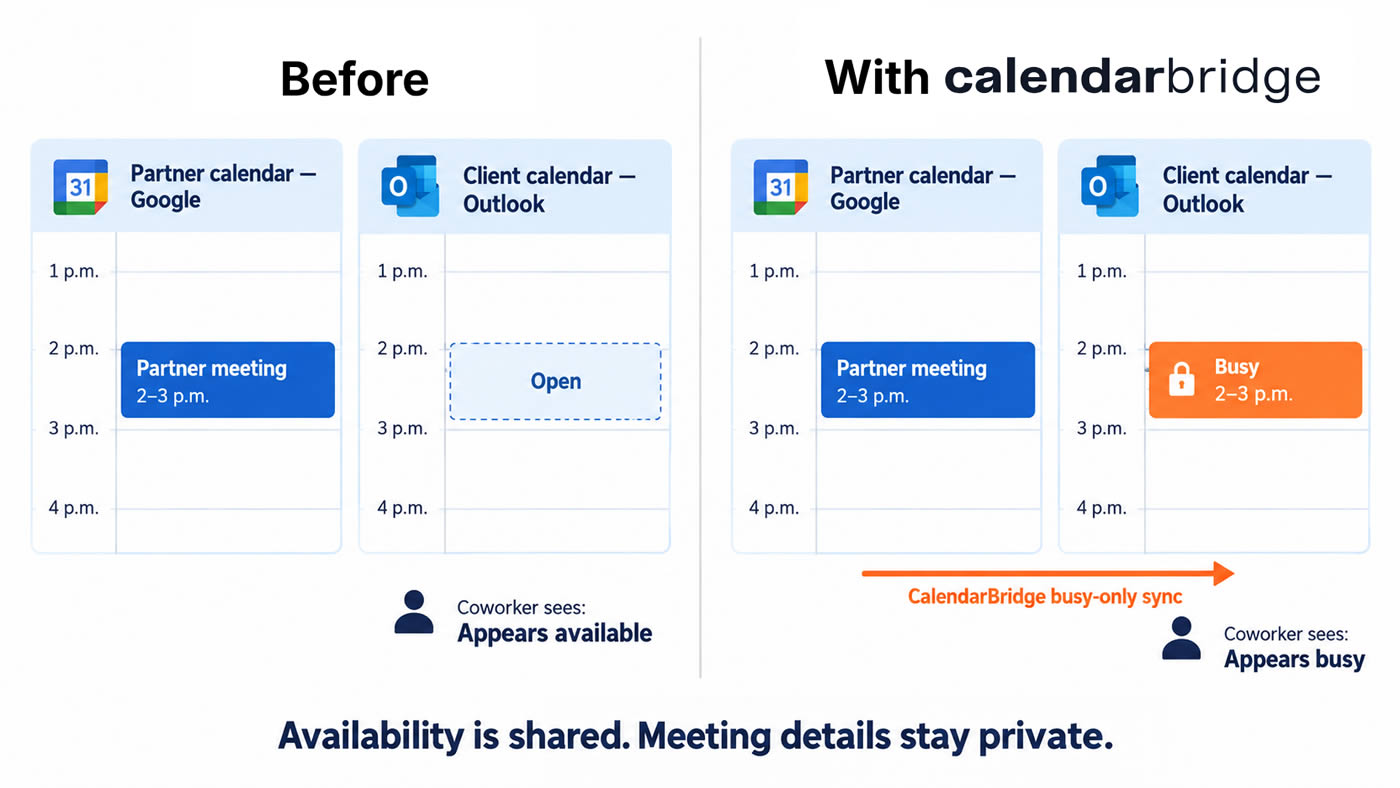
A client schedules a 2 p.m. site walk on Maya’s project Outlook calendar. Her company Google Calendar still looks open, so an estimator could invite her to a bid review at the same time. Maya used to add a hold in Google Calendar and move it by hand whenever the client changed the walkthrough.
She sets up a one-way CalendarBridge sync from the project Outlook calendar to her company Google Calendar. With Busy Only syncing, coworkers who check her availability can see she’s busy at 2 p.m. The meeting title and location stay on the project calendar.
When the client reschedules the site walk from 2 p.m. to 3 p.m. in Outlook, the synced busy block on Maya’s Google Calendar moves with it. Her coworkers can see that 2 p.m. is available again and that she’s busy at 3 p.m., without Maya having to update either calendar manually.
If an Outlook invitation already appears on your Google Calendar, that event is already there for coworkers to schedule around. Look for the commitments that live only on another calendar. Those are the ones a sync can bring into view.
Give suppliers a link that checks both calendars
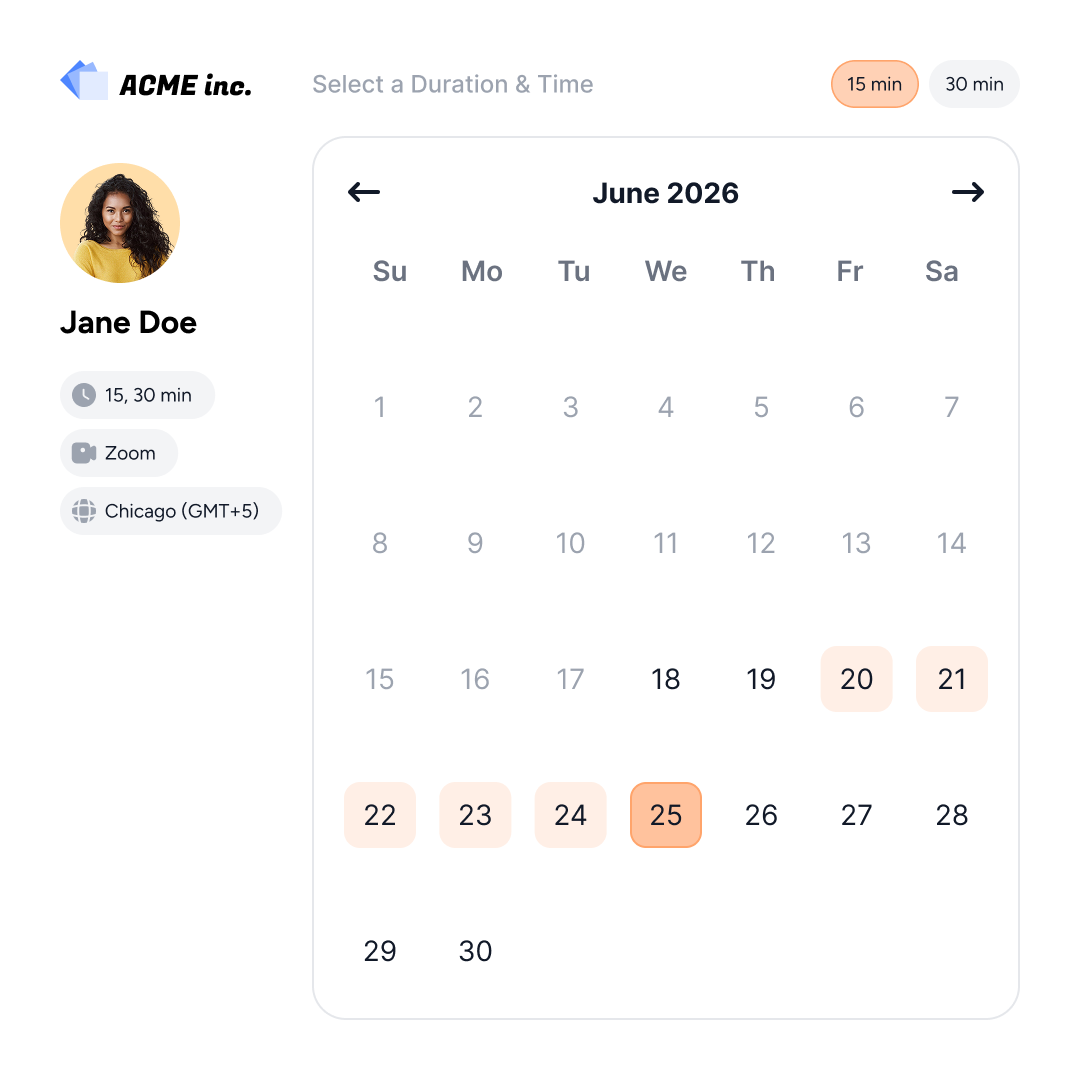
A millwork supplier asks Maya for 30 minutes to review shop drawing comments. Instead of opening both calendars and typing out three options, she sends a booking link that checks both calendars.
She sets it up so that:
- Google Calendar and project Outlook both count toward availability. A busy event on either calendar can block a slot.
- Confirmed calls go on her company Google Calendar. Maya knows where to find the booking and where to make any follow-up changes.
- The link offers times during hours she sets aside for supplier calls. Suppliers can choose a slot without having to ask when she’s normally at her desk.
This link works for calls Maya can take herself. If the project manager needs to approve a change or answer a question, Maya checks their calendar before offering times. Her own open slot is only one piece of the puzzle.
Leave buffer time from one meeting to the next
A site walk ends at 11 a.m. Maya still needs to get back to the mobile office, jot down what the superintendent flagged, and open the drawings for her next call. An 11 a.m. booking leaves her doing all of that while the supplier waits.
She adds a 15-minute buffer after existing meetings on her supplier link. After an 11 a.m. finish, the next call can start at 11:15 a.m. or later, depending on the link’s other booking settings. When she needs to drive to another site, she puts the actual drive time on a calendar the link checks.
Hand off the email back-and-forth for group meetings
The electrical subcontractor flags a conflict between a conduit route and a ceiling detail. The project manager asks Maya to get the engineer, subcontractor, and superintendent on a call before installation starts.
Maya confirms who needs to attend and when they need a decision. Then she CCs the CalendarBridge AI Scheduling Assistant on the thread and asks it to find 20 minutes before Friday noon. The assistant checks Maya’s configured availability and coordinates the meeting by email while she gets back to the supplier log. If the project manager also needs to attend, Maya checks their availability and includes those constraints in her request.
Frequently Asked Questions
Yes. You can set each link to put confirmed meetings on the appropriate work calendar while checking your other connected calendars for conflicts. For example, Maya could keep supplier calls on her company Google Calendar and use a separate link for meetings that belong on the client’s Outlook calendar.
Yes. If you both have CalendarBridge accounts, a combined booking link can offer only times when both of you are available. That’s useful for a recurring supplier review where the project manager needs to attend every time.
If Microsoft shows an approval prompt when you try to connect the account, ask the client’s Microsoft 365 administrator to review the request. Once the administrator grants consent, you’ll still need to finish connecting the account yourself. Microsoft 365 approval instructions
No credit card required