Summary
Your work calendar needs to reflect when you’re unavailable, but your coworkers don’t need to know about your medical appointments, family commitments, or personal plans. Likewise, your personal calendar doesn’t need to expose confidential meetings, client names, or internal company information.
Keeping those boundaries intact becomes more complicated when you’re managing multiple calendars, sharing availability, and using scheduling links.
Here’s what to check to make sure the right information reaches the right people, without sharing more than necessary.
1. Check What Information Is Shared Between Calendars
Calendar syncing is useful for preventing scheduling conflicts, but copying every detail from one calendar to another can expose information that should stay private.
For example, a consultant working for Company A and Company B needs meetings from each company’s calendar to show up as busy time on the other, but the meeting details need to remain hidden.
Even something as simple as a meeting location, attendee, or company name could reveal confidential business information.
Your checklist:
- Check which calendars are syncing and in what direction.
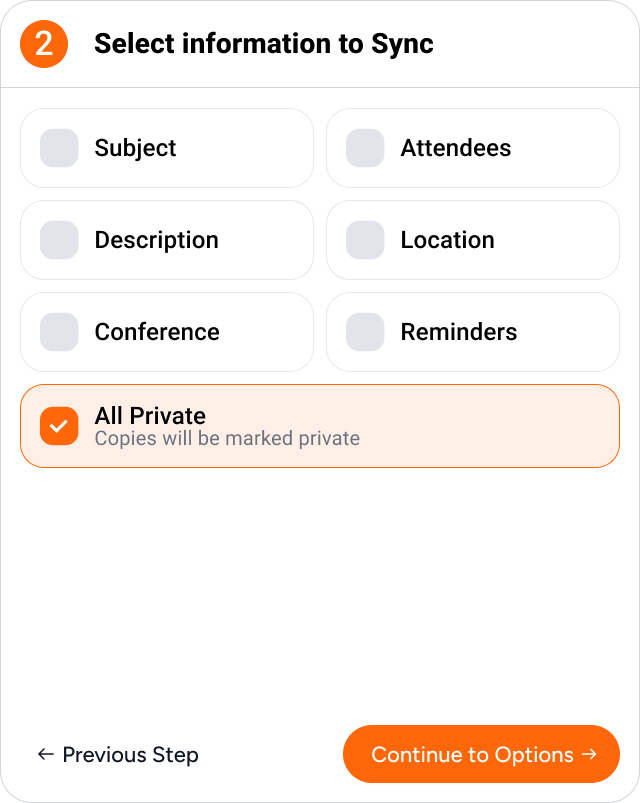
- Review whether event titles, attendees, descriptions, locations, and meeting links are being copied.
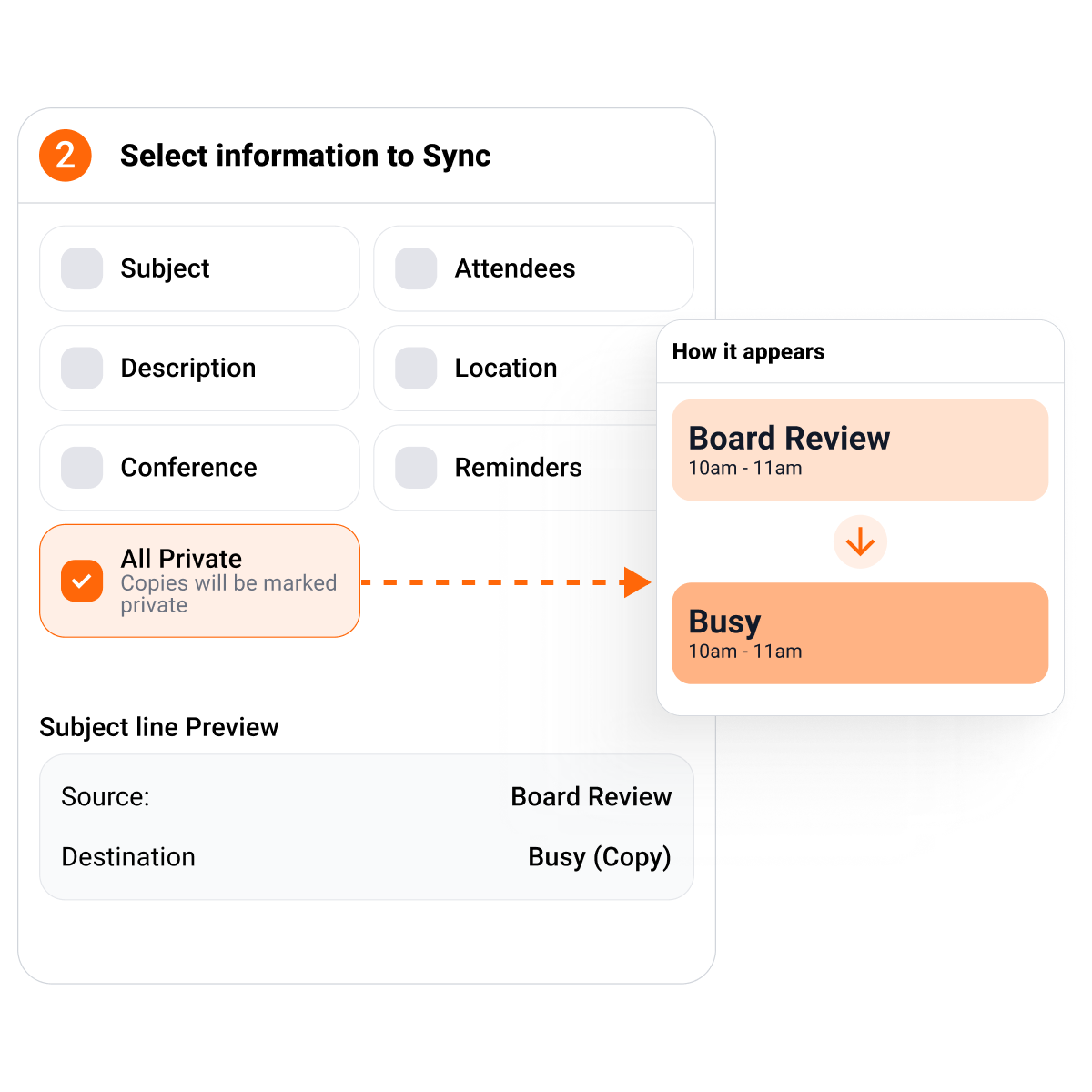
- Use Busy Only syncing when another calendar only needs to reflect your availability.
- Reserve full event syncing for calendars where those details are genuinely necessary.
CalendarBridge lets you configure privacy settings independently for each sync connection. You can sync personal appointments to your work calendar as Busy blocks while choosing different settings for events flowing in the opposite direction.
This means sensitive event details don’t need to be copied onto a calendar where they don’t belong.
2. Review Who Can See Your Calendar
Calendar privacy depends on more than your event settings. Sharing permissions, delegated access, and organizational policies can determine who sees your information.
Consider an executive working across multiple organizations. Colleagues need to see when they’re busy, but that shouldn’t give them access to personal appointments or meetings with other companies.
Even something as simple as a meeting title or attendee’s name could reveal information that wasn’t meant to be shared.
Your checklist:
- Review who has access to each Google, Outlook, or shared calendar.
- Check whether permissions allow people to see availability, event details, or make changes.
- Remove unnecessary access previously granted to coworkers, assistants, or external collaborators.
- Review any public calendar links or subscriptions you’ve created.
These permissions are managed through your calendar provider, but CalendarBridge provides another layer of protection by controlling what information gets copied in the first place.
Even if someone has broader access to a destination calendar, they can’t uncover event details that were never copied there.
3. Make Sure Your Scheduling Links Protect Your Privacy
Scheduling links introduce another consideration. Someone booking a meeting needs to know when you’re available, but they shouldn’t be able to see what’s occupying the rest of your calendar.
They also shouldn’t be offered time you’ve already committed elsewhere.
For example, a consultant sharing a scheduling link with a prospective client may already have commitments on several other calendars. Those appointments should prevent conflicting bookings without revealing who the consultant is meeting or why.
Your checklist:
- Make sure scheduling links check availability across all relevant calendars.
- Review which calendar receives new bookings.
- Set appropriate booking hours, minimum notice, and buffers.
- Check the meeting titles, descriptions, and questions associated with your booking pages.
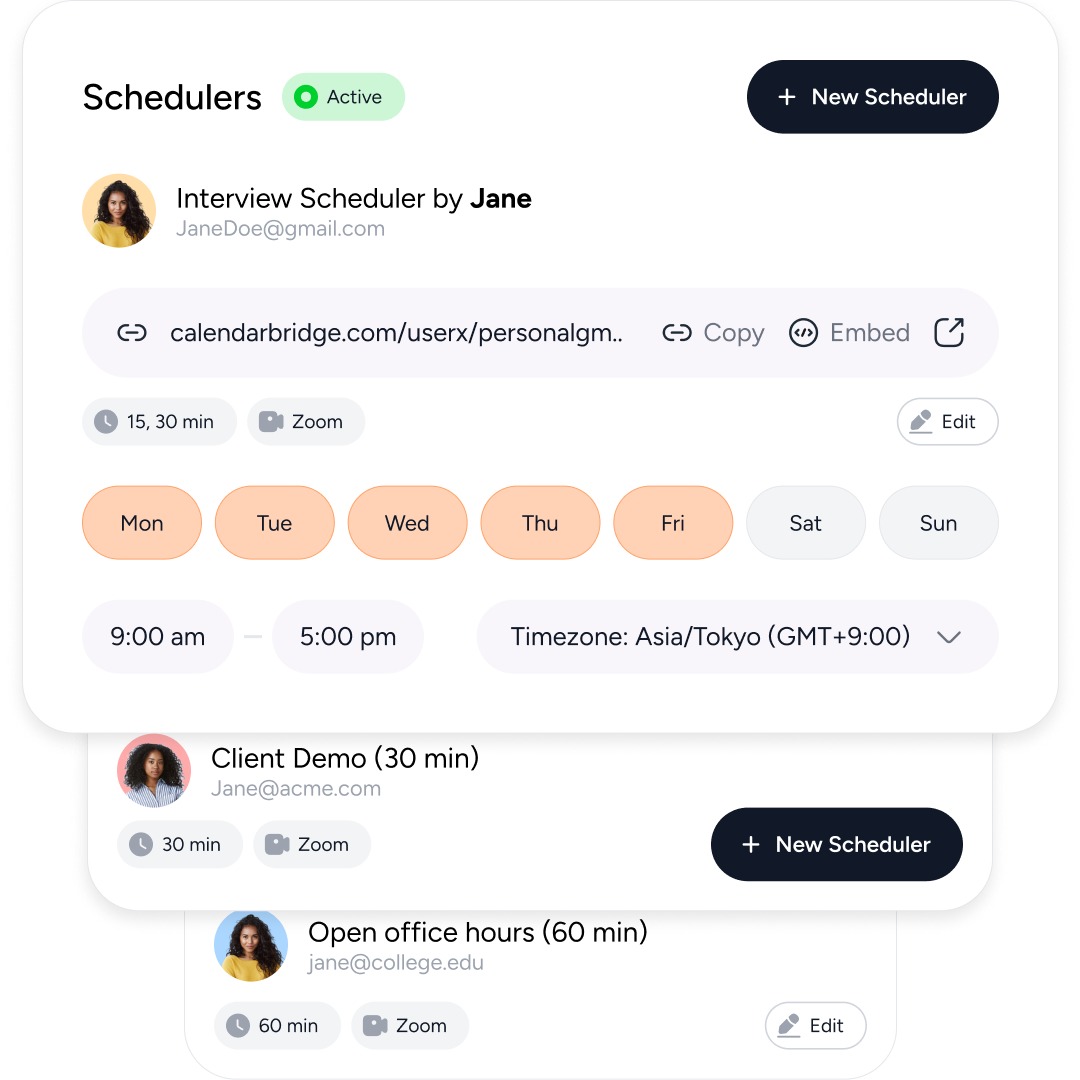
CalendarBridge Scheduling Pages check free/busy availability across your selected calendars without exposing the underlying event details to people booking time. You can also configure different scheduling pages for different purposes while keeping your calendars separate.
4. Review What Your Calendars Reveal Beyond Event Titles
Even when event details are hidden, calendars can reveal information through recurring availability patterns, meeting invitations, notifications, and shared links.
Even when event details are hidden, recurring appointments can reveal patterns in your schedule. A private appointment at the same time every week, for instance, may raise questions about what you’re doing or where you’re going. Meeting invitations can also contain sensitive information, such as client names, attendees, locations, or conferencing links, that shouldn’t be shared with another organization.
Your checklist:
- Check recurring events and all-day commitments to ensure they reflect the availability you intend.
- Review what appears in notifications and calendar previews on shared devices.
- Check whether meeting invitations and synced events contain unnecessary attendee or conferencing information.
- Test your settings by creating an event and reviewing what appears on the destination calendar.
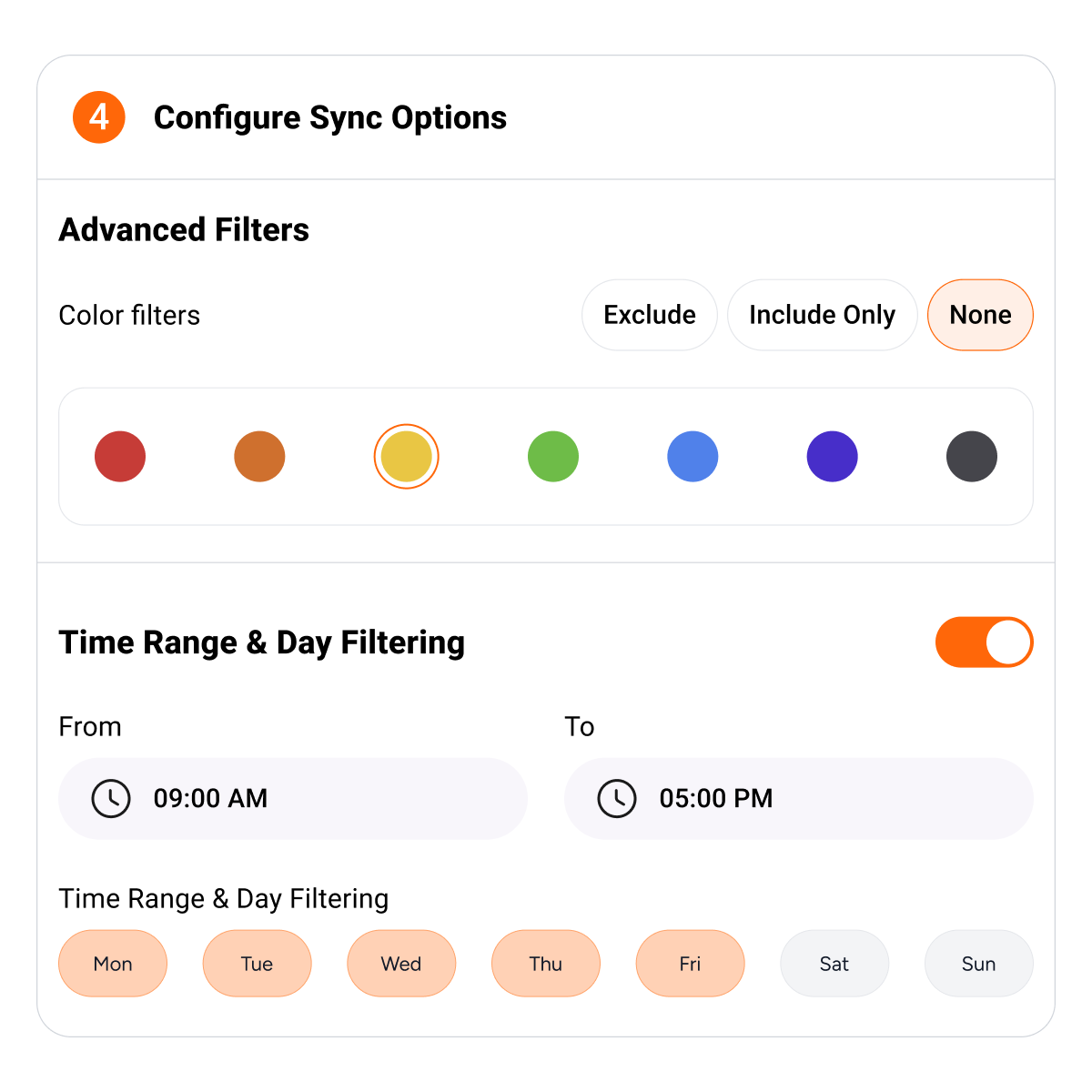
CalendarBridge supports granular controls for individual event fields, along with advanced sync filters that let you limit which events are copied based on factors such as time, day, or event color. This allows you to decide not only what information appears on another calendar, but which events are synced at all.
Keeping Your Calendars Connected Without Compromising Privacy
Effective calendar management shouldn’t require choosing between accurate availability and protecting personal or confidential information.
Whether you’re managing personal commitments, coordinating with clients, or scheduling across multiple organizations, the goal is the same: make your availability accessible without unnecessarily sharing what occupies it.
CalendarBridge helps you do that through configurable calendar syncing, granular privacy controls, and scheduling links that account for your commitments across Google, Outlook, and other supported calendars.