AI Scheduling Assistant from CalendarBridge
An AI Assistant for Your Calendars and Inbox.
No Credit Card Required.






- Email Integration
Manage Scheduling Directly from Your Inbox
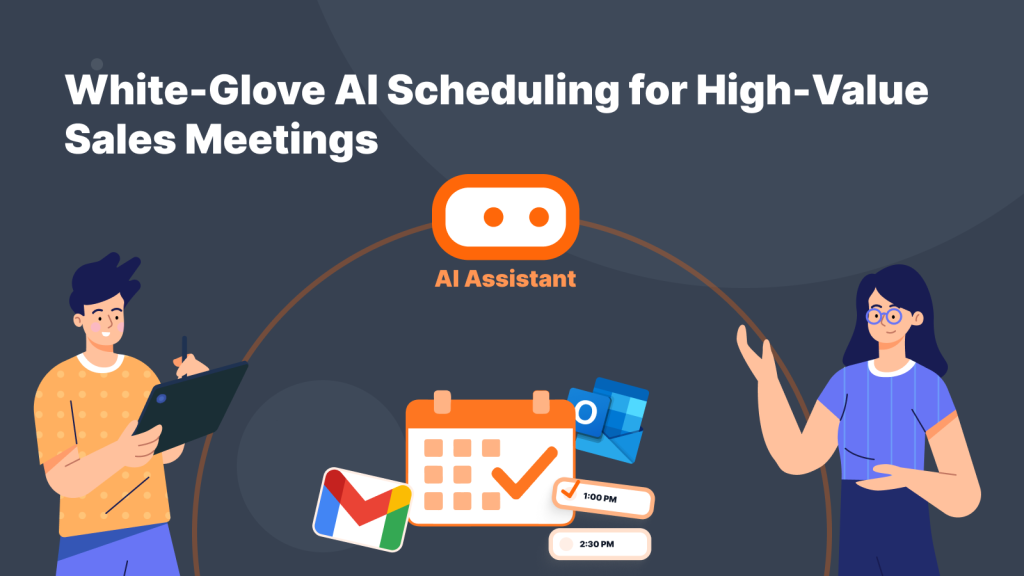
The CalendarBridge AI Assistant works natively right inside your inbox. Simply CC or message the assistant directly from Gmail, Outlook, or any connected email account. Have it manage a single primary calendar, or let it coordinate across all your linked accounts at once – keeping your schedule updated in real time without you ever opening a calendar app
- Book Meetings Faster
Schedule Meetings Without the Back-and-Forth
Stop chasing replies and juggling multi-person email threads. When someone emails to set up a meeting, loop the AI assistant into the conversation once. It checks your real-time availability, proposes optimal times, handles responses, and confirms the final event on everyone’s calendar.
- Visual & Document Parsing
Turn Schedules, Emails and Pictures into Calendar Events
Skip manual data entry and copying meeting details line by line. Forward confirmation emails, upload screenshots, or snap a photo of a physical appointment card or flyer. The assistant reads dates, times, and agendas from your image, adding them straight to your calendar in one move.
- Customizable Rules
Built Around Your Preferences
Train your AI assistant to run according to your personal workflow. Choose which email addresses it listens to, set rules for how it checks your availability, and define your working hours. You get all the adaptability of a personal administrative assistant while remaining in total control.
- Trust is Everything
We are Trusted by Major Companies Across All Industries
For enterprise-grade security and account management tools, companies turn to CalendarBridge.

Stop the Multi-Calendar Chaos
Spend less time managing your calendars and more time getting things done.
Privacy and Security Come First
With CalendarBridge, you stay in full control of your calendar and personal data.
We never store, analyze, or sell your calendar data to anyone.
We only request bare-minimum calendar permissions, never your email or files.
SOC 2® verified and Microsoft 365 GCC High compatible for ultimate compliance.

GDPR Compliant
Including DPA

SOC 2® (Type 1 & 2)
Verified, 2026

HIPAA Compliant
Since 2022

Trust Center
Available on Request
Individuals & Small Businesses

Core Use Case: Automate Scheduling
When scheduling starts taking time away from your work, CalendarBridge AI Assistant handles the back-and-forth so you can stay focused. It works directly through email, managing bookings, reschedules, and updates without requiring another app or complicated setup.
Whether you manage one email account or several across work and personal life, simply loop the assistant into an email thread, send a request in simple terms, or forward scheduling details. It coordinates your calendar behind the scenes and keeps everyone informed automatically.
Spend less time scheduling and more time focusing on the work that matters.
Individuals
Let the AI Assistant handle scheduling so you can stay focused on your work. Connect a single inbox or multiple accounts so one assistant manages it all.
Small Businesses
Deliver a fast, responsive scheduling experience to clients right over email without hiring administrative support or losing control of your calendar boundaries.
Organizations
Sales & Executive Teams
Use your own business domain so the AI Assistant sends scheduling emails from your organization’s email address, creating a consistent experience for customers and clients.
Operations & Shared Resources
The AI Assistant can schedule conference rooms, equipment, and other shared resources alongside attendee calendars, helping teams coordinate everything in one booking.
Enterprise & IT Leadership
Deploy AI scheduling across departments with flexible permissions, custom setup options, and support for employees managing one or multiple calendars.
Core Use Case: Reduce Scheduling Overhead
Organizations can automate scheduling across teams without adding administrative work. CalendarBridge AI Assistant helps employees, departments, and external partners coordinate meetings across time zones while fitting into the calendars they already use.
Assign an AI Assistant to each employee, or let one assistant coordinate multiple calendars for executives, project teams, or shared resources. Use your own business domain so scheduling emails come directly from your organization.
Deploy with enterprise controls, flexible permissions, and custom setup options that fit how your organization works.
Save Administrative Time
Reduce Scheduling Friction
Coordinate Teams & Resources
Coordinate Across Timezones
We Love Our Users and They Love Us
Read why users love the AI Scheduling Assistant from CalendarBridge.

5.0

Everything is scheduled through my AI assistant. I use the same workflow I used with my human assistant: I forward the email, and it reaches out to schedule or reschedule the meeting

Scott, H
COO, HR Firm
5.0
The AI Scheduling Assistant reacts quickly, even on weekends when my assistant is not working. I can start a request on Friday evening, and by Saturday midday, three people may have responded and the meeting is already set.
Sandra, M
VP of Lending
5.0
CalendarBridge helped embed the scheduling assistant in my own domain, making it much easier and more natural for clients to interact with.
Michael, S
CFO, Recycling Manufacturer
- Get help
AI Scheduling Assistant FAQs
Quick answers to the most common questions. Need more help? Check out our help site.
An AI Scheduling Assistant helps coordinate meetings for you. Instead of emailing back and forth to find a time, you can involve the assistant in the conversation and let it help suggest times, coordinate availability, and move the meeting toward a confirmed booking.
Your AI Scheduling Assistant is an email-based assistant. You communicate with it just like you would another person using your connected email account. Email it directly with scheduling instructions, or CC it on an existing email thread to have it take over coordinating the meeting. It communicates with participants on your behalf, finds a time that works, and can schedule, reschedule, or cancel meetings based on the instructions you provide and your calendar availability.
Yes. When your calendars are connected to CalendarBridge, the AI Scheduling Assistant can make better scheduling decisions because it has a more accurate view of your availability. That helps reduce the chance of booking over another meeting or commitment.
A booking link lets someone choose from your available times on a scheduling page. An AI Scheduling Assistant provides a more personalized scheduling experience by communicating with participants through email on your behalf. You decide how your assistant communicates, from its tone and writing style to how it handles scheduling conversations. It coordinates meetings naturally, making it ideal when scheduling requires follow-up, negotiation, flexibility, or coordination between multiple people.
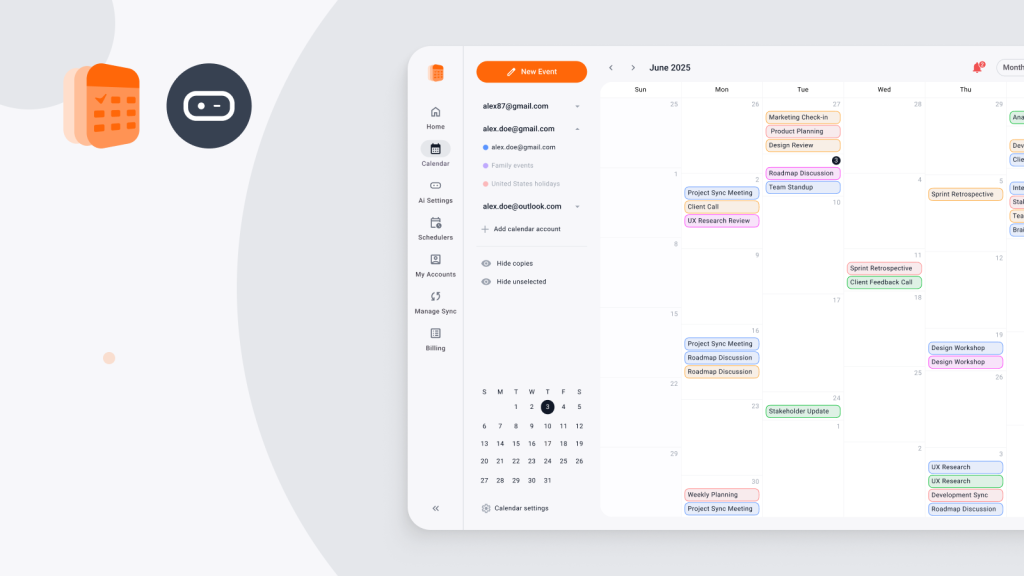
Yes. CalendarBridge is built for people who work across Google Calendar, Outlook, Microsoft 365, iCloud, and other calendar systems. That makes the AI Scheduling Assistant more useful when your availability is spread across more than one platform.
An AI Scheduling Assistant is helpful for consultants, fractional executives, sales teams, recruiters, founders, executive assistants, and anyone who spends too much time coordinating meetings by email.
Yes. The assistant is most useful when CalendarBridge is connected to the calendars you rely on. That allows it to help schedule meetings based on availability across work, personal, client, and organization calendars.
No. The AI Scheduling Assistant does not replace your calendar. It helps coordinate scheduling while CalendarBridge keeps your availability aligned across the calendars and platforms you already use.
Learn More with These Helpful Articles
Get more from CalendarBridge AI Scheduling Assistant