Introduction
Most of us are not forgetting things because we lack notifications, we forget because we are drowning in them.
- Fifteen minute alerts
- Back to back calendar blocks
- Slack pings
- Text reminders
- Random alarms labeled “do this”
Traditional reminders that are built-in to most calendars require you to stop what you are doing, open your calendar, choose a time, title the event, and save it. It works, but it adds friction every time. Picking up your phone and saying “Hey Siri” activates a new system that’s not even connected to your work calendar. Sending it to personal Gmail doesn’t reflect in your smartphone or your work calendar.
Often, reminders are just small nudges meant to prompt us into actions we do not want to forget, whether that is calling someone, paying a bill, canceling a subscription before it renews, picking something up on the way home, following up on a conversation, or simply leaving on time so we are not late.
How an AI Assistant Fits In
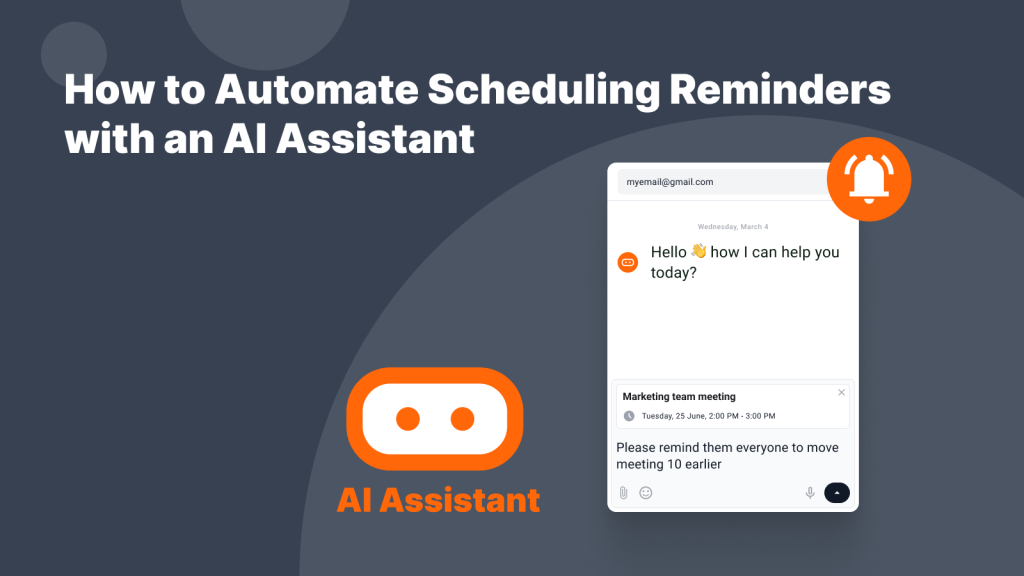
With our AI Assistant, you can do much more than schedule meetings and events, you can prompt it to send you (and others) reminders that are simple to use and add no extra friction.
Instead of manually setting reminders, you state what needs to happen:
- “Remind me to pick up my prescription after work today.”
- “Set a reminder for my project deadline this Friday at 3pm.”
- “Send a friendly reminder to everyone coming to our Friends Lunch this week.”
- “Remind me to review my free trial before billing starts.”
The CalendarBridge AI Scheduling Assistant creates the reminder and your existing notification settings handle the alert.
How the CalendarBridge AI Scheduling Assistant Works
The CalendarBridge AI Scheduling Assistant is included with Premium and Pro accounts and works primarily through email. You can send direct instructions to assistant@ai.calendarbridge.com at any time, include it in an email workflow as a BCC recipient, or chat with it inside the CalendarBridge Unified Calendar and Unified Calendar App.
You can communicate with your assistant from multiple connected email accounts, such as work and personal. You decide which email addresses are linked to your assistant and which calendars it reads from and creates events on.
When a reminder is created, it becomes a standard calendar event. It follows your calendar’s default notification settings, and if your calendars are synced through CalendarBridge, the event appears across connected calendars based on your sync configuration.
There is no separate reminder list. The assistant creates events directly inside the calendars you already use.

When, and How to Use AI to Automate Reminders
We’ve found it easiest to use the AI Scheduling Assistant for reminders in three primary ways:
1. Reminders that Support Your Schedule
Reminders are not only about memory, they support meetings, deadlines, and transitions.
You can schedule prep time and follow-ups just as easily:
- “Remind me to prepare slides at 2pm before my 3pm meeting.”
- “Remind me to follow up with Sarah next Tuesday at 10am.”
- “Remind me to review the contract two days before it’s due.”
You can also configure automated rules inside your assistant settings, such as:
- Send me an automated email every day at 6am, with my daily schedule
- Send a reminder the day before any in-person event
- Notify attendees five days before events that include deadlines
- Send a same-day reminder two hours before external meetings
Once configured, those reminders are applied automatically whenever events match your criteria. This keeps meetings on-track and reduces manual follow-up work without adding any extra friction or tasks outside your normal workflow.

2. For Sending Friendly Reminders
Sometimes the goal is not just to remember something yourself, it’s to send a friendly reminder email at the right time so everyone stays on point and you reduce the risk of no-shows.
For example:
- “Send a friendly reminder to Mark about the contract tomorrow at 9am.”
- “Remind the team about the proposal deadline five days before it’s due.”
- “Send a reminder to Jules tomorrow at 10am about lunch at 12pm.”
The assistant schedules the reminder and sends it at the time you specify.
How It Knows Who to Contact
The AI assistant uses predictive context from your calendar to identify recipients. If someone is already included in meetings or events, you can reference them naturally:
- “Remind Mark about the 3pm meeting at 1pm.”
- “Remind the team about the deadline Friday at 10am.”
If Mark has been on prior invites, or if the team is attached to the event, the scheduling assistant identifies the correct recipients from your calendar context.
If it does not recognize someone, you only need to define them once:
- “My boss Mark’s email is mark@myboss.com.”
- “My husband John’s email is john@schwarzenegger.com.”
After that, you can simply use their name going forward.

You Can Also Automate Friendly Reminders by Rule
Inside your assistant settings, you can configure automatic reminder behavior, such as:
- Send a reminder email the day before any in-person meeting
- When sending lunch or dinner reminders, include the location
- Notify attendees five days before events that include deadlines
- Send a same-day reminder two hours before external meetings
- Once configured, those reminders are applied automatically whenever events match your criteria.
Instead of sending last-minute nudges or rewriting the same polite reminder email each week, reminders go out on time and consistently. You look organized because the system behind you is organized.
3. Reminders So You Don’t Forget
Most reminders are small commitments that need a time attached to them.
- Buy the concert tickets.
- Send the thank you card.
- Wish someone happy birthday.
- Pay a bill.
- Leave on time.
Instead of opening your calendar and creating an event manually, you send the instruction:
- “Remind me that the Coldplay presale starts this Friday at 10am.”
- “Set a reminder for my car payment on the 10th at 9am.”
- “Remind me to leave for my 6pm dinner at 5pm.”
- “Remind me Saturday that it’s the last day to return my Amazon package.”
The assistant creates the event at the time you specify. It appears directly on your calendar and follows your existing notification settings. If you don’t specify a time, it can be created as an all-day reminder.

The Behavior Shift
The change in your workflow is not just that an event gets created, the beneficial shift is that reminders become effortless and consistent.
When it takes seconds to send a quick instruction, you are more likely to use reminders. You stop debating whether something is worth scheduling. You stop postponing small tasks because creating the reminder feels like work.
- You send the instruction
- The event is created
- The reminder is delivered
- You follow through
Over time, that compounds into significant time savings from a simple reminder automation that you would otherwise spend time going through your calendar and setting reminders individually. It starts to feel less like managing a calendar and more like having your own personal assistant handling the timing for you.
Frequently Asked Questions
Automating reminders reduces mental overload and time consuming repetitive tasks, even if they just take minutes. Instead of manually creating events and sending follow ups, you issue a simple instruction and let the system handle it. This improves consistency, ensures reminders go out on time, and reinforces your professional image. When reminders are automated, you eliminate the risk of forgetting small but important commitments and reduce the friction of managing your calendar.
Our AI Scheduling Assistant that creates reminders directly inside your existing calendars. You send instructions by email or inside the Unified Calendar. The assistant converts your request into a standard calendar event, which then follows your normal notification settings. You can also create automated rules so reminders are sent based on event type, timing, or attendee configuration. Everything works inside the calendars you already use.
No. The assistant does not create a separate notification system. It uses your existing calendar’s default alert settings. If you prefer one reminder per event, that is what you receive. If you use multiple alerts, those settings remain in place. You stay in control of how often you are notified.
Yes. You can instruct the assistant to send friendly reminder emails to specific people or groups it already knows. If someone is already included in a calendar event, the assistant uses contextual information to identify them. You can also define new contacts once, then reference them naturally going forward. This makes it easy to send timely, professional reminders without manually drafting emails each time.
The golden rule is to avoid automating everything at once. If your phone is pinging every five minutes, you will eventually start ignoring it. Instead, begin with your three most critical recurring tasks. Automate those first, observe how they improve your workflow, and then expand gradually. The goal is focus and consistency, not notification overload.
Final Thoughts
The CalendarBridge AI Scheduling Assistant does not replace your calendar. It makes it easier to rely on it consistently.
If you want to see how natural language reminders fit into your workflow, learn more about the CalendarBridge AI Scheduling Assistant today.
