
Introduction
Time blocking is a simple way to structure your day by assigning specific time slots to important tasks. It helps you stay focused, avoid distractions, and actually finish what you start.
This guide covers everything you need to know about time blocking with Google Calendar, from how to set it up to the tools that keep your schedule organized across all your accounts, to an example of a digital marketing entrepreneur who makes use of time blocking to help her manage her day. If you’re an Outlook user, we have a guide to blocking time in Outlook calendar as well. Taking it a step farther, if you’re a Calendarbridge user, you can just ask the AI calendar assistant, to block the time for you by sending it an email, and telling it when you need the time blocked!
Time Blocking Explained:
Time blocking means putting everything you need to do into your calendar. Instead of writing a to-do list and hoping for the best, you’re giving each task a dedicated time on your calendar.
It’s one of the easiest ways to stop wasting time and start finishing work.
What Does it Mean to "Block Time" in Google Calendar?
Blocking time in Google Calendar means creating events that carve out dedicated periods for yourself, without sending invites to others. These blocks appear as “Busy” to anyone who can see your calendar, helping protect your time from being filled with meetings or requests.
People often block time for things like:
- Deep focus work or major projects
- Lunch breaks or personal downtime
- Running errands or handling personal tasks
- Catching up on email or administrative work
- Strategic planning or end-of-day reviews
Unlike single calendar scheduled meetings where others are involved, time blocks are solo appointments meant to safeguard your day. If you sync multiple calendars, like work and personal calendars, your blocked time can help prevent conflicts across both.
Step by Step Guide to Time Blocking in Google Calendar
This gives you a clear look at your available time so you can start planning your day with intention.
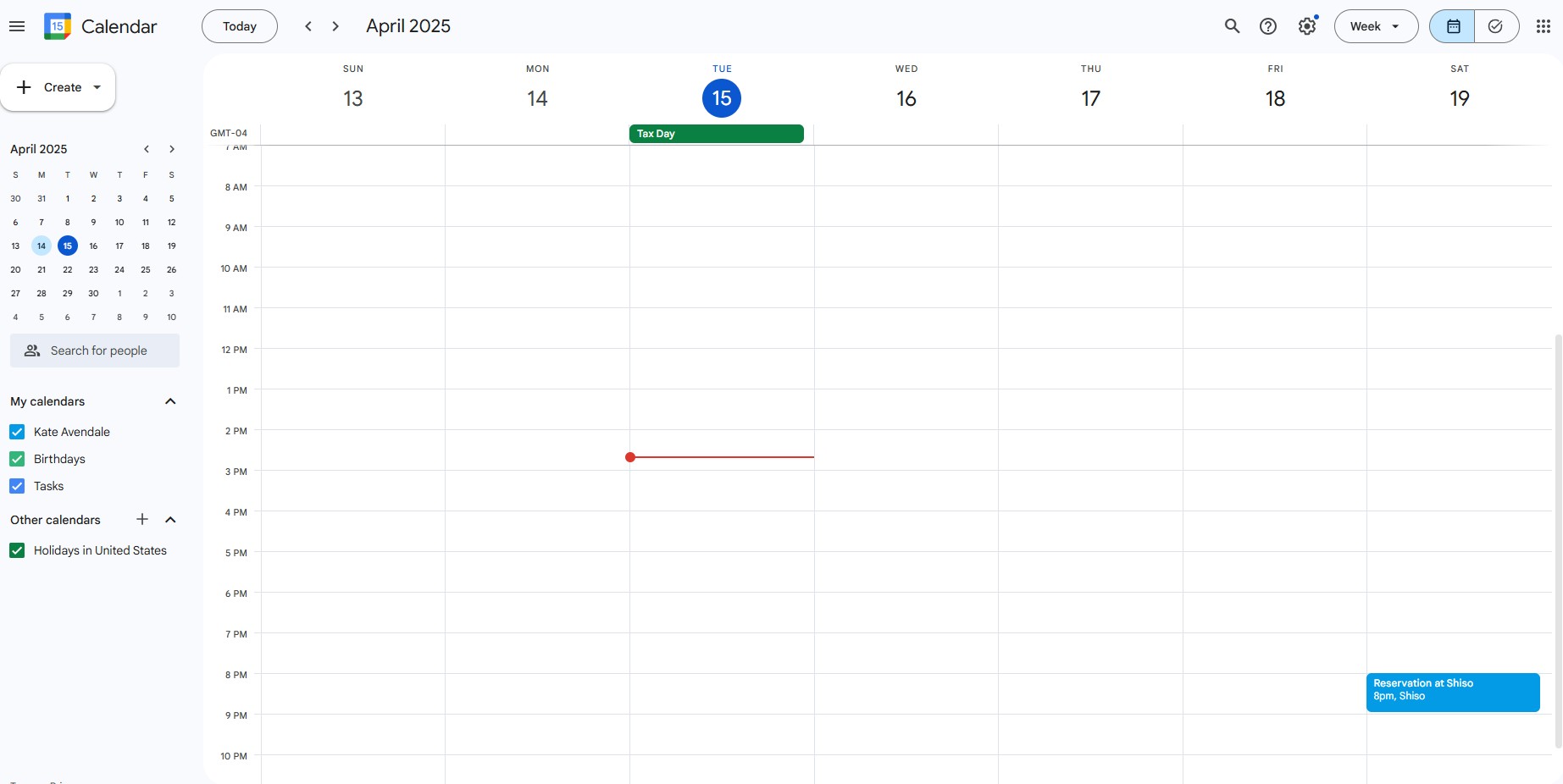
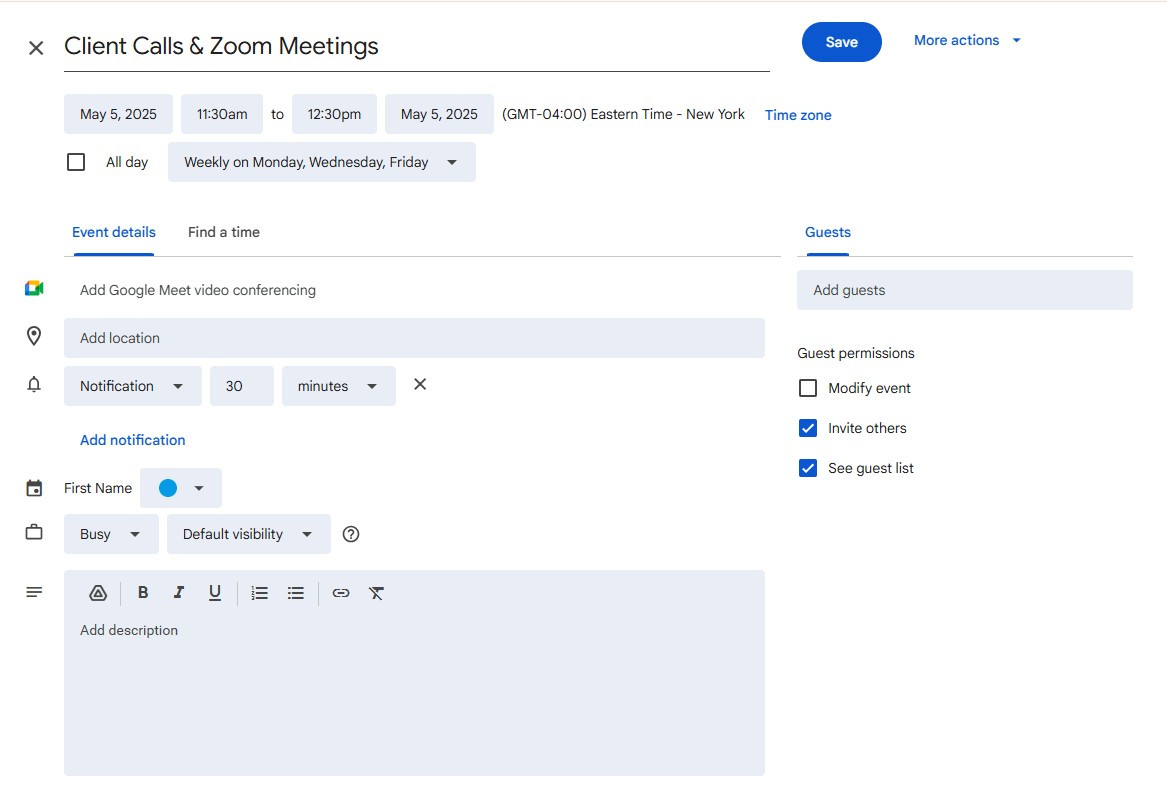
Click on the time slot where you want to work on a task. Add a short, clear title like “Client Work” or “Emails.” Adjust the duration and set it to repeat if needed.

- Use colors to categorize your tasks (focus, meetings, admin, etc.)
- Set a reminder if you want a heads-up
- Mark it as “busy” to avoid conflicts
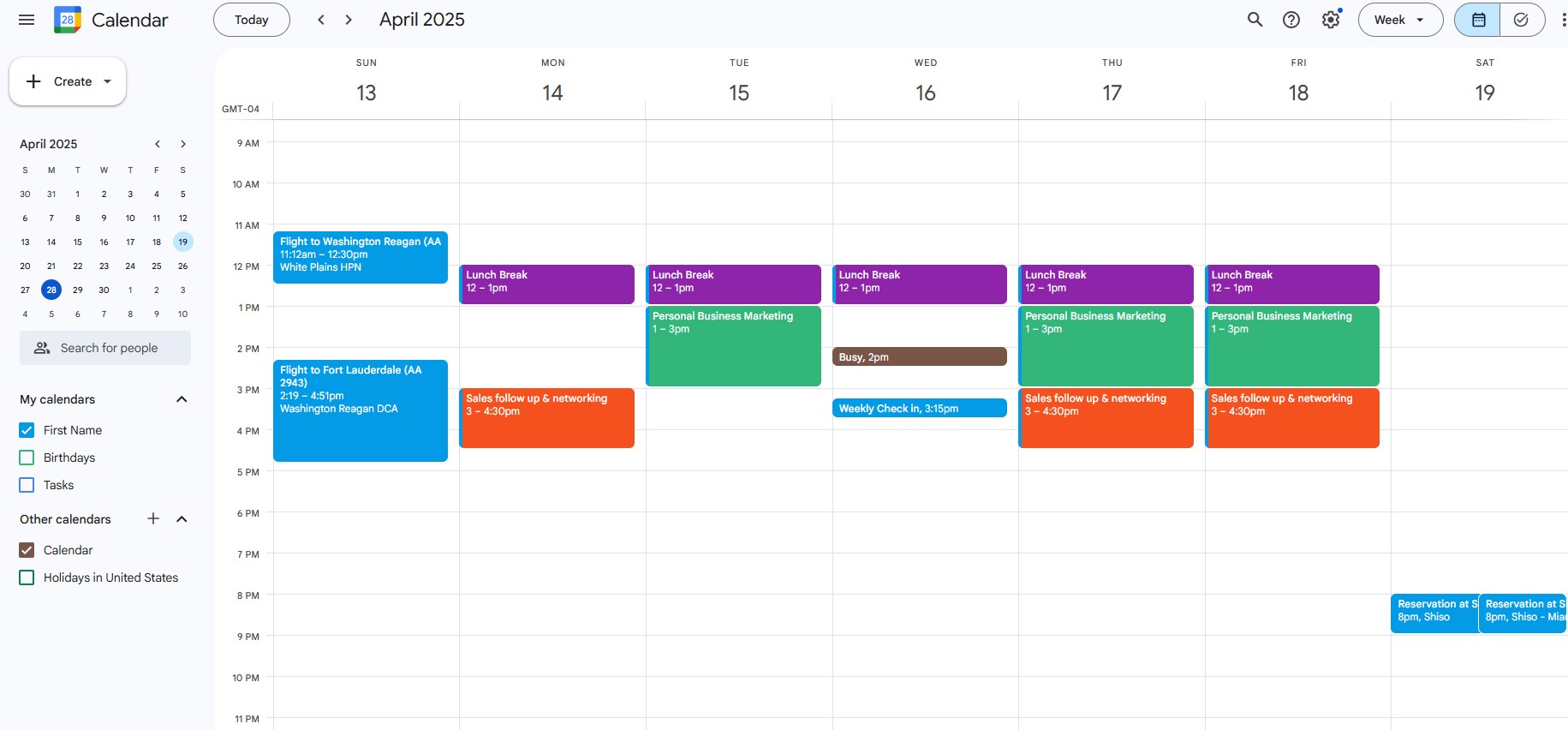
Drag and drop blocks to reorder. Add in meetings, personal time, and breaks. Make sure you’re not overloading yourself.
Tips to Make Time Blocking Stick
- Develop a habit of blocking time every day, so you get comfortable with the process and use it.
- Leave short breaks between blocks so you don’t burn out
- Add personal time like lunch, errands, or workouts
- Keep it realistic. Don’t block back-to-back meetings all day
- Use calendar colors to separate types of tasks at a glance
Example of Effective Time Blocking
Take a look at the example below to see how time blocking in Google calendar can help you.
How an Entrepreneur Uses Time Blocking
Meet Jamie, she runs a small digital services company and between regular email disruptions, phone calls and the constant change in focus switching between multiple tasks, she found herself losing focus and productivity. Every day is different, some days are filled with client meetings, others are spent writing proposals, or handling unexpected fires. Without a sold calendar blocking system in place, Jamie often found herself working 10-hour days. avoiding meeting conflicts between her personal and work calendars, and often feeling like nothing important got finished.
How Jamie uses time blocking
Instead of leaving the day open and reacting to tasks, Jamie started creating intentional time blocks on her Google Calendar:
- 7:30 AM – 8:30 AM: Gym and exercise.
- 8:30 AM – 10:30 AM: Client project work (writing, planning, building reports)
- 10:30 AM – 11:30 AM: Client calls and Zoom meetings
- 11:30 AM – 12:00 PM: Admin tasks (invoices, proposals, emails)
- 12:00 PM – 1:00 PM: Lunch and break
- 1:00 PM – 3:00 PM: Marketing for her own business (blog posts, social media updates)
- 3:00 PM – 4:30 PM: Sales follow-up and networking
- 4:30 PM – 5:00 PM: Plan tomorrow’s schedule and close out loose ends
She also:
- Color codes her calendar (client work = blue, marketing = green, sales = orange)
- Marks personal time like gym sessions and family dinners as Busy too
For entrepreneurs like Jamie, time blocking is not about squeezing more into the day.
It is about making sure the right things get done at the right time, and protecting your energy to keep growing.
Example of Jamie’s Weekly Calendar with Blocked Time:

Sync All Your Calendars with CalendarBridge
If you’re using more than one calendar, like Google for personal and Outlook for work, CalendarBridge syncs Google and Outlook in real time, and blocks off time automatically on all your calendars.
This means your time blocks show up everywhere, and no one can book over them.
CalendarBridge works with:
- Google Calendar
- Microsoft Outlook
- Office 365
- iCloud
No need to share calendars publicly or manage events manually. You stay in control of your time and your privacy.
Make Time Blocking Work, Keep All Your Calendars in Sync with CalendarBridge

Frequently Asked Questions
Time blocking in Google Calendar means scheduling specific blocks of time for your tasks, focus work, breaks, or personal activities. These are private events that reserve space on your calendar without inviting others, helping you stay organized and protect your availability.
You can block time by creating a new event, setting the start and end time, and marking yourself as “Busy.” You do not need to add any guests. Just create an event for whatever you need—focus time, errands, planning sessions—and save it.
Yes, by default, events you create without guests will show you as "Busy" during that time, if you have shared your calendar with others. This helps prevent others from scheduling over your blocked time.
Absolutely. When creating a blocked event, just select the “Does not repeat” dropdown and choose a recurring option like daily, weekly, or custom patterns to automatically reserve time across multiple days.
Yes. A meeting usually includes invited attendees and sends out invites. A time block is a personal event without guests, designed only to hold space for your own tasks or focus time.
Google Calendar itself does not sync availability across different accounts in real time. If you have a work calendar and a personal calendar, tools like CalendarBridge can sync your events between them so your blocked time is protected across all calendars.
Wrapping Up
Time blocking gives your day structure. It’s one of the most effective productivity tools out there, and it works even better when your calendars are connected and in sync.
Try CalendarBridge to simplify your scheduling and keep your time blocks protected across every account.
We recently launched Batch Sync Creation and Unified Calendar View, giving you more control and visibility across all your calendars. Create multiple syncs at once with custom filters and tags, or see everything in one place with a fully customizable dashboard.
