
If Google Calendar isn’t syncing, start with a few quick checks. First, make sure your internet connection is working. Next, update the app and check that the calendar containing the missing event is selected in the app’s menu. It’s also worth checking whether you saved the event to a different Google account.
Open Google Calendar in your browser using the same account you use on your phone. If the event appears there but not on your phone, follow the mobile troubleshooting steps below. If it’s missing in both places, check which account and calendar you saved it to.
Keeping Your Calendars in Sync
Google Calendar is widely recognized as one of the top calendar apps, thanks to its flexibility and multi-platform accessibility. Whether you’re checking your schedule on your phone, tablet, Apple watch or laptop, it’s designed to keep your calendar events in sync across all your devices.
You can even integrate Outlook with Google Calendar, allowing you to view and manage Outlook events directly from your Google Calendar interface.
But while Google Calendar shines in terms of accessibility, sync issues can occasionally get in the way. You might create an event on your desktop, only to find it missing on your Android device or iPhone. In many cases, the events are actually syncing correctly, but the calendar is hidden or the device sync settings are disabled. When calendars truly fall out of sync, it can lead to missed meetings or scheduling conflicts.
In this guide, we’ll walk through easy and effective ways to fix Google Calendar sync problems, so your availability stays consistent no matter where you check it.
Is your Google Calendar not syncing across devices? Here’s how to fix it!
If you’re an Outlook user, learn how to fix Outlook calendar sync issues.
How to fix Outlook Calendar not syncing with Google Calendar
If you share an Outlook Calendar with a Google Calendar, updates may take some time to appear depending on how the calendar is connected. Some shared calendars refresh periodically rather than instantly. This is one of the main differences between syncing and sharing calendars, since shared calendars update on a delay rather than in real time.
There are several ways to fix Outlook Calendar not syncing with Google Calendar. First make sure the Outlook calendar is actually visible in Google Calendar. If the calendar is enabled but events still aren’t updating, try the solutions below.
The most efficient way to fix Outlook Calendar not syncing with Google Calendar is by using a dedicated real-time calendar sync tool that handles everything automatically and in real time.
Instead of manually rechecking or re-adding events, a tool like CalendarBridge keeps your Outlook and Google Calendars perfectly in sync, with no extra steps required. Whether you’re updating a meeting on your work calendar or adding a personal event, the changes instantly reflect across all connected calendars and devices.
With CalendarBridge, you can sync multiple Outlook and Google accounts seamlessly, ensuring your availability stays accurate and up-to-date, no matter where you view your schedule.
Fix All Your Calendar Sync Problems with CalendarBridge

Another way to fix Outlook not syncing with Google Calendar is to manually remove and re-add your Outlook calendar in Google. This refreshes the connection and can help resolve temporary syncing issues, though it’s still a manual workaround.
Keep in mind that this method doesn’t provide real-time syncing. Depending on how the calendar is connected, changes made in Outlook may take time to appear in Google Calendar. That delay can sometimes lead to scheduling conflicts or missed meetings if your calendars aren’t fully up to date.
Go to https://calendar.google.com using your web browser. Make sure you’re signed in to the Google account that’s linked to your Outlook Calendar.
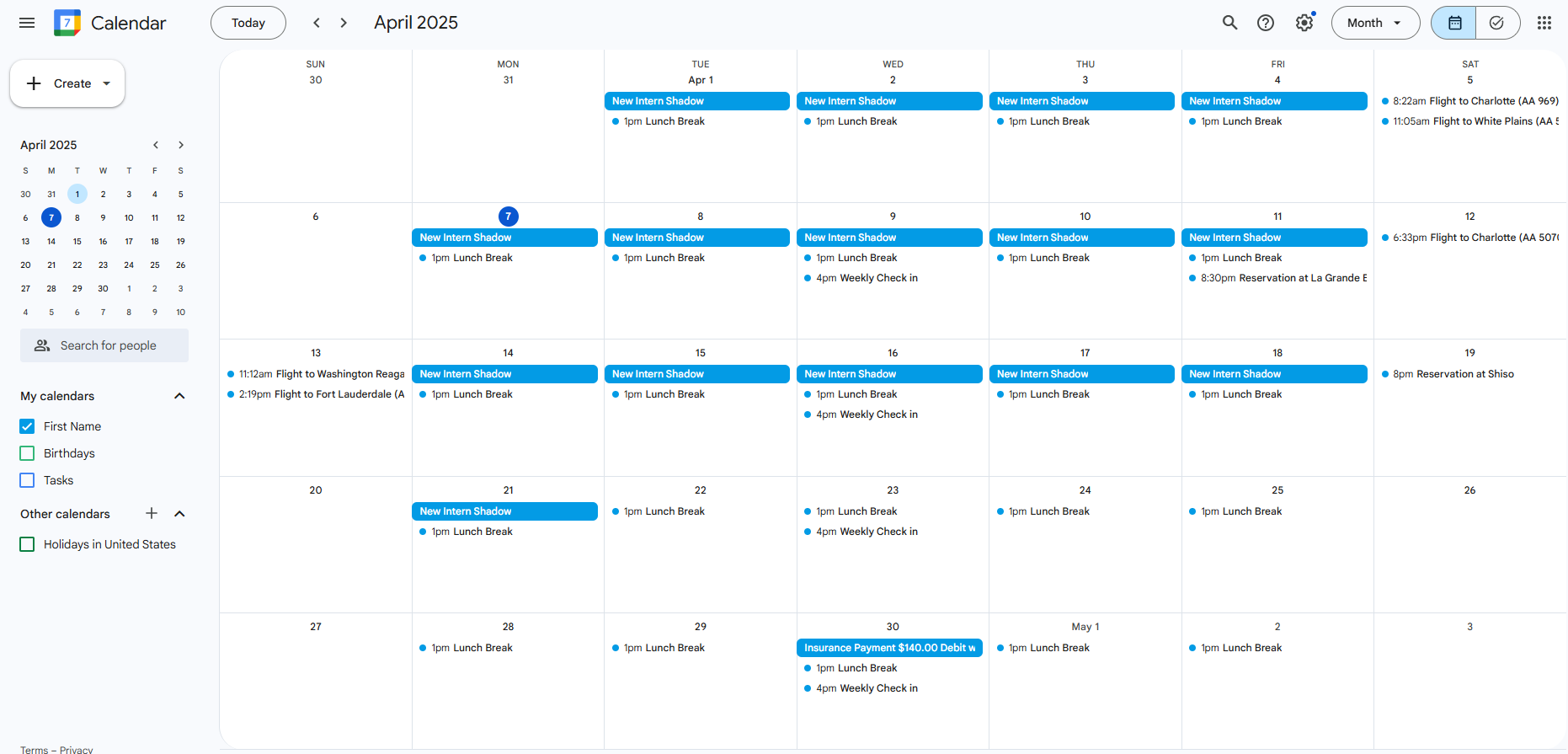
On the left-hand sidebar of Google Calendar, locate the “My Calendars” section. This is where all your connected calendars, including any linked Outlook Calendars, are listed.

Below the “My Calendars” section, you’ll see a list of all calendars linked to your Google account. Locate the Outlook Calendar you want to disconnect.


After clicking the three-dot menu, select “Settings.” You’ll be taken to the calendar’s settings page.
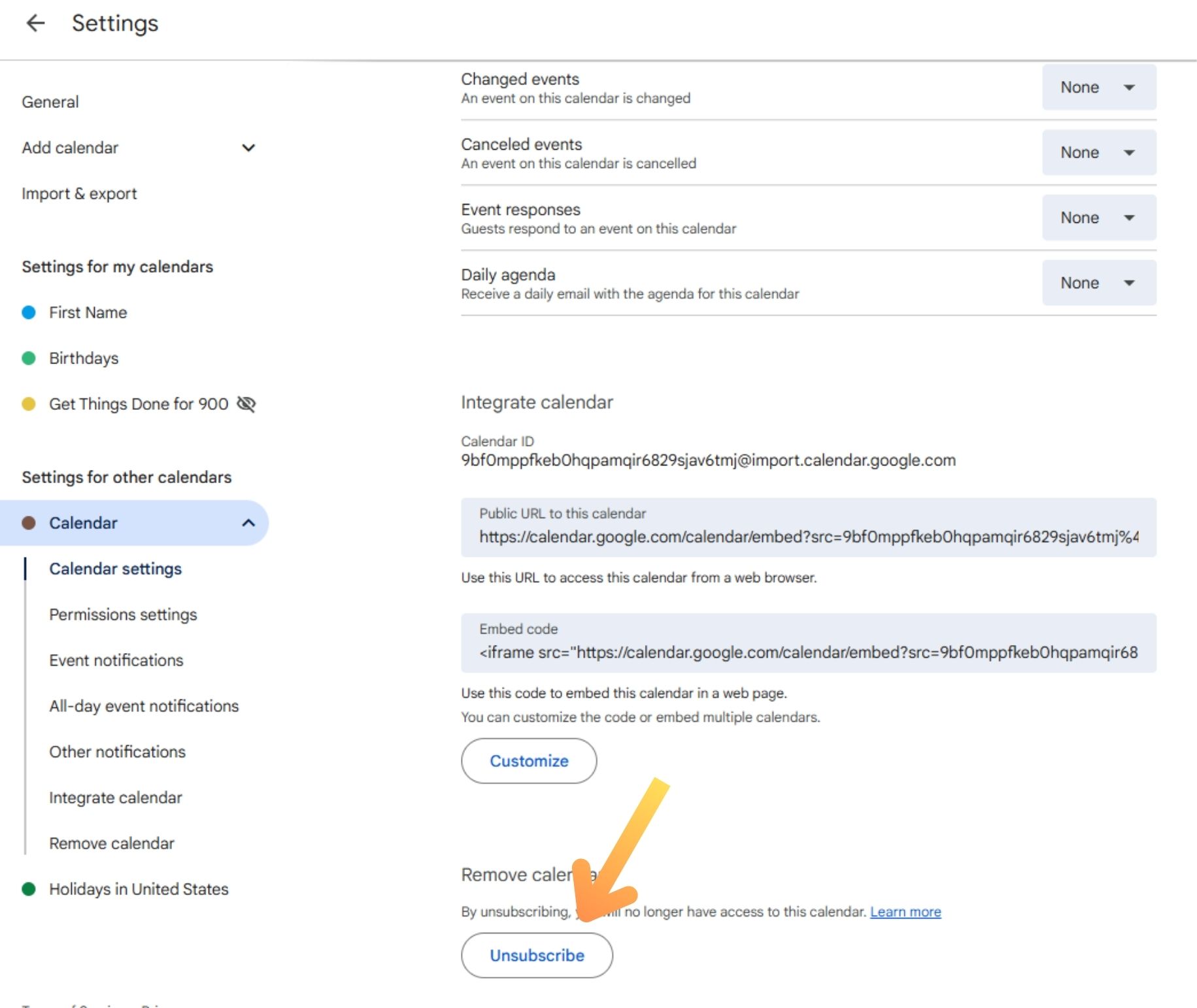
At the bottom of the settings page, click Click “Unsubscribe” or “Remove calendar,” depending on the option shown. Google Calendar will prompt you with a confirmation pop-up.
Confirm by clicking “Remove Calendar” if prompted.

Once you’ve removed the Outlook Calendar, you’ll need to once again add it back and sync Outlook to Google Calendar manually to refresh the connection.
How to Fix Google Calendar Sync Issues on the Web App
If your Google Calendar isn’t showing certain events, the issue might not be a syncing problem. In many cases the calendar is simply hidden.
Make sure the calendar is visible
Sometimes the events are syncing just fine, but the calendar isn’t enabled for viewing. To double-check:
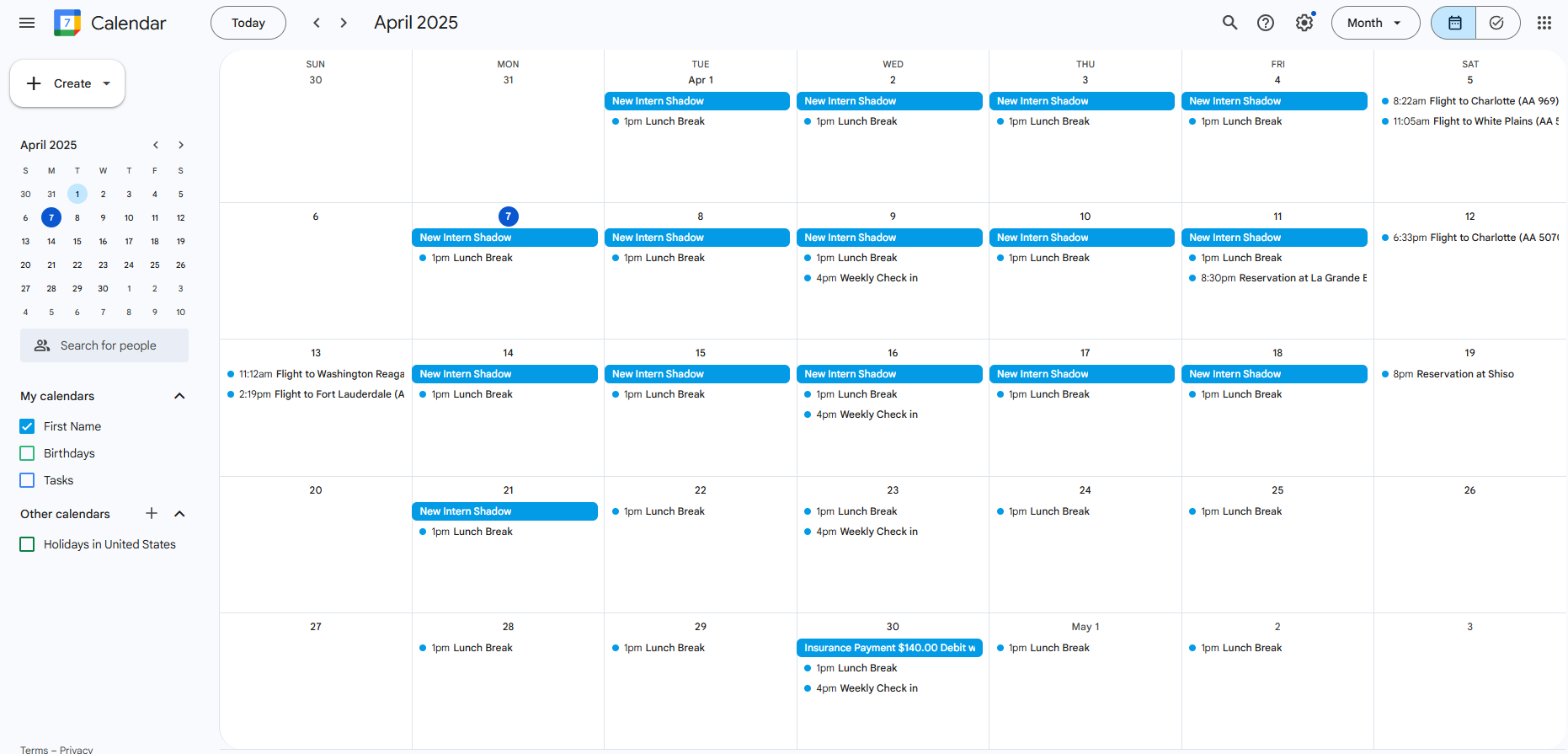
On the left-hand sidebar of Google Calendar, locate the “My Calendars” section. This is where all your connected calendars, including any linked Outlook Calendars, are listed.

Look under the “My Calendars” section on the left sidebar. All calendars connected to your Google account, including any Outlook calendars, will be listed here.
If the checkbox next to the Outlook Calendar isn’t selected, click it to turn it on. This will display events from that calendar alongside your other active calendars.

If you’ve merged multiple calendars from different accounts (Outlook, iCloud, or even another Google account) and syncing issues persist, removing and re-adding the calendar can help.
First, remove the calendar by following the steps outlined in the Manually sync Outlook and Google Calendar section above.
Then, reconnect the calendar based on the provider:
- For iCloud, follow our guide on how to sync iCloud Calendar with Google Calendar.
- For another Google Calendar, refer to our article on how to sync two Google Calendars.
Reconnecting only works for Google-to-Google Calendar sync: If you’ve imported another Google Calendar, removing and reconnecting it can help get things back on track. But when it comes to Outlook or iCloud calendars, the delays remain — updates can still take up to 24 hours to show up in Google Calendar.
If you’re tired of playing the waiting game, it might be time to consider a real-time calendar sync tool like CalendarBridge, designed to keep all your calendars instantly aligned, no matter the platform.
How to Fix Google Calendar Not Syncing on iPhone or iPad
Running into sync issues with Google Calendar on your iPhone or iPad? In some cases, the problem isn’t syncing at all, it’s that your calendar isn’t set to display on your device.
Even when your Google account is syncing correctly, you won’t see events if the calendar itself is hidden. To make sure everything is visible, follow these steps:
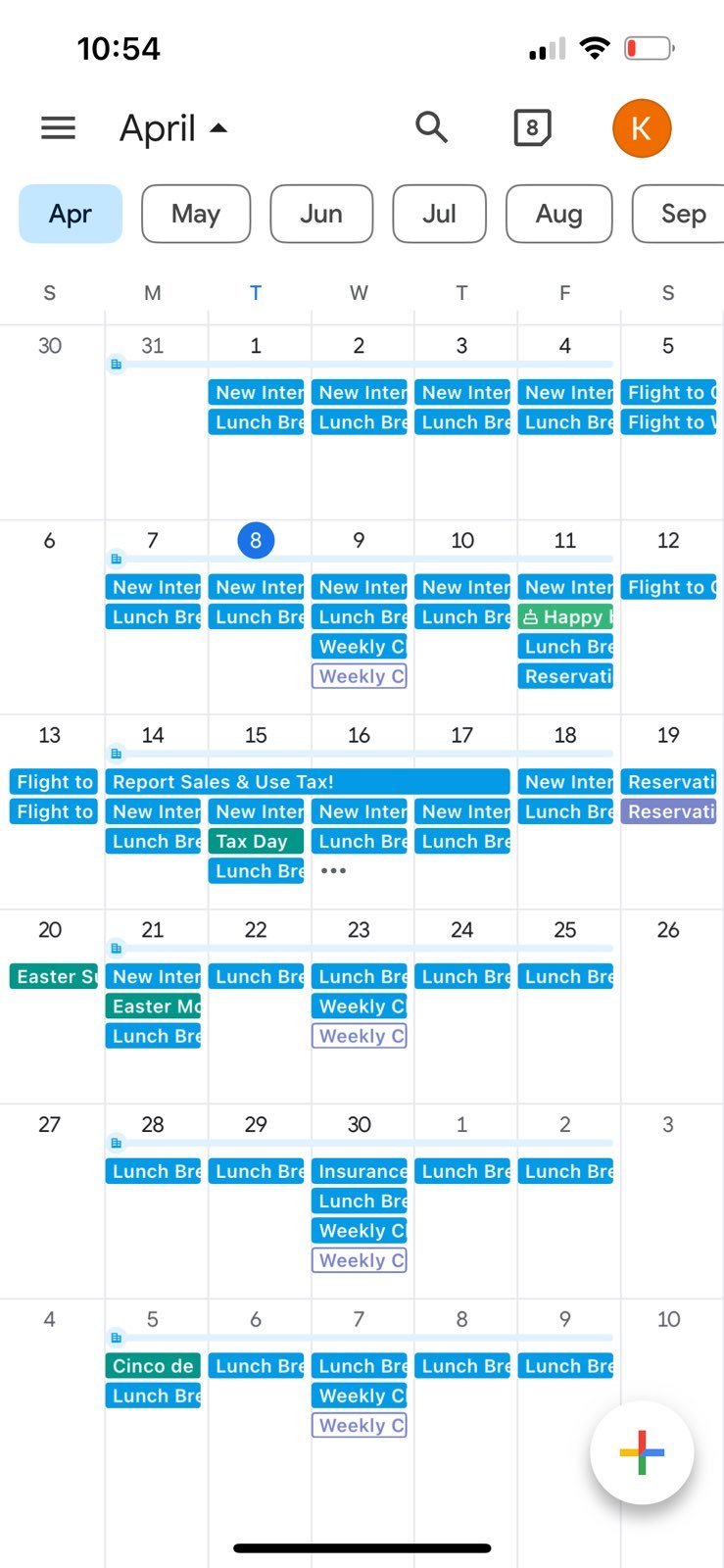
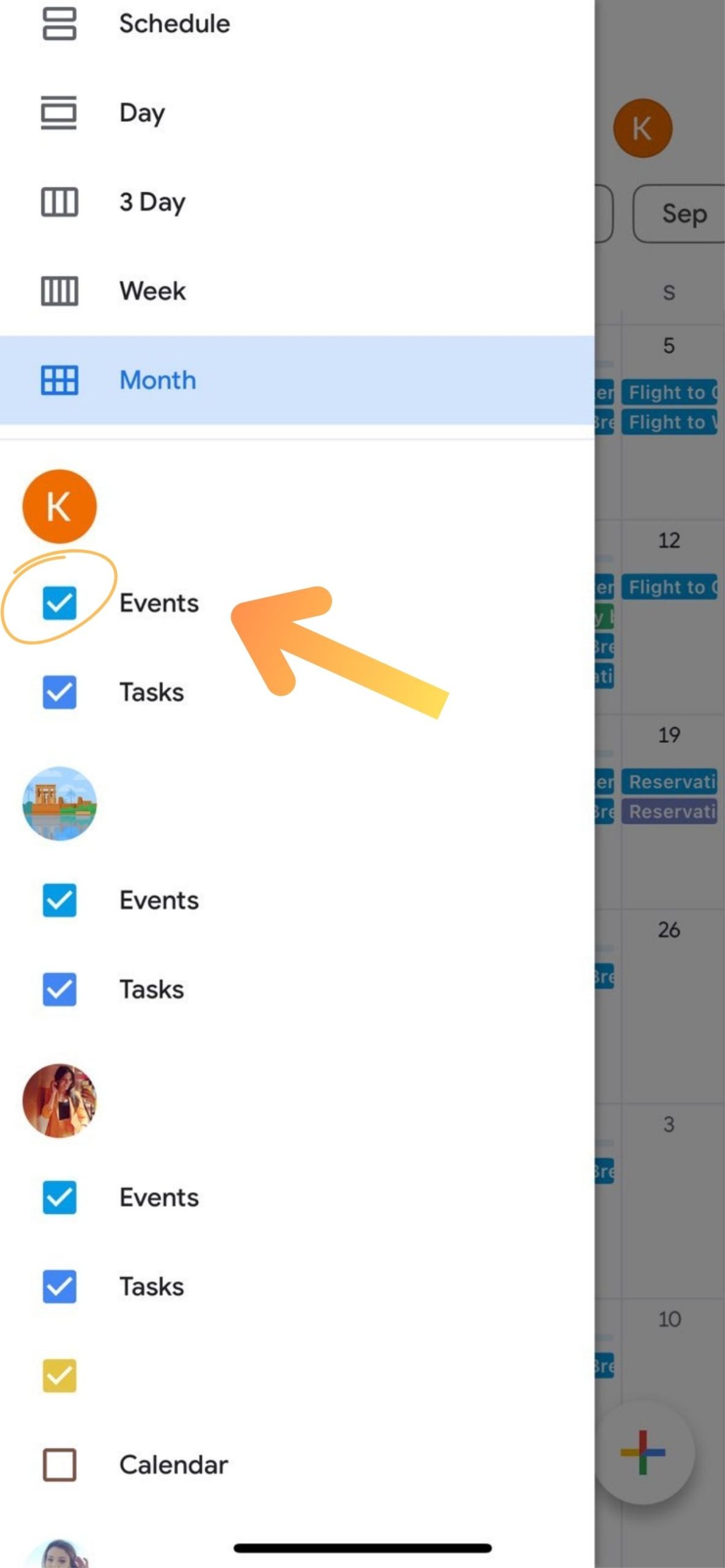
Once you’ve opened the Google Calendar app on your iPhone or iPad, tap the three-line menu (also known as the hamburger icon) in the top-left corner. This will expand the sidebar and show a list of all calendars linked to your account.

In the list of connected calendars, look for the one that’s missing events. This is the calendar that may not be properly displayed on your device.
If the checkbox next to the calendar isn’t selected, tap it to turn it on. This will allow events from that calendar to appear alongside your other visible Google Calendars.
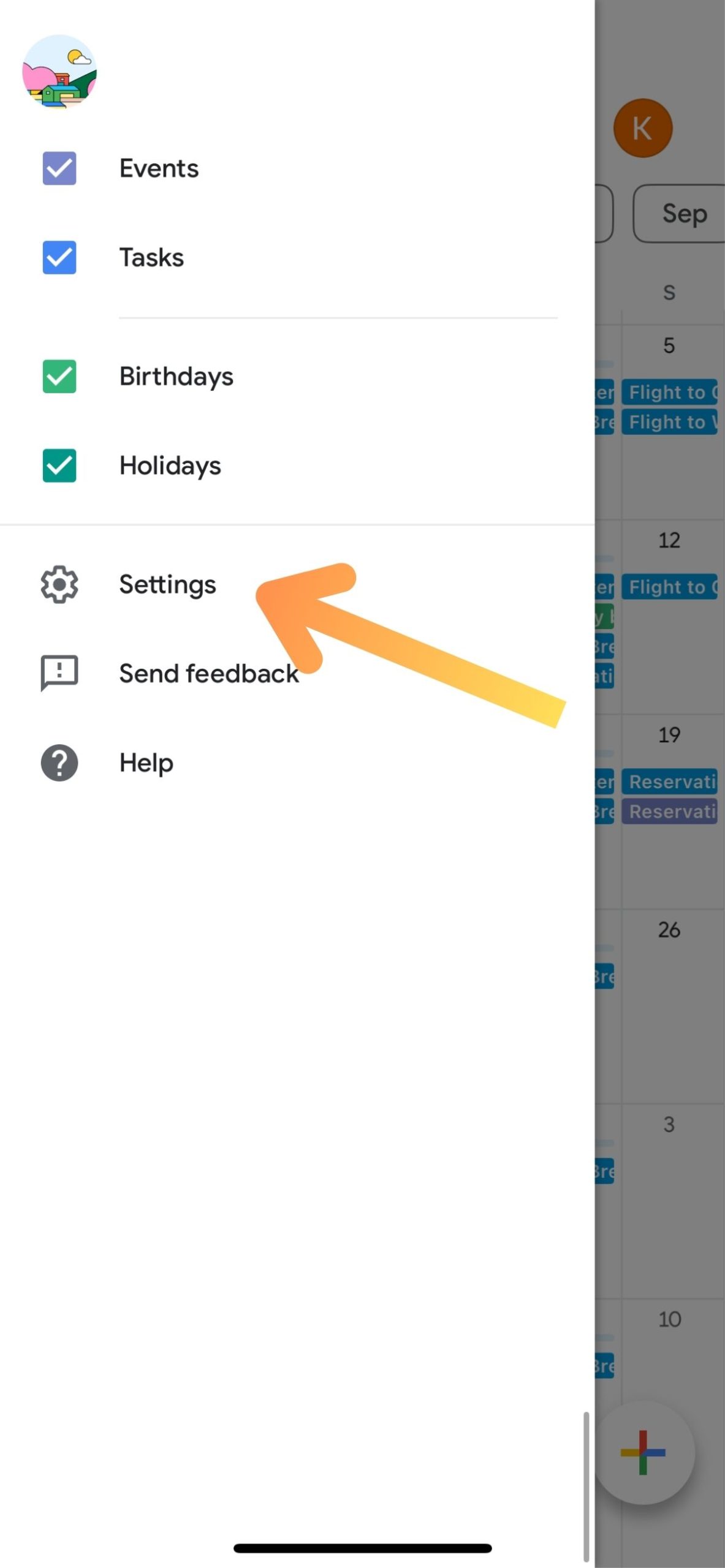
Google Calendar includes a setting that controls whether events automatically created from Gmail messages, such as flights or reservations, appear in your calendar. If these aren’t showing up, this setting may be turned off. To enable it, follow these steps:
Once you’ve opened the Google Calendar app on your iPhone or iPad, tap the three-line menu in the top-left corner. This will expand the sidebar and show a list of all calendars linked to your account.
This will open the full settings menu where you can manage calendar preferences and visibility.
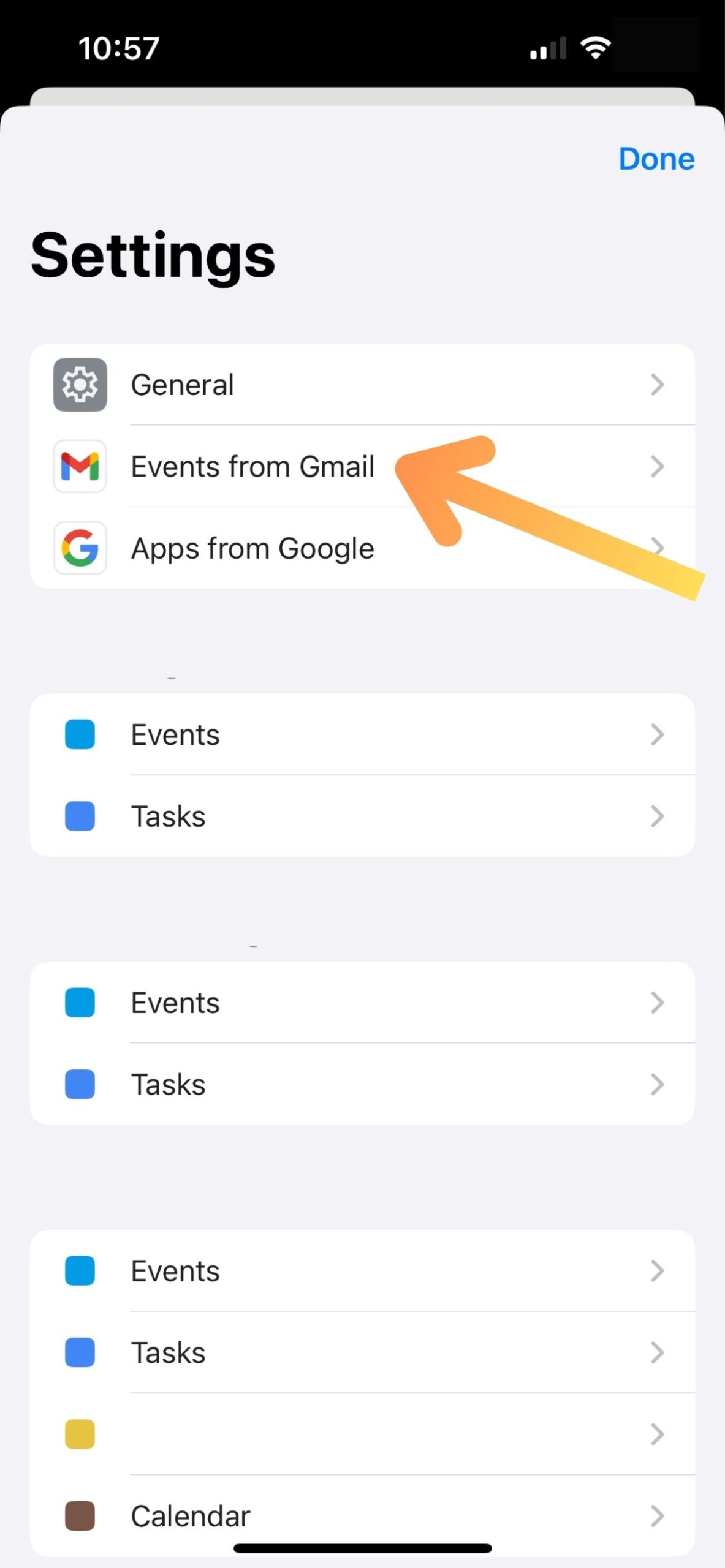
Go through each connected calendar in your list and ensure that “Show events from Gmail” is turned on. This will allow Gmail-based events to appear across all calendars you’ve synced.
If you’ve added external calendars like Outlook, iCloud, or another Google account, you won’t be able to reconnect them directly from the Google Calendar app on iPhone or iPad. To manage or re-add these calendars, use the Google Calendar web app, as outlined in the steps above.
If your main Google Calendar isn’t syncing on your device, removing the account and adding it back can often resolve the issue.
To do this follow these steps:
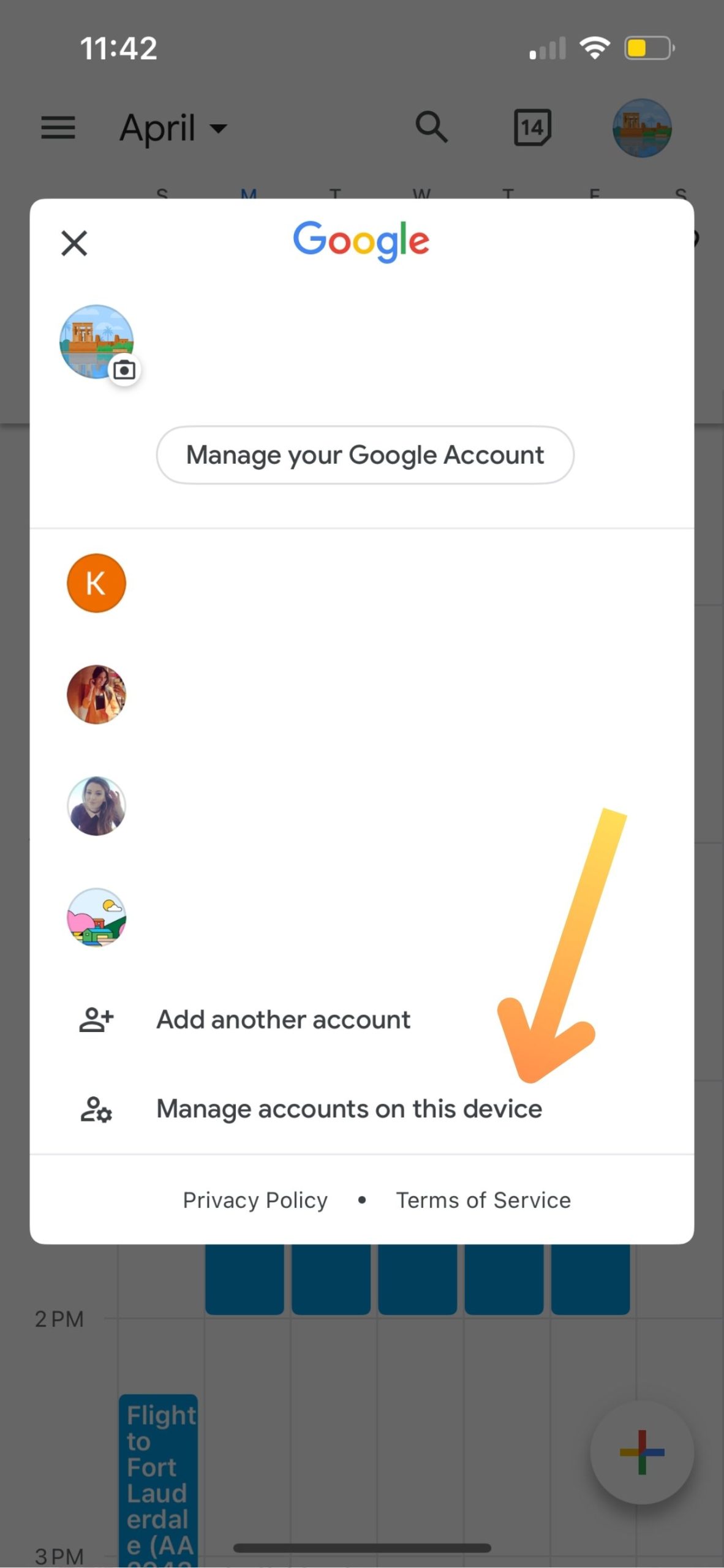
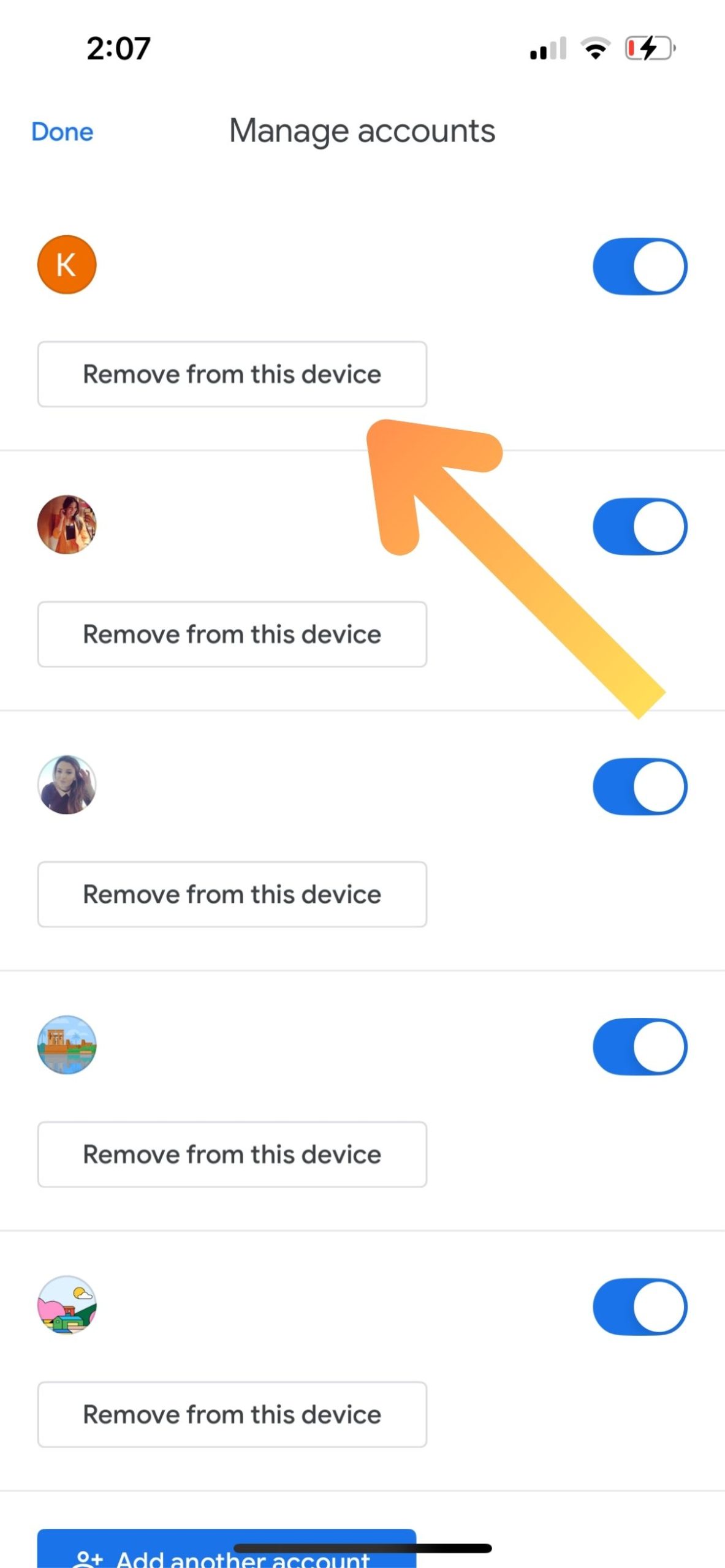
A confirmation prompt will appear. Tap “Remove” again to disconnect the account from your device.
Tap “Done” in the Manage Accounts section to go back.
This will open the account menu where you can add your Google account again.
Select this option to begin reconnecting your Google account. When prompted, sign in with your credentials to complete the setup.

If Google Calendar still isn’t syncing on your iPhone or iPad, reinstalling the app may resolve the issue.
Follow these steps to reinstall the app:
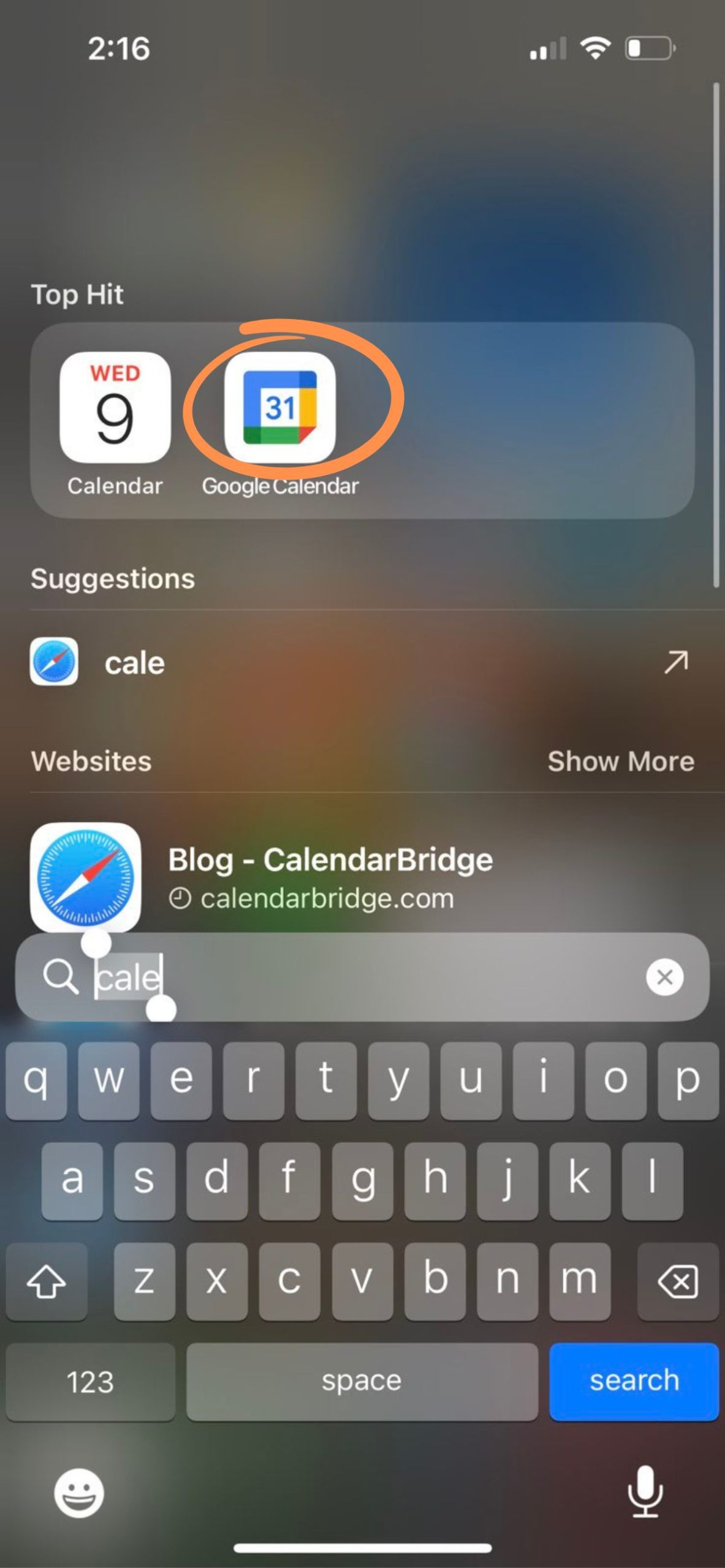
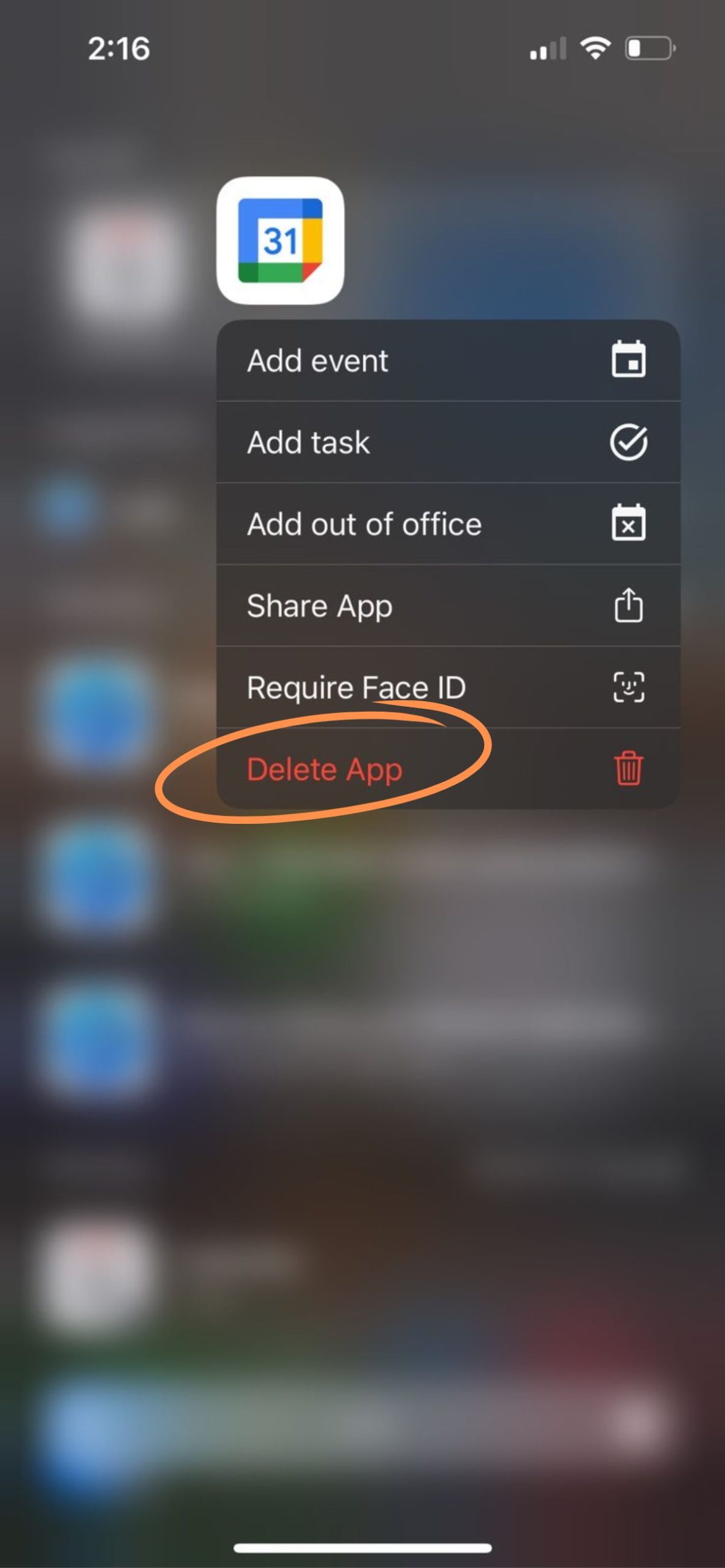

Low storage can sometimes prevent calendar data from syncing properly.
Even though most iOS devices have plenty of space, running low on storage can cause issues, including missing calendar events.
To check your available storage follow these steps:


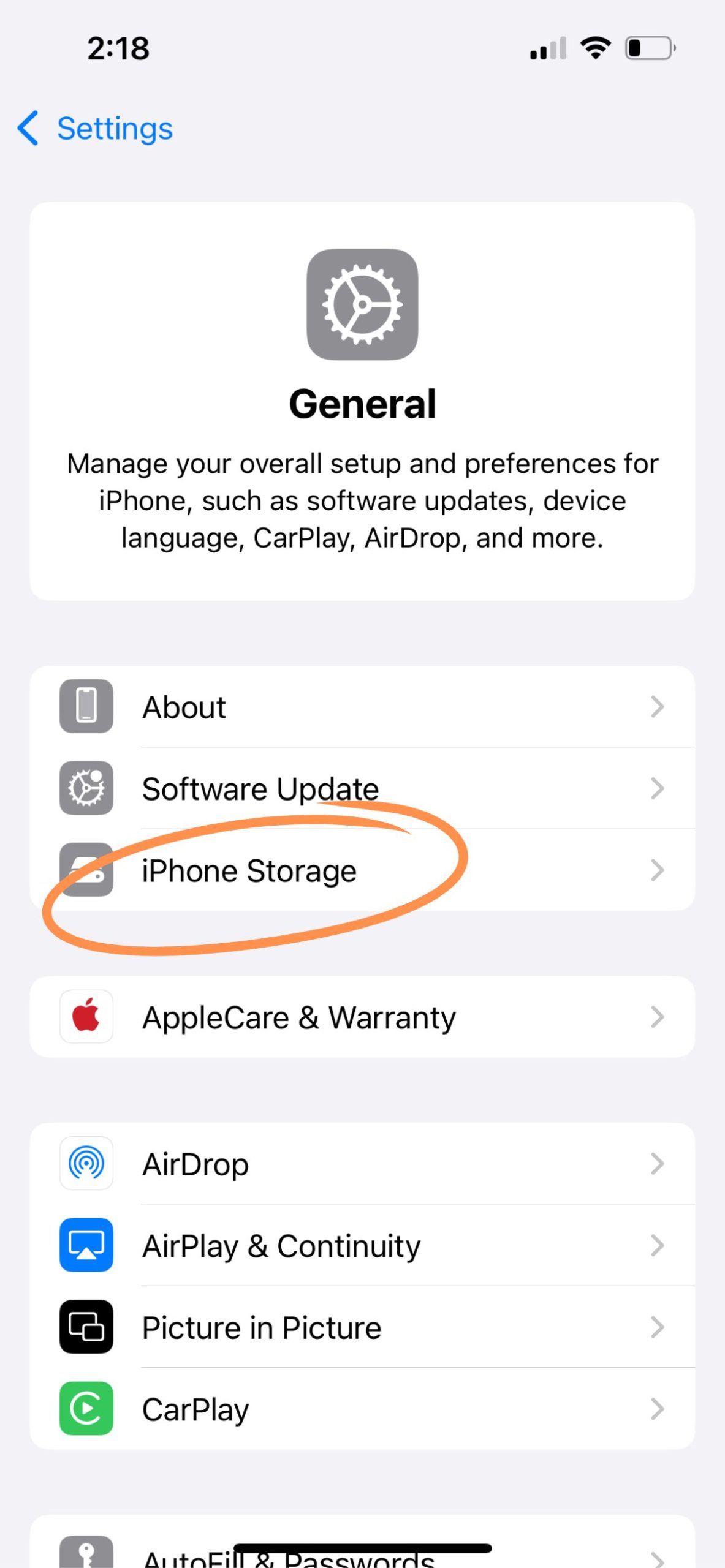
On this screen, you’ll see how much free storage is available on your device. If you have more than 10GB of space, it’s unlikely that storage is the cause of your Google Calendar sync issues on iPhone or iPad.
How to Fix Google Calendar Sync Issues on Android
If Google Calendar isn’t updating properly on your Android phone, the issue could be as simple as a hidden calendar or something deeper like low storage or corrupted app data. Here’s how to troubleshoot and fix the problem step-by-step.
Google Calendar may be syncing just fine in the background, but if the calendar isn’t turned on, you won’t see any events.
Start by opening the Google Calendar app on your Android device. Tap the menu icon in the top-left corner (the three horizontal lines). This will bring up a list of all connected calendars.
Find the calendar that’s not showing events. If it’s not checked, tap it to turn it on. Once selected, the events should appear in your calendar view.
Calendar data doesn’t use much space, but when your phone is low on storage, syncing issues can occur.
Keeping enough free storage available helps prevent apps like Google Calendar from having trouble refreshing data.
Keeping your device above that threshold helps prevent sync disruptions with Google Calendar and other apps.
If your calendar still won’t sync, clearing the app’s data can help reset any stuck processes.
Open Settings and navigate to Apps or Apps & Notifications. Tap “See all apps” and select Google Calendar from the list. Go into Storage or Storage & Cache, then tap Clear Data or Clear Storage. Confirm when prompted.
This will reset the app locally, but don’t worry, your events are stored in the cloud and will reappear once the calendar syncs again.
If the calendar that isn’t syncing is an Outlook or iCloud calendar, the reality is that Google Calendar can take up to 24 hours to reflect changes, and there’s no built-in fix for that. The only reliable way to solve this problem is by using a calendar sync tool. We recommend CalendarBridge, which offers fast, automatic, and privacy-respecting synchronization between all your calendars.
Fix All Your Google Calendar Sync Problems with CalendarBridge
FAQ: Google Calendar Not Syncing
This can happen due to hidden calendars, app data issues, outdated sync settings, or delays when syncing with external calendars like Outlook or iCloud.
Ensure the calendar is enabled, turn on “Show events from Gmail,” and try removing and re-adding your Google account or reinstalling the app.
If synced manually, it can take up to 24 hours for Outlook events to appear on Google Calendar. Real-time syncing requires a third-party tool like CalendarBridge.
In the Google Calendar app or web interface, check the sidebar. If a calendar is unchecked, it’s hidden from view but still syncing in the background.
