Why learn how to sync two outlook calendars?
This article is for people who:
- have two (or more) Microsoft accounts and thus multiple Outlook calendars (e.g., one personal and one work calendar, or two work calendars with two different companies); and
- want their availability to always be the same across all the calendars. In other words, when you are busy on the first calendar, you want the second calendar to automatically reflect that you are busy, without having to manually create entries on the second calendar.
The problem with having multiple Outlook calendars
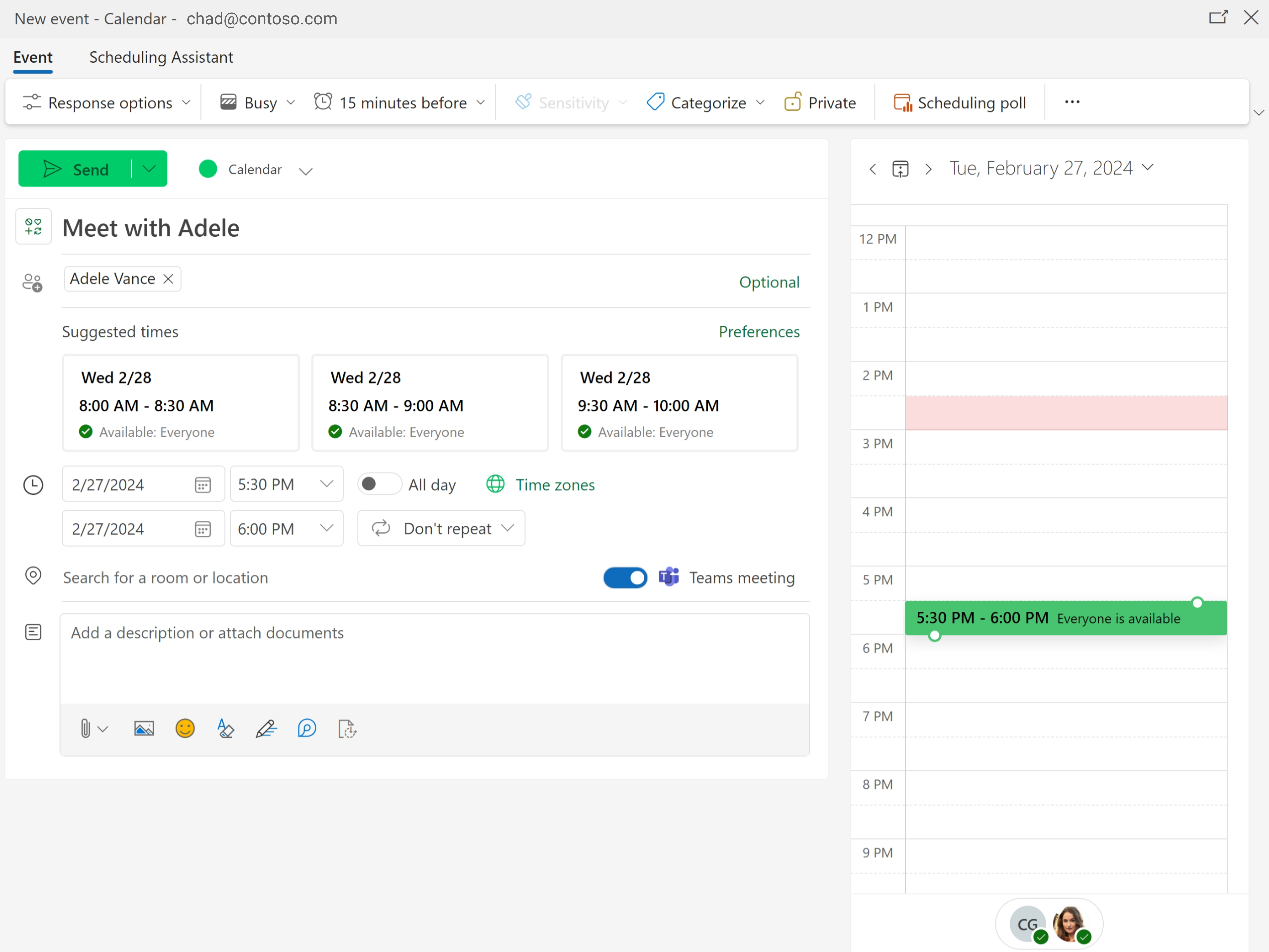
The problem with having multiple Outlook calendars is that colleagues checking your availability in Outlook will only see availability based on one of your calendars for their organization.
For example, Adele has a work Outlook calendar (adele@contoso.com) and personal outlook calendar (adelev2024@hotmail.com). Without using the syncing techniques shown in this article, Adele’s Contoso colleagues will see her availability based only on her Contoso calendar and not her Hotmail calendar.
Adele simply adding (i.e., signing into) both her work and personal Microsoft accounts in Outlook* allows her to see both calendars in a single view, but those calendars remain entirely separate from each other. When her Contoso colleagues check her availability in Outlook on their device, the availability they see will only reflect one her Contoso calendar.
*This applies to Outlook Windows (classic), Outlook Windows (New) Outlook Mac, Outlook Android, and Outlook iOS, and outlook.com Outlook on the Web (outlook.office.com) is actually different, as discussed below.**
**Yes, all the different versions of Outlook having different functionality is super confusing! 🥴
Even if coworkers know she has multiple calendars and they try to invite her other email addresses, it still will not work because users in one Microsoft 365 tenant cannot see availability for users outside their organization. In this case, users with @contoso.com email addresses can only see @contoso.com calendars, not Adele’s @hotmail.com calendar.
So if you have been getting double booked by coworkers who can’t see all your calendars, or if your boss or coworkers are just annoyed at always having to email you to check your availability, the rest of this article shows you a couple ways to sync your two (or more) Outlook calendars so that coworkers see your correct availability.
Subscribe from Web and Upload from file don't work for syncing two outlook calendars
If you run a Bing or Google search for “How to sync two Outlook calendars,” many of the top search results will recommend using “Subscribe from web” or “Upload from file.” Neither of these features will keep your calendars in sync. Here is a short summary of what those features do and their intended use.
Outlook “Subscribe from web” or “Add from Internet”
This feature, which is named differently in different versions of Outlook, will add a secondary calendar to that particular instance of Outlook and update that secondary calendar pretty infrequently (Microsoft’s docs say “updates can take more than 24 hours”).
Because the calendar is added as a secondary calendar that is separate from your primary Outlook calendar, availability on the subscribed/added calendar will not affect your availability that coworkers see in Outlook.
Also, because updates to subscribed/added calendars can take more than 24 hours, it is not useful for viewing a calendar that changes regularly. Rather, subscribe/add from web is really intended for calendars that don’t change much, such as holidays, sports team schedules, etc.
Outlook “Import” or “Upload from file”
The “Upload from file” function in Outlook is a one-time copy of events to your Outlook calendar. There is no ongoing connection to the imported calendar. Thus, “import” differs from “Subscribe from web” in two ways: (1) Outlook will not periodically check the imported calendar for updates; (2) you can import events into your primary calendar whereas “Subscribe from web” adds a secondary calendar to Outlook .
Because there is so much bad advice out there about this, it bears repeating (louder this time):
The "subscribe" and "upload from file" features of Outlook do not sync availability between Outlook calendars, and are generally too slow to be reliable
Outlook's share calendar feature also does not sync two Outlook calendars
Sharing a calendar sounds simple, right? Wrong. Calendar sharing in Outlook is so complicated (due to the various types of Microsoft accounts and various version of Outlook) that Microsoft has a 2500 word help article dedicated entirely to the subject calendar sharing in Microsoft.
It so complicated we are actually doing our own article on it, but in the meantime here are some highlights that are particularly pertinent to one user with two outlook calendars trying to syncing those two outlook calendars to each other.
- The ability to share a work Outlook calendar with someone outside your organization is often blocked by your company’s Microsoft 365 settings.
- Like a subscribed calendar, a shared calendar is added as a secondary calendar and will not block off your availability in Outlook that’s seen by your coworkers. For example, even if Adele could share her Hotmail calendar with her Contoso account, her Contoso coworkers still would not see when she is busy on the Hotmail calendar.
- How often shared calendars update depends on the type(s) of Microsoft accounts the calendar is shared between.
- Calendars shared from a personal Microsoft account to work or school Microsoft 365 account sync “instantly.”
- Calendars shared between two personal Microsoft accounts sync “instantly.”
- Calendars shared between two work or school Microsoft 365 accounts in the same tenant sync “instantly.”
- Calendars shared between work or school Microsoft 365 accounts in different tenants (where allowed by company settings) sync “every few hours.”
How to sync a personal Outlook calendar to a work or school Outlook calendar for free with no third-party tools
This first method I will show you works for the limited scenario where you:
- have 1 personal Microsoft calendar (calendars associated with @outlook.com, @hotmail.com, @live.com, and @msn.com addresses) and 1 Microsoft 365 work or school Outlook calendar; and
- need to sync from the personal calendar to the work or school calendar, but not the other direction.
If this fits your criteria, then this section will show you how you can sync your two calendars just by setting it up in Outlook on the Web (outlook.office.com).
If you have more complex calendar syncing needs, such as
- need to sync two work or school Outlook calendars
- need to two-way sync two Outlook calendars;
- need to sync more than 2 calendars
- need to also sync Google calendars
Then skip to the next section.
1. Log into Outlook on the Web (outlook.office.com)
As of March 2024, Syncing your Google Calendar to your Outlook Calendar for free, without any third-party tools, can only be done from Outlook on the Web — not from any other versions of Outlook. Please note, outlook.office.com is not the same as outlook.com, which hosts personal Microsoft calendars. This technique is not available on outlook.com.
2. Go to the calendar tab and click "Add calendar"
3. Select "Add personal calendars" and then "Outlook, Hotmail, Live, MSN"
3. Sign in to your personal Microsoft Account
Either pick the account you want to use from the list, or type in your Google username and password. Note that you are signing directly into Google — Microsoft will not see your Google password.
4. Toggle the switch to "include in my work availability"
5. Verify you now see your personal Outlook calendar when logged into your work account.
Refresh the page and you should now see your Google calendar as a separate calendar in Outlook
Now your coworkers see your combined availability across your personal and work Outlook calendars
Now when someone in Adele’s organization goes to schedule a meeting with her in Outlook, it correctly shows she is busy when she is busy on her Google calendar.
Unfortunately, using this free calendar syncing method built into Outlook on the Web, Adele’s work Outlook calendar does not sync back to her personal Outlook calendar. So if, for example, she shares her personal Outlook calendar with her friends and family, they will not know when she is busy with work.
If Adele needs availability on her personal Outlook calendar to reflect her work Outlook calendar, she will need to use the method in the next section.
How to two-way sync two Outlook calendars using CalendarBridge
If your calendar syncing needs go beyond syncing one personal Outlook calendar to one work or school Outlook calendar, CalendarBridge is the best calendar syncing service to do it.
Some example use cases of CalendarBridge:
- sync to and from personal Microsoft calendars (@outlook.com, @hotmail.com. @live.com, and @msn.com addresses)
- two-way sync between two work or school Outlook calendars
- sync up to 6 calendars in both directions or up to 36 calendars in one direction.
- two-way sync Google and Outlook calendars
1. Create a CalendarBridge account (7-day free trial)
Follow these instructions on How to Create a CalendarBridge Account to create a free 7-day trial of CalendarBridge. No credit card is required for the free trial.
2. Connect your Microsoft accounts
Follow these instructions on Connecting your Microsoft calendars to CalendarBridge. CalendarBridge connects via OAuth (“login with Microsoft”) so that we never see your Microsoft credentials and you can revoke our access at anytime from your Microsoft account settings.
3. Configure which calendar events to sync and how to sync them
Follow these instructions to create CalendarBridge sync connections. Each sync connection defines:
- a source calendar from which to copy events/availability
- a destination calendar to which to copy the events/availability
- privacy settings to control which specific fields/information you want to sync. You can sync all details, no details (just create “busy” slots on the destination calendar), or somewhere in between.
- filters to exclude certain events from syncing.
4. View your synced calendars
With sync connections setup in both directions, availability on Adele’s two Outlook calendars will always stay in sync. Whether its friends and family checking her personal Outlook calendar, or colleagues checking her work Outlook calendar, everyone sees Adele’s accurate availability.
Why sync two Outlook Calendars with CalendarBridge?
- Calendar updates sync in seconds. Unlike the upload from file, subscribe from web, and add from Internet features built into Outlook, CalendarBridge continuously monitors your Outlook calendars and provides automatic, real-time calendar syncing so you and your colleagues always see your up-to-the-minute availability.
- Privacy controls. With CalendarBridge you can sync as little or as much detail between calendars as you want. If you want to be able to see all the details of your events in both calendars, you can do that. If you want to make sure even I.T. administrators can’t see the details of your synced events, you can do that too.
- Simple setup. Setting up CalendarBridge to sync two Outlook Calendars takes just a few minutes. There is nothing to configure or install on any of your devices.