
Introduction
If your Google Calendar is not showing up on your Android phone, the fix is usually pretty simple. In most cases, you need to do three things.
- Install the Google Calendar app
- Add your Google account to the device
- Make sure Calendar sync is turned on in your account settings
Once that is set up, your events should appear automatically in the app. This guide walks through the exact steps needed to add your calendar to an Android device, then we cover the most common reasons Google Calendar is still not syncing on Android.
Step 1: Install Google Calendar
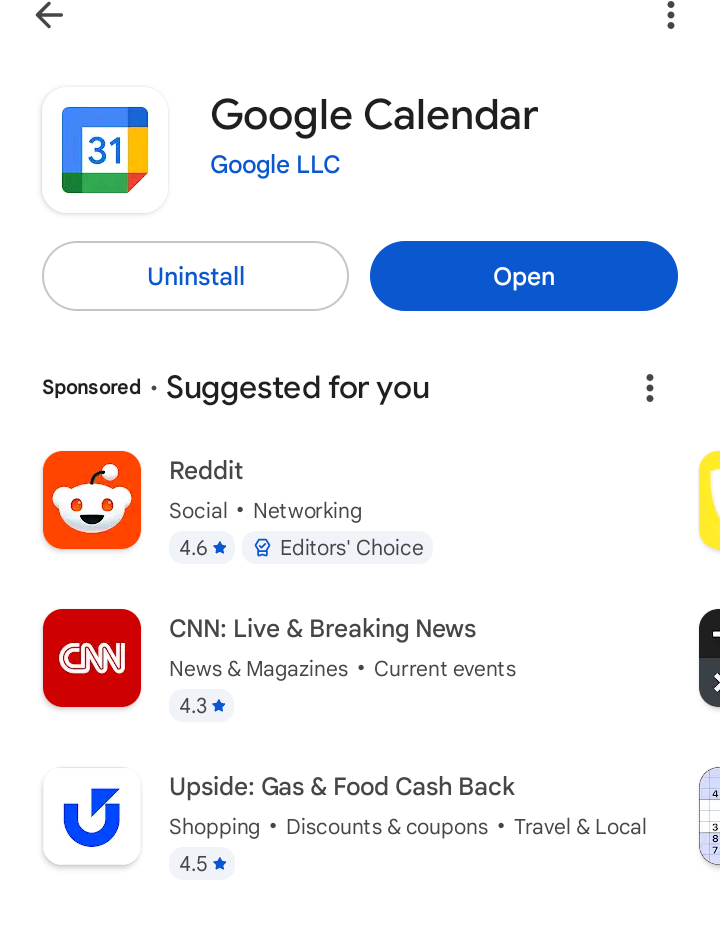
Most Android devices already have Google Calendar installed, but not all of them do. If you do not see the app on your phone, open the Play Store, search for Google Calendar, and install it. (Link to Google Calendar in the Play Store) Google says that when you open the app on Android, your events will sync with your account.
Step 2: Add Your Google account to your Android device
Your calendar cannot sync unless your Google account is connected to the phone itself.
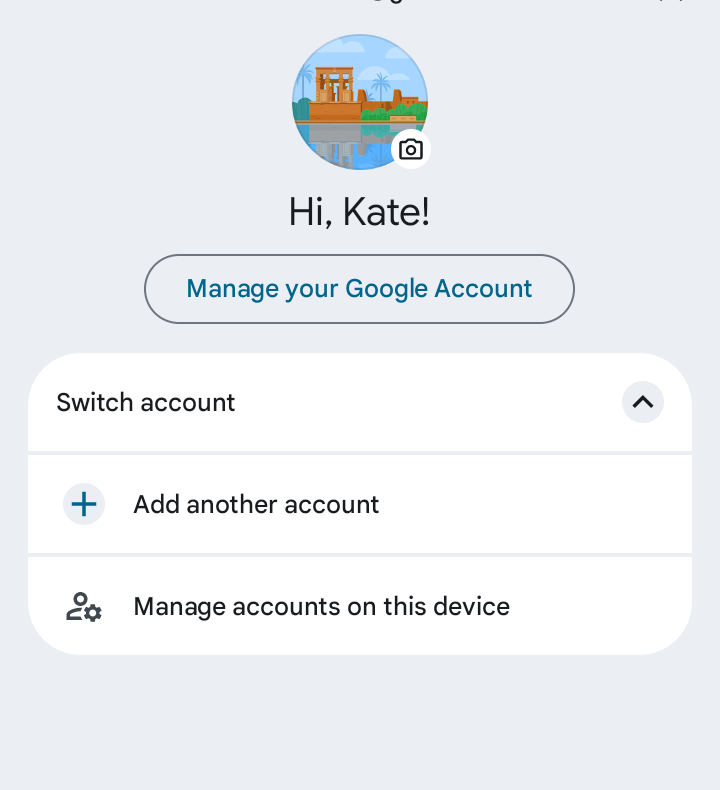
On Android, open the Settings app, then go to the accounts section. On many devices this appears as Passwords, passkeys & accounts.
On some devices, the wording may be slightly different, which Google specifically notes can happen depending on the phone manufacturer and Android version.
From there, select Add account, choose Google, and sign in with the account you want to use.

Step 3: Turn on Calendar Sync
This is the step that matters most, and it is the one people miss all the time.
After your Google account is added, go back into the account settings, select your Google account, tap Account sync, and make sure Calendar is turned on.
Google’s official troubleshooting steps say this is where you confirm that Calendar sync is enabled for your account.


Step 4: Check that the right calendar is enabled inside the app
Once sync is turned on, open the Google Calendar app. Tap the menu in the top left, go to Settings, and select the calendar that is not appearing. If needed, tap Show more to see additional calendars.
For calendars you create in addition your main Google calendar, the Sync setting must be on. Also note that your primary calendar may appear as Events unless you renamed it. Google adds that it can take some time for events to appear after you turn sync on.

What to do if Google Calendar is still not syncing on Android
If you followed the steps above and your events still are not showing up, Google recommends starting with a few basic checks.
- Make sure your phone has an internet connection
- Update the Google Calendar app in the Play Store
- Confirm that the calendar is actually visible in the app menu
You also need to make sure new events are being added to the correct Google account, because events saved to a different calendar account may not appear where you expect them.
A few quick fixes worth trying are:
- Open Google Calendar and tap Menu, then make sure the box next to the calendar name is checked
- Update the Google Calendar app in the Play Store
- Open the app menu and tap Refresh to manually sync (pictured below)
- Double check that the event was created under the Google account you are viewing
If nothing else works, follow Google’s deeper troubleshooting steps for storage, Calendar storage, or clearing app data

Why this gets more confusing with multiple calendars
Syncing Google Calendar to Android is straightforward when you are only using one Google account. Things get messier when your schedule is spread across multiple Google accounts, work calendars, Outlook, or other calendar systems.
Google’s own help docs separate syncing inside the Google Calendar app from syncing calendars in other applications or systems like Outlook or iPhone, which is part of why users often think Android should combine everything automatically when it does not.
If you’re still having problems, review our guide to troubleshooting Google calendar sync issues.
That is usually the point where people stop asking, “How do I sync Google Calendar to Android?” and start asking, “How do I make sure my Android phone shows my full real schedule?”


When Android sync is not enough
If all of your calendars already live in Google, Android may be enough. But if your work and personal schedules live in different places, Android alone does not solve the bigger problem. You can still end up checking multiple calendars, missing conflicts, or only seeing part of your availability.
That is where a calendar syncing tool like ours becomes useful. Instead of relying on your phone to somehow merge everything, CalendarBridge syncs calendars together first so the calendar on your Android device reflects a more complete schedule.
CalendarBridge also offers AI scheduling as part of its broader scheduling workflow, which is useful once the calendar foundation is accurate.
Did The Clockwise Shutdown Leave You Hanging? Try CalendarBridge Instead
No credit card required
Frequently Asked Questions
The most common reasons include Calendar sync being turned off, the wrong account being selected, or the app needing an update. You should also check your internet connection and confirm the calendar is visible inside the app.
Yes. Once your Google account is connected and Calendar sync is enabled, your events will sync automatically in the background and update in real time across your devices.
Open the Google Calendar app, go to Settings, and select the calendars you want to display. You may need to tap “Show more” to see all available calendars.
This usually happens when events are stored under a different Google account or when a specific calendar is not enabled in the app. Make sure you are signed into the correct account and that all relevant calendars are turned on.
Yes, Android can display multiple Google calendars, but each one must be connected to your device and enabled individually in the app settings.
What if I use Google Calendar and Outlook together?
Android does not automatically merge calendars from different platforms. If you use both Google Calendar and Outlook, you may need a syncing tool to keep everything aligned and avoid conflicts.
Yes, real-time sync ensures that busy time is reflected across all calendars instantly.
Final Thoughts
If you want to sync Google Calendar to Android, start with the simple path we outlined above. If you only use one Google account, that will usually solve it.
If your schedule lives across multiple calendars or platforms, that is when you need to think beyond basic Android setup and look at a syncing layer that keeps everything aligned.
