Summary
The most reliable way to use Google Calendar in Outlook is to connect your Google account directly through New Outlook. If you need to keep a separate Google calendar and Microsoft calendar aligned, use an ongoing two-way synchronization solution rather than importing a calendar or subscribing to an ICS feed.
You create a meeting in Outlook. On your PC, it looks like it is on your Gmail calendar. Then you open Google Calendar on your phone, and the meeting is missing. A common cause is that Outlook saved the event to a different calendar than the one you thought you were editing.
Many Google Calendar users prefer to manage their email and schedule through Outlook because Google does not offer a dedicated Google Calendar desktop application for Windows or Mac. However, the way an account is added to Outlook determines whether calendar events remain consistent across Outlook, the Google Calendar website, and the Google Calendar mobile app.
Connecting Gmail directly to Outlook lets you manage the same Google Calendar from Outlook. Synchronization software is needed when you want separate Google and Microsoft calendars to copy events or availability between them.
This can become especially confusing for people with a Microsoft 365 Personal or Family subscription. These plans include desktop applications such as Word, Excel, and Outlook, but they do not necessarily provide business email hosting or an Exchange calendar for an existing Gmail address.
That distinction is critical because it can create duplicate or misleading calendars inside Outlook that don’t actually sync with your Google Calendar. If you’ve ever wondered why an event shows up in Outlook but not on your Google Calendar (either in the Google Calendar mobile app or in a browser at calendar.google.com), this is why.
This guide explains the common causes of that problem, the correct way to connect a Google account to Outlook, and how CalendarBridge can help keep separate Google and Microsoft calendars synchronized.
Why Classic Outlook Can Cause Problems for Google Calendar Users
Classic Outlook for Windows may provide limited Google Calendar functionality, particularly when a Gmail account is configured for email through IMAP without a corresponding Google Calendar connection.
When a Gmail account is added to Classic Outlook using IMAP, Outlook connects to the account for email. IMAP does not synchronize calendar data. This means the Gmail inbox may work normally while the Google Calendar remains disconnected.
Calendar invitations sent to the Gmail address may still appear in Outlook. If the Google calendar is not connected, accepting or manually saving an invitation may place the event on Outlook’s default calendar rather than on Google Calendar. This can create differences between the events shown in Outlook and those shown in Google Calendar.
For users who rely primarily on Google Calendar, New Outlook generally provides a more direct account connection than Classic Outlook.
Why Importing a Google Calendar into Outlook Does Not Keep It Synchronized
Importing a Google Calendar into Outlook creates a copy of the calendar as it exists at the time of the import.
Any events added, removed, or changed later in Google Calendar will not automatically update the imported copy in Outlook. Importing can be useful when someone needs a one-time snapshot, but it is not a continuing synchronization method.
Why Subscribing to a Google Calendar Can Create Delays
Subscribing to a Google Calendar through an ICS link allows Outlook to check the calendar for updates periodically.
This is more useful than a one-time import, but it is still not the same as real-time synchronization. Updates may be delayed because Outlook refreshes subscribed calendars periodically rather than immediately. Changes made in Outlook may not be written back to Google Calendar.
For a fuller explanation of these approaches, see our guide on How to Sync Outlook and Google Calendars.
How Microsoft 365 Personal and Family Accounts Can Create Confusing Calendars
A Microsoft 365 Personal or Family subscription gives the subscriber access to Outlook and other Microsoft desktop applications. However, the subscription does not turn an existing Gmail address into a Microsoft-hosted email and calendar account.
When you open Outlook, choose that you want to connect a Microsoft account, then login with an email address that has a Microsoft 365 “for home” plan you will see this:
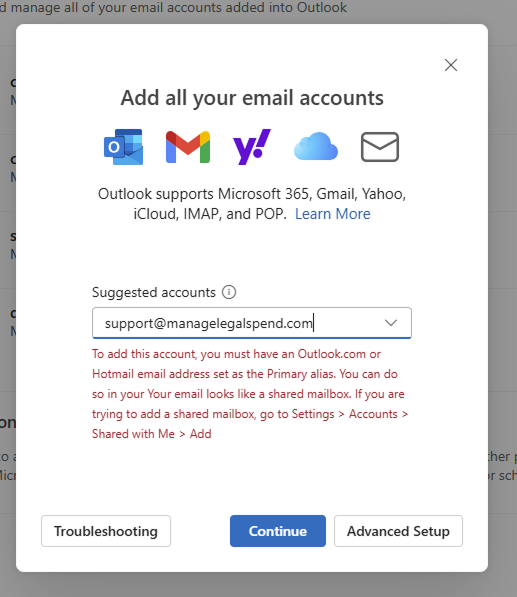
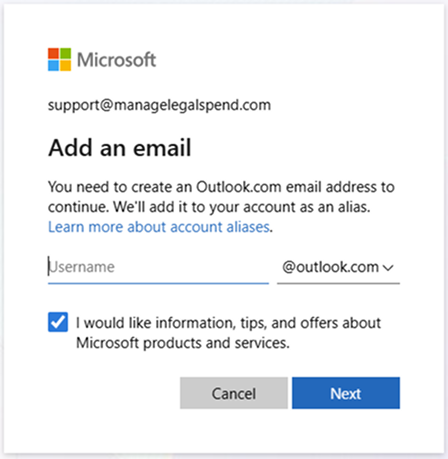
Consider the following example:
- Jane has a Microsoft 365 subscription registered under janedoe@gmail.com.
- She signs in to Outlook with that address.
- Depending on how the Microsoft account and Outlook subscription are configured, Microsoft may ask her to create or use an Outlook.com address (such as janedoe@outlook.com) for Microsoft email and calendar services.
- The Gmail address may remain a sign-in alias for the Microsoft account, while any Outlook.com address belongs to Microsoft’s separate email and calendar service.
This arrangement can make it appear that events created in Outlook belong to janedoe@gmail.com when they may actually be stored in Outlook’s default calendar, a local calendar in Classic Outlook, or a Microsoft calendar associated with the account.
If Jane then signs in to Google Calendar at calendar.google.com, she may not see those events because they were never saved to her Google Calendar.
Invitations sent to janedoe@gmail.com can create additional confusion. Outlook may display the invitations or add them to a calendar available on the computer, but the resulting event may not appear consistently in Outlook on the web, Google Calendar in a browser, or the Google Calendar mobile app.
The calendar a person sees can therefore depend on which application or device they are using.
If you primarily use Google Calendar through Outlook, New Outlook generally provides the most straightforward setup. Add the Gmail address as a Google account rather than treating it only as the sign-in address for a Microsoft account.
How to Connect your Google Account the Right Way
Use New Outlook and add the account as a Google account.
In New Outlook:
- Open the account settings.
- Select Add account.
- Enter the Gmail address and continue.
- When redirected to Google, sign in and approve the requested permissions.
- Sign in through Google and approve the requested permissions.
- Confirm that the Google Calendar appears in Outlook.
This setup allows Outlook to act as an interface for the connected Google account instead of relying on a local calendar copy or an email-only IMAP connection.
After setup, create a test event in Outlook and confirm that it appears at calendar.google.com. Then edit the event in Google Calendar and confirm that the change appears in Outlook.
Testing in both directions helps verify that events are being saved to the intended calendar.

Check the Calendar Before Creating an Event
Even after connecting the account correctly, Outlook may display several calendars at the same time.
Before creating an event, confirm that the selected calendar belongs to the Google account rather than a local Outlook calendar, an Outlook.com calendar, or another Microsoft account.
This is especially important when Outlook displays calendars with similar names or colors. Selecting the wrong calendar can make an event visible on one device while leaving it unavailable everywhere else.
How CalendarBridge Helps Keep Google and Microsoft Calendars Consistent
Connecting a Google account directly to New Outlook helps a user access the same Google Calendar through Outlook. However, it does not automatically synchronize that calendar with separate Microsoft 365, Outlook.com, or Exchange calendars.
CalendarBridge is designed for people who need events and availability to remain consistent across separate calendar accounts.
CalendarBridge can synchronize events between supported Google and Microsoft calendars so that changes to a source event are reflected in connected calendars according to the user’s synchronization settings. This can help reduce duplicate bookings, missing events, and differences between the calendars people use across devices and platforms.
Unlike a one-time calendar import or a read-only subscription, calendar synchronization maintains an ongoing connection between the selected calendars.
No credit card required
Frequently Asked Questions
It depends on how the account is added. When a Gmail account is connected directly in New Outlook, Outlook can display and manage its Google Calendar. An imported calendar is only a snapshot, while an ICS subscription is generally read-only and does not provide two-way synchronization between separate Google and Microsoft calendars.
Outlook often creates a local calendar that looks real but isn’t connected to Google. This can cause confusion and missing events.
In the New Outlook app, add your Gmail account as a Google account. This connects Outlook directly to Gmail and Google Calendar for proper syncing.
Yes, but only if you connect Outlook to your Google account directly. If you use the ICS feed method, events are read-only.
CalendarBridge creates a true two-way sync between Google, Outlook, and even iCloud. Changes update in real time across all platforms and devices.
Conclusion
To use Google Calendar through Outlook, connect the Gmail account directly in New Outlook and confirm that events are being created on the Google calendar rather than on a local or Microsoft calendar.
Avoid relying on a one-time import when continuing updates are required, and be aware that an ICS subscription may introduce delays and may not support changes in both directions.
When a user needs separate Google and Microsoft calendars to remain aligned, CalendarBridge can provide ongoing synchronization between the supported accounts.