
Introduction
If you want to use Google Calendar on your iPhone, there are two simple ways to do it. You can add your Google account to your iPhone so your events appear in Apple Calendar, or you can use the Google Calendar app on your iPhone.
The first option is the actual iPhone setup for showing your Google Calendar inside Apple’s built in Calendar app. The second option is simply using Google’s own app on your iPhone instead.
In this guide, we’ll walk through the iPhone settings method step by step, then briefly cover the Google Calendar app as an alternative if you prefer Google’s interface.
Two Ways to Sync Google Calendar with iPhone
There are two main ways to sync your Google Calendar with an iPhone, depending on how you want to use it:
Method 1 – By Adding Google in Your iPhone Settings and Using Your Apple Calendar
- Connect your Google account through iPhone Settings
- Make sure Google Calendars is toggled on, in the settings screen
- Add the account to your Calendar
- Your events appear in the Apple Calendar app
- Sync happens automatically in the background
Once connected, your Google Calendar will appear inside the Apple Calendar app alongside your iCloud calendars.
Method 2 – Download and sign in to the Google Calendar app on your iPhone.
- Download the Google Calendar app from the App Store
- Sign in with your Google account
- Access full Google Calendar features and interface on your iPhone
The key difference is simple. The first method connects your Google account to your iPhone’s built in calendar system. The second method does not set up Google Calendar inside Apple Calendar. It just lets you use Google Calendar through Google’s own app.
Method 1: Connecting Google Account to iPhone and Using the Built-in iOS Calendar App
This is the most straightforward way to integrate your Google Calendar with the iOS Calendar app, allowing you to view all events directly on your iPhone.
Start by tapping the Settings icon on your home screen.

Scroll down and tap on Mail. (Depending on your iOS version, this may also be under Calendar or Accounts & Passwords.)
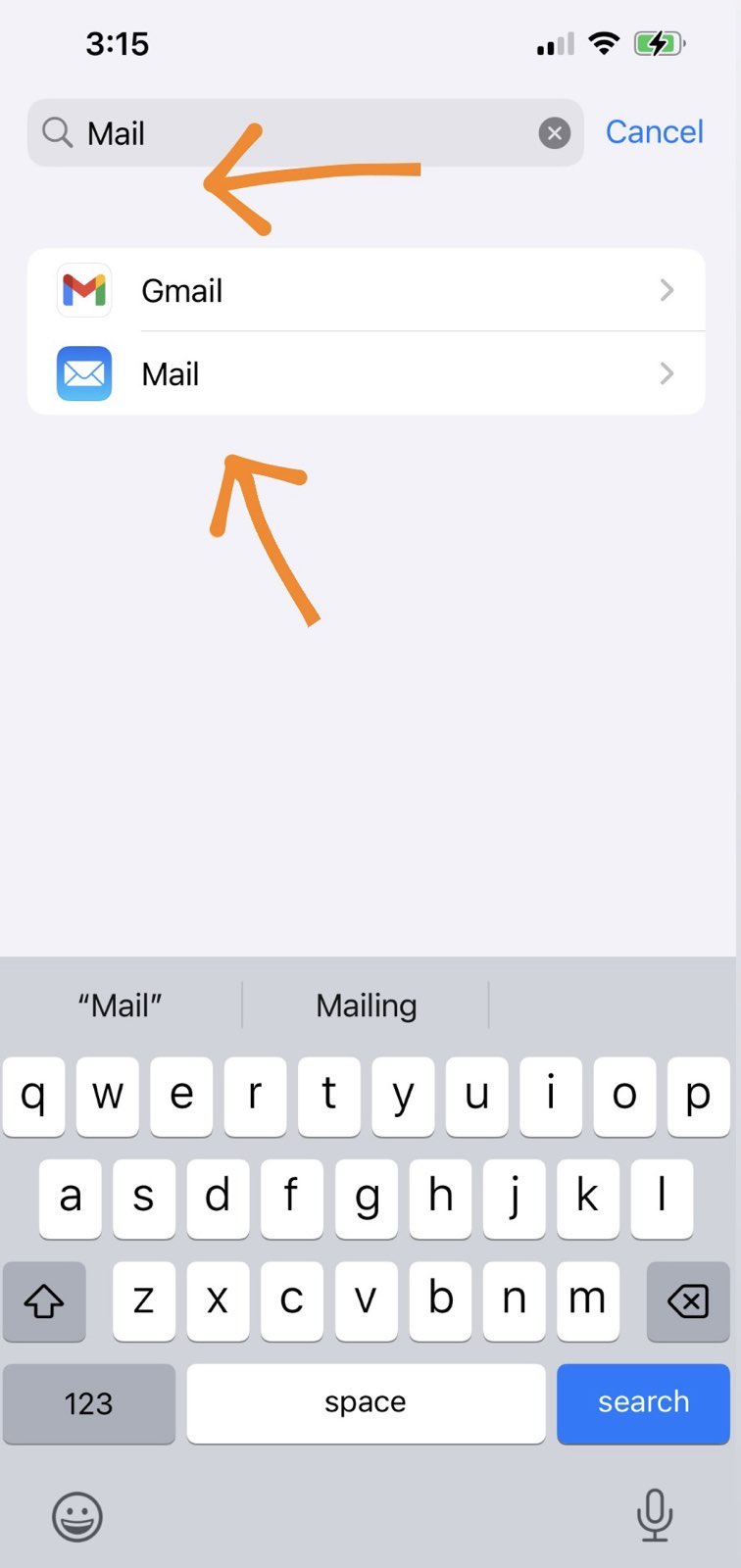
Inside the Mail settings, choose Accounts to view the accounts currently connected to your iPhone.

Now tap Add Account to connect a new email account.

From the list of options, choose Google by tapping on it.

Enter your Google email and password. Make sure to allow access to Calendars when prompted.

After signing in, you’ll see several toggle options (Mail, Contacts, Calendars, etc.). Make sure Calendars is turned on.
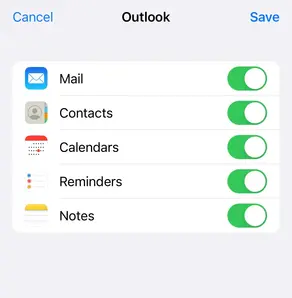
This method lets your iPhone fetch and display events from your Google Calendar in the native Calendar app, making it easier to stay organized without needing to switch apps.
If you’re looking to streamline your schedule even further, consider creating an availability calendar to let others know when you’re free, based on all your connected and synced calendars.
Related iPhone Calendar Guides


Sync Outlook and iPhone Calendars in Real-time with CalendarBridge

Method 2: Use the Google Calendar App to Sync Google Calendar with iPhone
If you’d rather use Google’s own app instead of the built-in iOS Calendar, the Google Calendar app offers a clean interface and full feature access you’re used to seeing.


Using the Google Calendar app ensures you’re seeing exactly what you’d see on desktop, with color-coded events, shared calendars, meeting invites, and more. It’s a great choice if you rely heavily on Google’s calendar tools and want a consistent experience across all devices.
Related: If you also use iCloud and want to sync it with Google, check out our guide on how to sync iCloud and Google Calendar.
Sync ALL Your Calendars in Real-Time with CalendarBridge
FAQ
Make sure the Calendars toggle is turned on under your Google account in iPhone Settings. Also, check your internet connection and make sure the Calendar app has access permissions.
Your calendar updates automatically, but timing can vary slightly depending on your settings. Changes typically appear within seconds to a few minutes. If you’re using Apple’s Calendar app, sync speed may depend on your fetch settings.
Yes, you can create, edit, and delete events from your iPhone, and those changes will sync back to your Google Calendar automatically.
Yes! After setup, go to Google Calendar Sync Settings and choose which calendars to display.
No, syncing just displays your Google Calendar events alongside other calendars on your device.
No, you don’t need the app. You can sync your Google Calendar using your iPhone’s built-in Calendar app. The Google Calendar app is optional and mainly useful if you want access to Google’s full interface and features.
It depends on your preferences. Apple Calendar integrates deeply with iOS, while Google Calendar gives you the same experience as desktop with more Google-specific features. For truly synchronized calendars with real-time updates across all platforms, CalendarBridge is the leading choice from thousands of users across the world!
Conclusion
Syncing your Google Calendar with your iPhone is one of those small setup steps that makes a big difference in how smoothly your day runs. Once everything is connected, your schedule stays up to date automatically, so you’re not bouncing between apps or worrying about missing something important.
If you prefer simplicity, connecting your Google account through iPhone settings is usually the easiest path. If you rely more on Google’s features like shared calendars or color coding, the Google Calendar app gives you a more complete experience.
Either way, the goal is the same. One calendar that stays current across every device you use.
And if you’re managing multiple calendars across different platforms, tools like CalendarBridge can help bring everything together into a single, Unified Calendar view without duplicates or gaps.
