Summary
The most reliable way to stop double-booking across multiple calendars and prevent conflicts is to two-way sync your availability so that an event added to one calendar automatically blocks the same time on the others with near real-time updates.
This matters most when your commitments are split across separate work, personal, client, or organizational accounts. A marketing consultant, for example, might use Microsoft 365 for one client, Google Calendar for another, and iCloud for their personal appointments.
The weakest link is that each separate calendar, especially across different platforms, sees only part of your schedule. That makes double-bookings much more likely.
This scheduling problem is one of the main reasons we built CalendarBridge. We wanted a reliable way to keep availability aligned across separate calendars without forcing people to manually check every account before accepting a meeting.
Later in this article, I’ll show you the most common ways people try to prevent double-booking on their calendar, as well as exactly how CalendarBridge helps by keeping your calendars synced with near real-time accuracy.
Why multiple calendars lead to double-bookings
Suppose a client schedules meetings through your Microsoft 365 calendar, but you have a personal appointment on Google Calendar. Unless the appointment is represented on your Microsoft calendar, your client or Microsoft’s scheduling tools may see that time as available.
The same scheduling conflicts can arise when you:
- Work for more than one organization
- Have separate work and personal calendars
- Use different calendar platforms
- Manage client accounts in separate Microsoft 365 tenants
- Use a scheduling page that checks only one calendar
You may be able to see all of your commitments by switching between calendar apps or displaying several calendars together. However, that does not necessarily update the calendars that other people use to check your availability.
What Are the Most Common ways people try to avoid double-bookings?
By Sharing or Subscribing to Another Calendar
Calendar sharing and subscriptions can make multiple calendars visible in one place. While this makes it easier for you to see your schedule, it does not make your availability accurate for everyone else.
For example, a calendar overlay will show your Google and Microsoft 365 events together. However, it doesn’t automatically place a “Busy” block on your Microsoft 365 calendar for coworkers using Scheduling Assistant or on the calendar a client uses to book time with you.
Shared and subscribed calendars can also lag behind because ICS feeds are usually read-only and refresh on the receiving calendar’s schedule. Microsoft notes that subscribed calendars may take more than 24 hours to update, while an official Google support thread says calendars added by URL can take up to 12 hours. That delay is why we recommend true two-way, real-time sync when availability needs to stay accurate across platforms.

Manually Copying Events Between Calendars
Some people manually recreate every meeting on each of their calendars. After a meeting is added to a work calendar, they create a second “Busy” event on their personal calendar, then repeat the process for any other calendars they use. If the meeting is rescheduled or canceled, every copy has to be updated or removed manually to avoid availability conflicts.
Missing just one update can leave a calendar showing you’re available when you’re actually aren’t.

Manually Checking Every Calendar Before Booking
Others avoid copying events altogether and simply check each calendar before offering or accepting a meeting time. While this can work when your schedule is simple, it’s easy to overlook a calendar or receive a booking before you’ve had a chance to check them all. As the number of calendars grows, so does the risk of double-booking.
Using a Scheduling Link or Booking Page
Many people use scheduling tools like Calendly or booking pages to control when others can book time with them. These tools help automate scheduling by offering only times that appear to be available.
However, they’re only as accurate as the calendars they check. If some of your commitments live on calendars that aren’t connected or synchronized, those tools can still offer time slots that are already occupied. As meetings are added, updated, or canceled across multiple calendars, scheduling gaps can quickly lead to double-bookings.

Automatically Syncing Your Availability
Two-way calendar synchronization is a level up from all of the above methods. When an event is added, updated, or deleted on one connected calendar those changes are automatically reflected on the other connected calendars in near real-time. It’s the most practical and reliable approach for people who regularly use several active calendars.
How CalendarBridge keeps all your calendars aligned
CalendarBridge prevents double-bookings by syncing availability across Google Calendar, Microsoft 365, iCloud, and ICS calendars, without delays and nearly real-time accuracy.
When a meeting is added, updated, or canceled on one calendar, the corresponding event or “Busy” block is automatically updated on the others, instantly preventing conflicts in your availability. You control what information is shared, so you can keep sensitive event details private while ensuring your availability is accurate wherever people book time with you.
CalendarBridge is not another calendar that you have to manage. Instead, it connects the calendars you already use and keeps them synchronized in the background. After a one-time setup, you continue using your preferred calendar platforms exactly as you do today while CalendarBridge automatically keeps the connected calendars up to date.
We help you connect your calendars across platforms
Every sync connects a source calendar to a destination calendar. When you create a one-way sync, events are automatically copied from the source to the destination. You decide whether those copied events appear as “Busy” blocks or include additional event details.

We let you choose one-way, multidirectional, or two-way sync
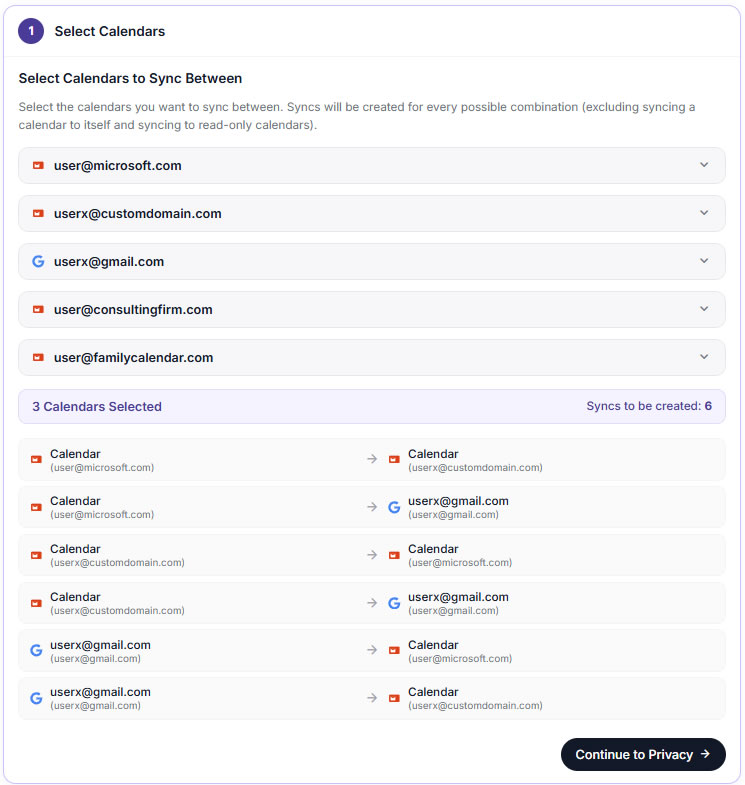
When availability needs to flow in both directions, CalendarBridge creates a sync in each direction. If you’re connecting several calendars, Multidirectional Sync automatically creates all of the required sync connections instead of requiring you to configure each one individually.
Provide tools to protect your event details while sharing availability
Preventing double-bookings doesn’t require sharing every event detail. CalendarBridge lets you choose what information is synced to each calendar. Events can appear as a simple “Busy” block, include only a title, or copy additional details like the location and description.
For example, you might sync only free/busy information to a work calendar while syncing full event details between calendars that only you can access
How to set up CalendarBridge to prevent double-bookings
Setting up CalendarBridge only takes a few minutes. Take advantage of our free 7-day trial and see how easy it is.
1. Connect Your calendars
Connect the Google, Microsoft 365, Outlook.com, iCloud, and other supported calendars that affect your availability.

2. Choose how they sync
Decide which calendars should share availability with each other and whether each connection should be one-way or bidirectional.

3. Choose what information to share
For each sync, decide whether to copy a simple “Busy” block, an event title, or additional event details.

Frequently Asked Questions
Double-booking happens when two meetings or commitments are scheduled for the same time. This often occurs when your availability is split across multiple calendars that do not stay updated with each other.
Calendar sharing can help, but it is not always enough. Shared calendars and subscribed calendar feeds may not update quickly enough, especially across different platforms. For people who rely on accurate availability, two-way sync is usually more dependable.
Yes. CalendarBridge helps prevent double-booking by syncing availability across connected calendars. When an event is added to one calendar, CalendarBridge can block that time on your other calendars based on the sync rules you choose.
CalendarBridge can help protect private meeting details while still blocking availability. This allows you to keep calendars aligned without exposing sensitive information from one calendar to another.
Near real-time calendar sync matters because scheduling conflicts can happen quickly. The sooner your calendars update after a new event is added, the less likely someone is to book over time that is no longer available.
Final Thoughts
The most reliable way to avoid double-bookings and meeting conflicts is to keep your calendars two-way synchronized in real-time. Instead of manually copying events or checking multiple calendars before every meeting, CalendarBridge keeps your availability up to date across your connected calendars while letting you control what information is shared.
Once it’s set up, you can continue using the calendar apps you already rely on with confidence that your availability is accurate wherever people schedule time with you.