
Introduction
Syncing your calendars with Amazon Alexa lets you manage your day hands free. Once connected, you can say things like:
- “Alexa, what is on my calendar today”
- “Alexa, add a meeting tomorrow at 10 AM”
- “Alexa, remind me about dinner at 7 PM”
While Alexa has instructions for this on their own site, they are a bit thin and don’t explain the process too clearly. We thought we’d make it easier and help you learn here.
This guide walks through connecting your calendar to Alexa with the exact steps, and shown in the latest Amazon Alexa app. The screenshots referenced match the real interface so that you can follow along easily. We also show how you can sync all your calendars across platforms (Google, Outlook, Apple) with CalendarBridge and make use of our Unified Calendar with Alexa, so you get a complete picture of your schedule across all connected calendars.

First, Open the Calendar Settings in the Alexa App
All calendar connections begin in the Amazon Alexa app.
1. Open the Amazon Alexa app on your phone.
2. Tap the More icon on the bottom navigation bar.
3. Choose Settings.
4. Scroll down and select Calendar.

5. On the Calendar screen, tap the blue Add Account plus button.

6. You will now see Google, Microsoft, and Apple listed as calendar providers.

Next, Share Your Google, Microsoft/Outlook, or Apple Calendars with Alexa
How to Connect Google Calendar
1. Tap the blue plus sign (+) next to Google.
2. You will see the permission screen: “Allow Alexa to access this Google service.”

3. Tap Next.
4. The Google sign-in page will open in a browser window. Sign in with your Google account credentials and grant access permissions.
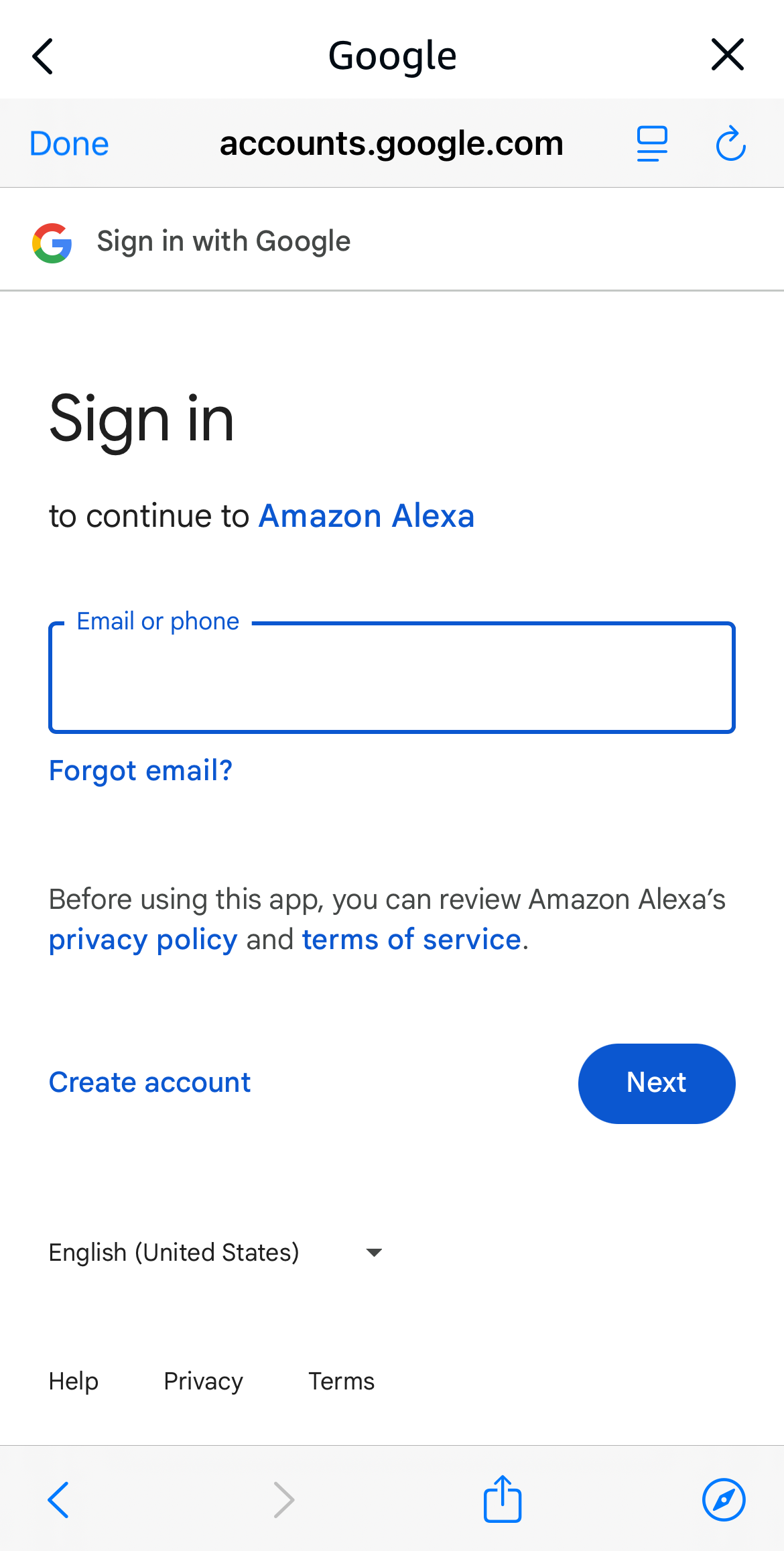
After signing in, return to the Alexa app. Alexa will confirm the connection.
How to Connect Outlook / Microsoft 365 Calendar
1. Tap the blue plus sign (+) next to Microsoft.
2. You will see the permission screen: “Allow Alexa to access this Microsoft service.”

3. Tap Next.
4. The Microsoft sign-in page will open. Sign in with your Outlook, Hotmail, or Microsoft 365 account and grant access permissions.

After signing in, return to the Alexa app. Microsoft will be connected.
How to Connect Apple iCloud Calendar
Apple’s higher security protocols require you to enable Two-Factor Authentication and create an App-Specific Password before linking.
First – Enable Two-Factor Authentication (If Not Already On).
1. Tap the blue plus sign (+) next to Apple.
2. The first screen (Step 1 of 2) will instruct you to turn on Two-Factor Authentication.

3. Go to your iPhone Settings > [your name] > Password & Security and ensure Two-Factor Authentication is enabled.
4. Return to the Alexa app and tap Next.
Next – Create the App-Specific Password.
1. The next screen (Step 2 of 2) will provide instructions for creating an app-specific password.
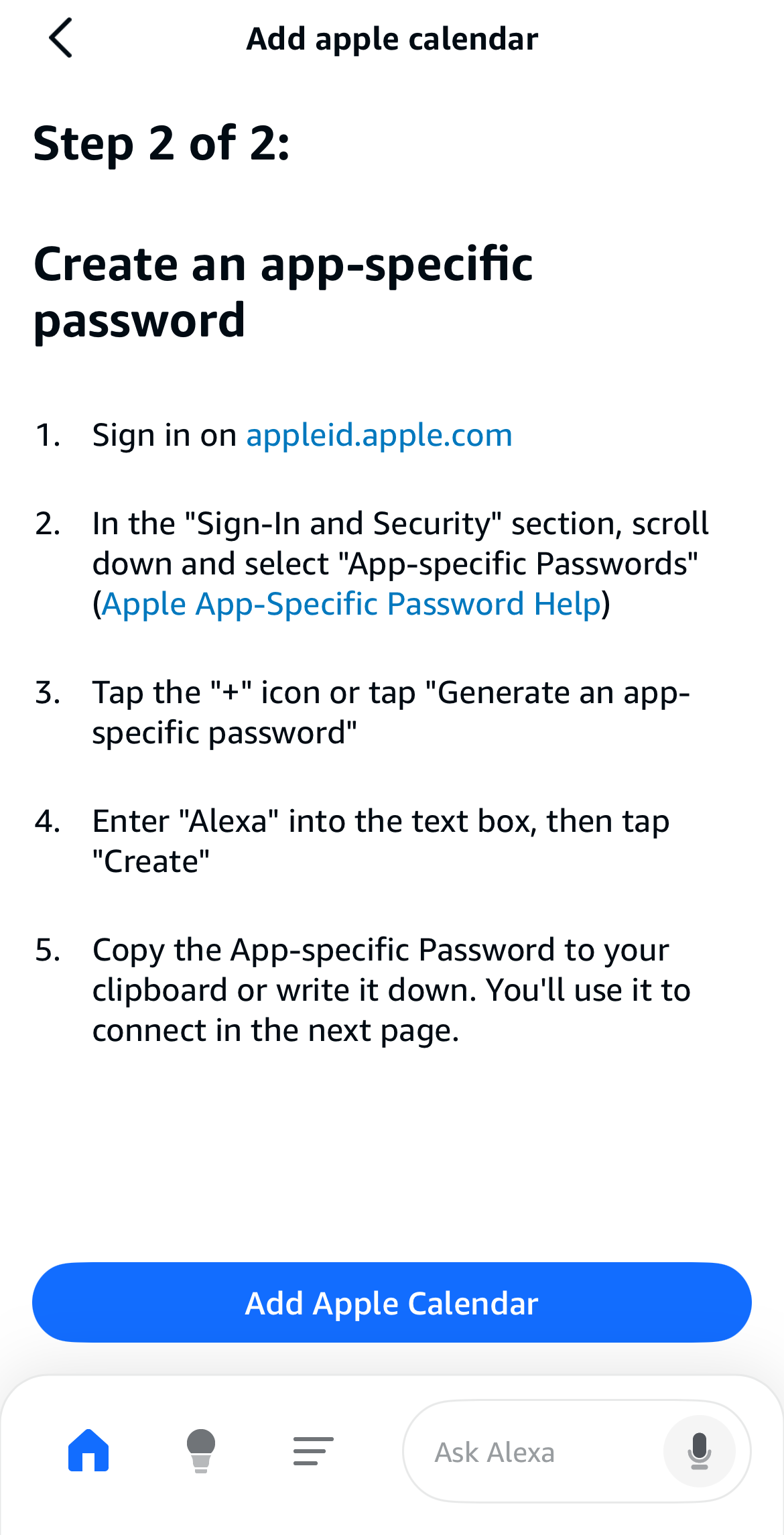
2. Go to https://appleid.apple.com in a browser.
3. Under the Sign-In and Security section, find and generate an App-specific password, labeling it “Alexa.”
4. Copy this generated password to your clipboard.
Next – Finalize the Connection
1. Return to the Alexa app and the Sign in to iCloud screen.

1. Enter your Apple ID (email).
2. Paste or type the App-Specific Password you just created. (For a detailed guide on getting your app specific password check out our help page: https://help.calendarbridge.com/user-docs/connecting-calendar-accounts/)
3. Tap Sign In.
You have now successfully connected your Apple Calendar.
How to Combine All Your Calendars into One, Before Syncing to Alexa
If your work calendar lives in Outlook, your personal calendar in Google, and your family calendar in Apple, choosing only one default calendar inside Alexa becomes a real problem. Alexa will speak to only one calendar and will add new events into only one place. This also leaves your schedule from other calendars, invisible to the Alexa system.
CalendarBridge provides a clean solution that removes this limitation. It syncs all your calendars in real time (Google, Outlook, Apple and more), so that all your events stay combined in one master, unified calendar. Once everything is synced, you can connect only that master calendar to Alexa.
This ensures:
- Alexa always sees every event you have.
- Anything added with your voice instantly syncs back to all your other calendars.
- You avoid scheduling gaps and double booking problems.
CalendarBridge offers reliable, real time syncing across all major platforms and includes many additional features like our Unified Calendar (display & edit all calendars in one master calendar), an AI Scheduler (your own personalized and email-based AI Secretary to manage your calendar) and Scheduling Pages (share your schedule and availability everywhere) to make smart calendar management a breeze!
Learn More about CalendarBridge
Sync All Your Calendars to Alexa - Try CalendarBridge Today!
No Credit Car Required

Frequently Asked Questions
Alexa can add events, but calendar changes from Outlook or Google do not sync through Alexa. You still need real time sync between your calendars for full accuracy.
This usually means authentication expired or the connected calendar changed permissions. Reconnect the calendar inside the Alexa app, then reauthorize your Google or Microsoft account.
Yes. You can ask Alexa commands like “What’s on my calendar today?” or “What’s on my schedule next Tuesday?” and Alexa will read all events from your connected calendar for that date.
Conclusion
Syncing your calendars with Amazon Alexa gives you a seamless, hands free way to manage your day. Instead of worrying about which calendar holds which event, real time sync from CalendarBridge keeps everything organized and consistent. Once your calendars are connected, Alexa becomes a reliable scheduling assistant that can read your availability, create new events, and remind you of everything ahead. If you’re looking for the simplest path to sync and voice friendly scheduling,
