Summary
A practical guide to moving employees and contractors through the meetings they need when they join a program that spans multiple organizations, calendar systems, and time zones.
At a glance
- Define a simple onboarding path for each role before asking AI to schedule anything.
- Use CalendarBridge to connect and sync the calendars that contain real commitments so “free” time is actually free.
- Use AI-assisted email scheduling for high-touch, multi-person meetings and booking pages for optional sessions.
- Let the PMO focus on the few meetings that are stuck instead of micro-managing every meeting.
PMOs can use AI scheduling to move new transformation-team members through role-specific onboarding meetings, provided they first define the meeting sequence and synchronize the calendars that contain each participant’s real availability.
On a large transformation, a new team member can have a laptop, credentials, and a start date and still be unable to contribute because the right meetings have not happened. A solution architect may need a sponsor introduction, security and access review, architecture discussion, workstream kickoff, and vendor meeting. A regional change lead needs a different sequence.
The workload grows when those meetings involve client leaders, consultants, contractors, systems integrators, and vendors who work in different organizations. Each person may have more than one work calendar, and no single calendar shows the full picture.
The PMO’s scheduling efforts help prevent new team members from waiting days for the conversations they need before contributing.
CalendarBridge supports the onboarding workflow by combining cross-calendar availability sync, privacy controls, booking pages, and an AI Scheduling Assistant. The PMO still defines the onboarding path and makes the priority decisions; CalendarBridge reduces the calendar checking, follow-up, and rescheduling efforts.
Why does onboarding become so hard to schedule?
The quick answer: Because each role needs a different set of meetings, and many of those meetings depend on one another.
Imagine 24 people joining a program: four workstream leads, eight consultants, and twelve business subject-matter experts. At an average of four required meetings each, the PMO is managing 96 meeting requirements before optional training, office hours, or rescheduling.
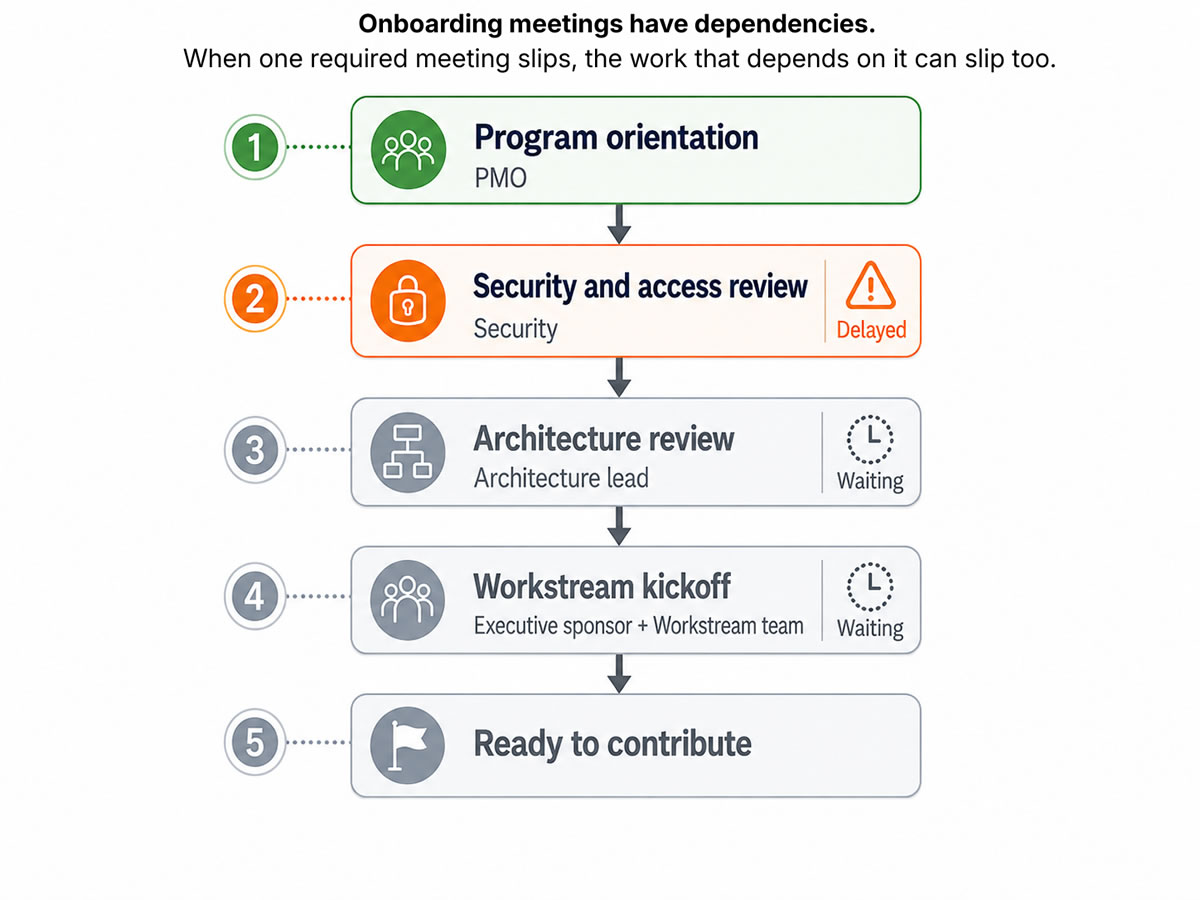
The volume of meetings is only part of the problem. Some meetings unlock the next step. A consultant may need an access review before entering a client system. A workstream lead may need a governance briefing before making decisions. When one meeting slips, productive work slips with it.
This coordination problem is not limited to onboarding. Atlassian’s 2026 State of Teams research found that 87% of knowledge workers lack the time or capacity to coordinate when everyone is focused on execution. On a transformation program, that gap can show up as delayed access reviews, sponsor introductions, decisions, and workstream kickoffs, even when everyone is otherwise ready to begin.
That is what “dependency” means in this guide: one activity must happen before another can move forward. The PMO should help manage those dependencies; scheduling tools can reduce the email and calendar work around them.
What should the PMO define before using AI?
Start with the process, not the tool: Create a simple onboarding path for each common role.
McKinsey’s 2026 research describes effective AI adoption as redesigning how work gets done, not simply adding another tool. The same principle applies to onboarding scheduling.
The path does not need to cover every exception. It should give the coordinator a reliable starting point and make the scheduling request clear enough for an assistant – human or AI – to act on it.
For each role, identify:
- Which meetings are required and which are optional
- Who must attend and who can be optional
- Which meetings must happen first, and the deadline for each
- How long each meeting should be and the working hours or time zones to respect
- Who should step in when no workable time can be found
For example, a solution architect’s path might begin with program orientation, then security and access, then an architecture review, and finally the workstream kickoff. The sequence matters because the person cannot participate fully until the earlier steps are complete.
A helpful test is to ask: does this meeting merely help the person, or does it unlock work? Meetings that unlock work need a deadline and a named owner.
Which scheduling method works best for each meeting?
Use the simplest method that still feels appropriate: Match the scheduling method to the type of meeting.
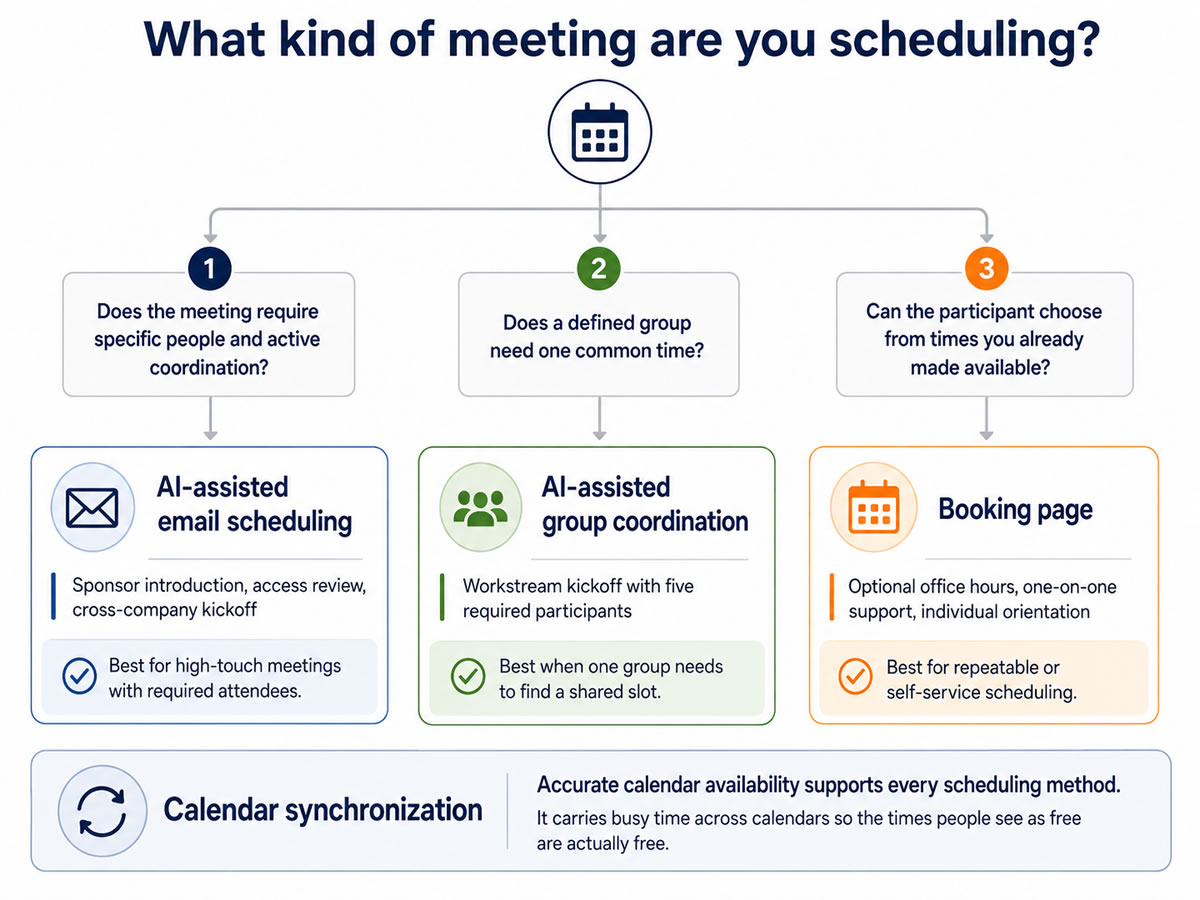
Why high-touch meetings need a different experience
“Calendly was helpful, but a little cold.”
Recruiting leader who coordinates 20–30 candidate conversations in a busy week. The same concern applies to sponsor introductions and senior stakeholder meetings.
How do you make availability accurate across companies?
The quick answer: Use CalendarBridge to connect and sync the calendars that contain real commitments before sending a large wave of meeting requests.
A consultant may have a calendar from their employer and another calendar issued by the client. A program leader may have a corporate calendar and a separate project account. Each company keeps its Microsoft 365 or Google Workspace calendar in its own environment, so one system may show a person as free while another contains a meeting.
Calendar synchronization solves a different problem than simply viewing two calendars in one app.
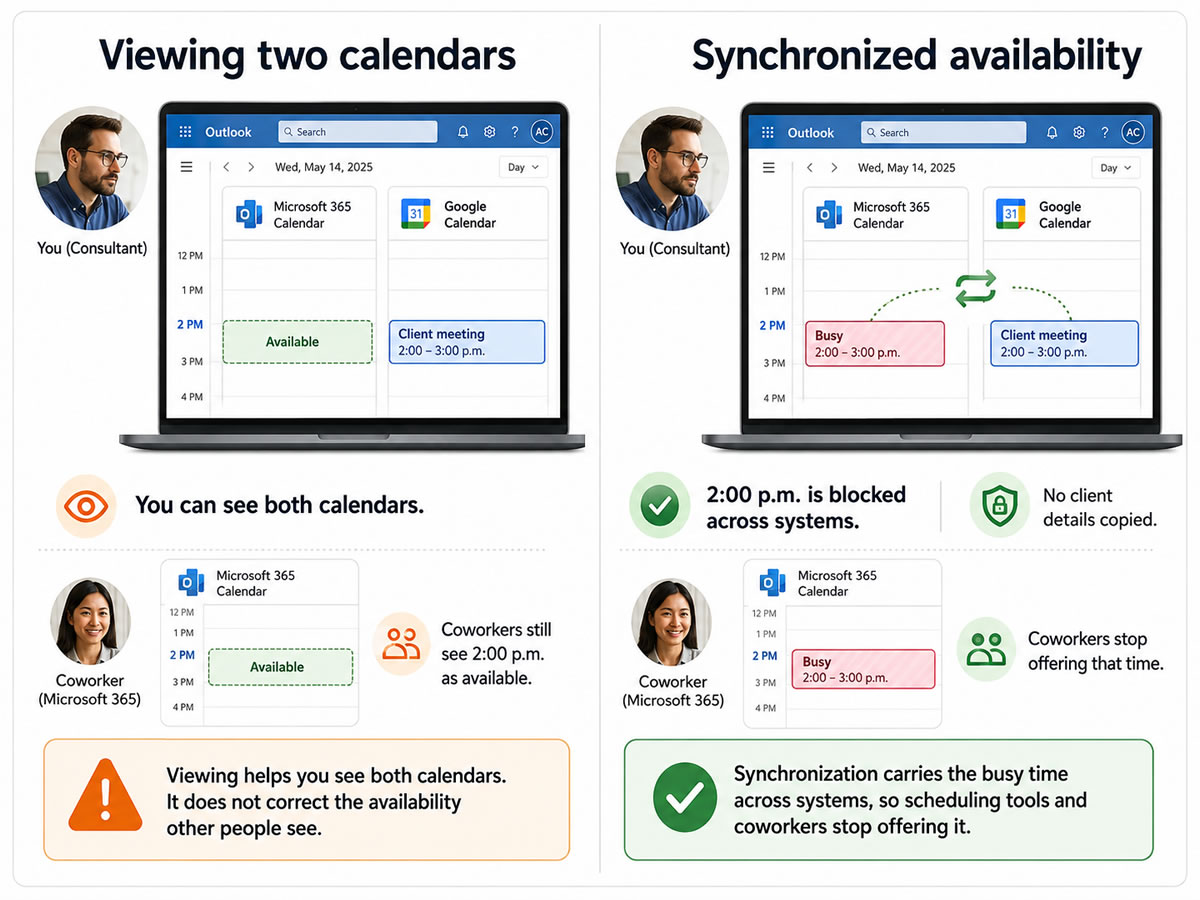
Viewing lets the individual see both calendars. Synchronizing availability makes a commitment in one calendar block the same time in the other, so coworkers and scheduling tools stop offering it.
For example, adding a Google account to Outlook may help someone see both calendars on their screen. It does not automatically tell coworkers scheduling through Microsoft 365 that a Google meeting makes that person unavailable.
What incomplete availability feels like
“I had to look at the calendars individually in order to determine what I really have available.”
Event planner managing nine client and business calendars before using CalendarBridge.
Before onboarding requests go out, confirm:
- Which calendars contain meetings that affect the person’s workday
- Which calendar should receive the final invitation
- The person’s working hours and current time zone
- Whether busy time should appear across the person’s other calendars
- Whether a company administrator must approve the connection
This is a small setup step compared with rescheduling dozens of meetings after the PMO discovers that the “open” times were never open.
How do you protect private meeting details?
Use busy-only visibility: Share that the time is unavailable without sharing why.
The PMO usually needs to prevent a conflict; it does not need the title, attendees, location, description, or client name from another meeting. Busy-only synchronization creates a “Busy” placeholder on the other calendar without copying the original title, attendees, description, location, or meeting link.
A consultant’s 2:00 p.m. client steering committee can appear simply as “Busy” in the program calendar. An executive’s personal appointment can block time without being copied into a company account.
A useful privacy rule
“They just need to know that I’m busy or free.”
Consultant working across several compliance-sensitive healthcare and aviation client environments
For external consultants, vendors, executives, Legal, HR, and Security, busy-only is often the safest starting point. Share more detail only when the business need is clear and the organization has approved it.
What can AI scheduling take off the PMO’s plate?
The quick answer: AI can handle the repetitive coordination once the PMO has defined the meeting rules.
This is consistent with how experienced AI users are working more broadly. Microsoft’s 2026 Work Trend Index found that 86% of AI users treat AI output as a starting point, not a final answer. Applied to scheduling, the PMO defines the outcome and the boundaries; the AI scheduling assistant carries out the repetitive coordination.
AI can handle
The PMO still owns
Sending the scheduling email to all invitees and proposing workable times
Choosing which meetings belong in the onboarding path
Following up with people who have not responded
Deciding who is required, who is optional, and what the deadline is
Coordinating a defined group and handling routine rescheduling
Resolving situations where no acceptable time exists
Applying rules for duration, working hours, and time zones
Deciding whether a lower-priority meeting should move for a critical one
Although AI can find an open slot, the PMO must still decide whether a lower-priority meeting should move so a new workstream lead can meet an executive sponsor.
The AI assistant can carry out clearly defined scheduling rules, but the PMO should review meetings involving hard deadlines, sensitive executives, unusual time-zone requirements, or decisions about which existing meeting should move.
Give the AI scheduling assistant enough context to behave predictably: meeting length, required attendees, working hours, time zone, how many options to offer, and how often to follow up. These are practical instructions to better fit the style and culture of the organization.
Where automation helps most
“By Saturday midday, three people will have responded and a meeting will have been set up.”
Executive working across three businesses and several time zones, describing a request started on Friday evening while his human assistant was off.
How should the PMO manage the workflow day to day?
- Choose the onboarding path. Capture the person’s role, workstream, organization, region, time zone, start date, and onboarding owner.
- Confirm their calendars. Connect the calendars that contain real commitments, choose the privacy setting, and confirm where invitations should go.
- Schedule the meetings that unlock work first. Start with access reviews, sponsor introductions, workstream kickoffs, and other prerequisites.
- Offer self-service where it makes sense. Use booking pages for optional orientation, office hours, support clinics, and repeatable training.
- Manage exceptions. Escalate only meetings with no response, no workable time, or a missing decision.
- Update the path when the program changes. If the start date, role, region, or workstream changes, reschedule only the affected meetings.
A few simple measures will show whether the process is improving: how long it takes a participant to become calendar-ready, whether required meetings are complete by the target day, how many manual follow-ups the PMO makes, and how often meetings are rescheduled more than once.
How CalendarBridge supports the onboarding workflow
CalendarBridge supports the PMO’s process in three places: establishing reliable availability, coordinating meetings, and protecting information across organizational boundaries.
Depending on the program, CalendarBridge can help the PMO:
- Synchronize availability across multiple Microsoft 365 and/or Google Workspace calendars without forcing the accounts or companies to merge
- Keep private events protected with busy-only and other configurable privacy controls
- Use an AI Scheduling Assistant to email participants, propose times, follow up, and manage rescheduling
- Use booking pages for one-on-one support sessions
- Set up calendar access before onboarding begins
For CalendarBridge to synchronize calendars across a large program team, each participating organization must approve access to its own calendar environment.
For example, if employees from one company work alongside consultants from another, each company’s Microsoft 365 or Google Workspace administrator controls access to its own calendars. One administrator cannot approve access on behalf of both organizations.
When company-wide approval is available, CalendarBridge can help administrators set up calendar connections for many participants consistently. When it is not, individual participants may need to connect their own calendars instead.
The PMO should confirm this early, so calendar access does not delay onboarding.
Where should a PMO start?
Keep the first test small: Start with one role and one recent onboarding wave.
Review three to five people who recently joined the program. For each person, note the meetings they needed, which meetings unlocked work, who had to attend, which calendars contained their real availability, and where the PMO had to chase responses or reschedule.
Then build one role-based path, add the calendar check, and choose the right scheduling method for each meeting. Test it with the next group before expanding it across the program.
The goal is to reduce routine calendar reconciliation while preserving PMO judgment for decisions, risks, and unusual scheduling conflicts.
The practical result is less manual calendar checking and fewer follow-up emails while each new participant moves through a role-specific onboarding path.
Frequently Asked Questions
Yes. CalendarBridge can synchronize availability across Microsoft 365 and Google Workspace calendars without requiring the participating companies to merge their calendar environments. Each organization still controls access to its own calendars, so administrator approval may be required separately for each company.
The rollout may need to use individual calendar connections instead of organization-wide setup. PMOs should identify approval requirements early so calendar access does not become another onboarding dependency.
Useful measures include the time it takes a new participant to become calendar-ready, whether required meetings happen by their target dates, the number of manual follow-ups the PMO makes, and how often meetings need to be rescheduled more than once.
No. The post recommends matching the scheduling method to the interaction. AI-assisted email scheduling can work well for high-touch, multi-person meetings, while booking pages may be more appropriate for optional orientations, office hours, support sessions, or repeatable training.
PMOs should prioritize meetings that unlock work, such as access reviews, sponsor introductions, workstream kickoffs, and other prerequisites. Meetings that are helpful but do not block progress can be scheduled later or offered through self-service options.
Final Thoughts
PMOs can make transformation-team onboarding easier by defining the meetings each role needs, connecting the calendars that reflect participants’ real availability, and automating routine scheduling work.
CalendarBridge helps support that process with cross-calendar synchronization, privacy controls, AI-assisted scheduling, and booking pages, while the PMO retains control over priorities, dependencies, and exceptions.
