Summary
Before choosing a calendar sync tool or provider, you need to determine whether it can support your scheduling workflows.
Not all calendar sync tools work the same way. The 10 questions below will help you evaluate compatibility, privacy, reliability, security, pricing, and more so you can choose the right tool before trusting it with your availability.
When a calendar update fails, the software rarely gets blamed. You miss the meeting. A client sees a title they were never meant to see. Your credibility takes a hit.
This guide is based on our real customer experiences and helping people manage multiple calendars across different platforms, organizations, and clients.
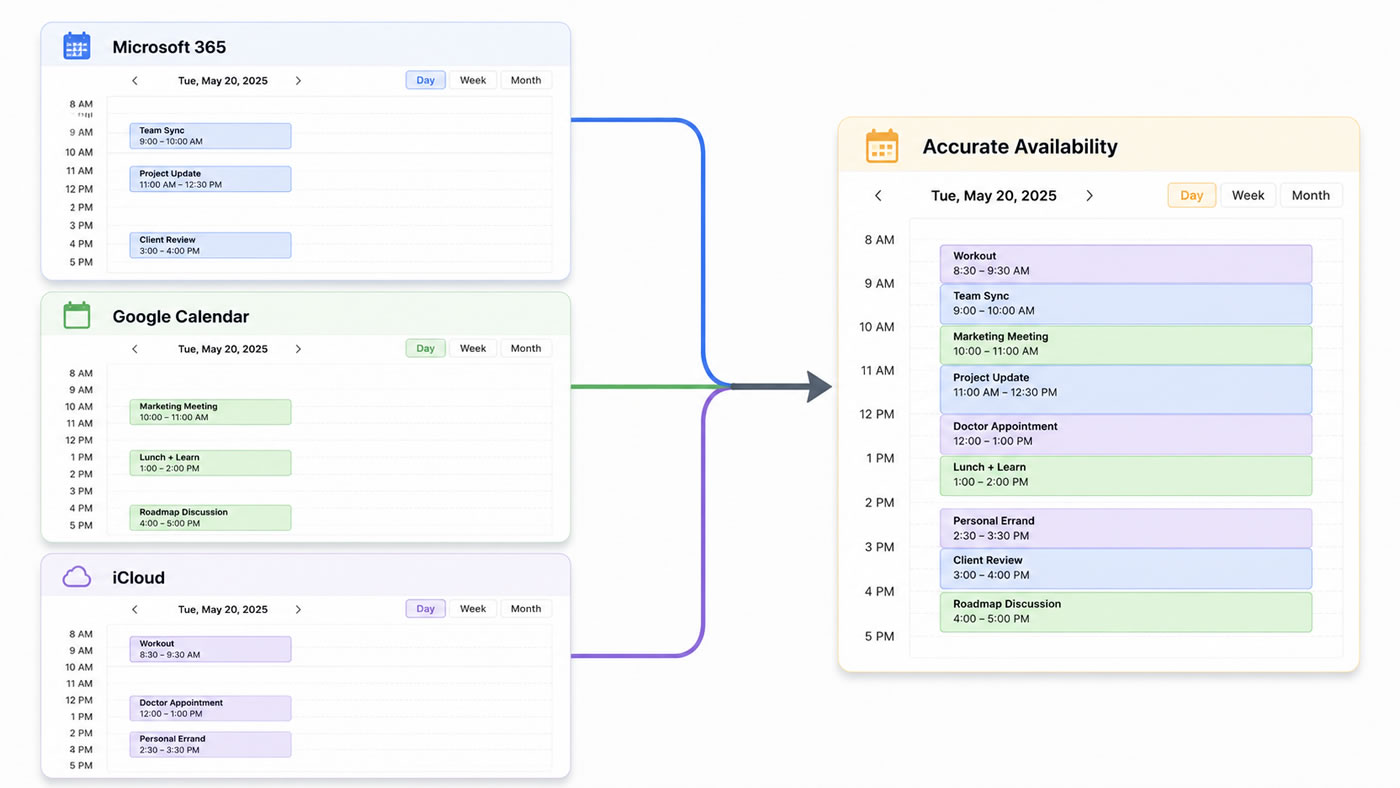
1. Does the tool support every calendar provider and account type you use?
A logo on a sync product’s website doesn’t necessarily mean it fully supports your specific setup.
Many calendar providers offer multiple account types, and they aren’t always supported the same way. For example, a product that displays an Outlook logo may support personal Outlook.com accounts but not Microsoft 365 business accounts, Exchange, or a client managed environment.
CalendarBridge supports Google Calendar, Microsoft Outlook, Microsoft 365, Exchange, Apple iCloud, and ICS calendars across personal, business, and organization managed accounts.
We hear this need often from CalendarBridge customers. One consultant we interviewed works across multiple organizations, each with its own calendar system (tenant) and security requirements. He uses CalendarBridge so each organization can see when he’s available without exposing confidential meeting details.
“CalendarBridge provides visibility into our availability without leaking confidential information about what we’re doing with that time.“
2. Does it provide one way, two way, or multidirectional synchronization?
Understanding sync directions helps you choose the right sync tool.
A one way sync copies events in one direction only.
- A → B
If you create, move, or cancel an event on Calendar A, the changes appear on Calendar B. Changes made on Calendar B do not sync back to Calendar A.
A two way sync is actually two separate one way syncs.
- A → B
- B → A
That allows changes made in either calendar to stay synchronized. If you create, move, or cancel an event on either calendar, the other calendar receives the update.
A multidirectional sync extends this concept across three or more calendars. For example, if you have three calendars and want all of them to stay synchronized, every calendar needs to send updates to the other two. That’s six individual sync connections.
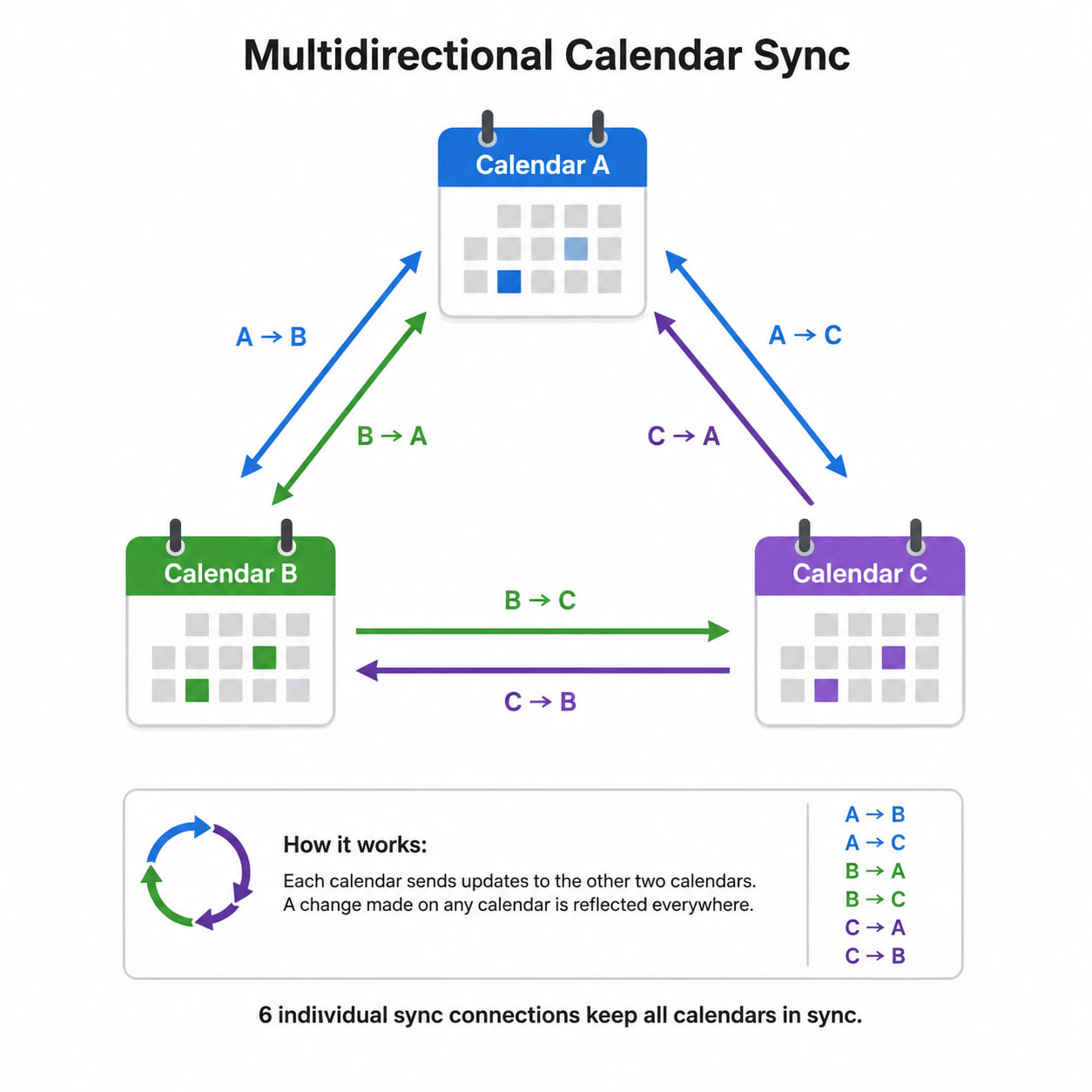
CalendarBridge supports one way, two way, and multidirectional synchronization. Learn more about our Calendar Sync. When connecting three or more calendars, CalendarBridge automatically creates every required sync connection, making it easy to keep all of your calendars synchronized without configuring each connection individually.
Common Use-Case
Many fractional consultants use CalendarBridge to manage calendars across multiple clients. One customer told us he regularly works across three to five client calendars, and meetings can originate on any of them at any time. CalendarBridge saves him from constantly checking multiple calendars or manually copying events between them, giving him confidence that every client books based on accurate availability.
“For anybody who’s in this kind of fractional, embedded world… doing this without CalendarBridge is horrible.“
3. Which event details are copied between calendars?
Syncing your availability doesn’t mean you have to share every detail of your meetings. Before choosing a calendar sync tool, make sure its privacy controls let you decide what information is copied between calendars.
Check whether you can control these event details independently:
- Free/Busy status
- Event title
- Attendees and description
- Location and conference link
- Reminders, categories, and labels
CalendarBridge lets you create busy only copies or specify which details sync with granular privacy controls and advanced filtering options.
Learn more about calendar privacy controls.
Common Use-Case
One event planner who uses CalendarBridge described this situation: Venue staff and corporate teams need to know when spaces and resources are already committed, but they don’t need to see the client name, event title, attendee list, or planning notes. CalendarBridge lets her share only the information each calendar actually needs.
“They need to know the room is booked, but they don’t need to know who’s using it.“
4. What calendar permissions does the tool request?
Connecting a calendar sync tool usually starts with an authorization screen. The permissions you approve determine what the tool can access, so it’s worth understanding exactly what you’re authorizing before clicking “Allow”.
A calendar sync tool should only request the access it needs to do its job. If you’re using a work account, these permissions may also need to be reviewed and approved by your organization’s IT team.
Before choosing a calendar sync tool, check whether it:
- Uses secure OAuth authentication
- Asks for your account password
- Requests access only to the calendar data it needs
- Allows you or your administrator to revoke access at any time
CalendarBridge uses secure OAuth, so your login credentials stay with your calendar provider rather than being shared with CalendarBridge. It requests only the calendar permissions needed for synchronization, and organizations can use administrator controls to review, approve, and manage connections across their teams.
5. How does the provider handle your calendar data?
Granting access is only part of the story. You should also understand what happens to your calendar data after the tool has permission to access it.
Ask questions like:
- Is calendar data stored or only processed during synchronization?
- Is event content analyzed or used to train AI models?
- Is data shared with subprocessors?
- How long is data retained?
- What happens to your data after you disconnect your account?
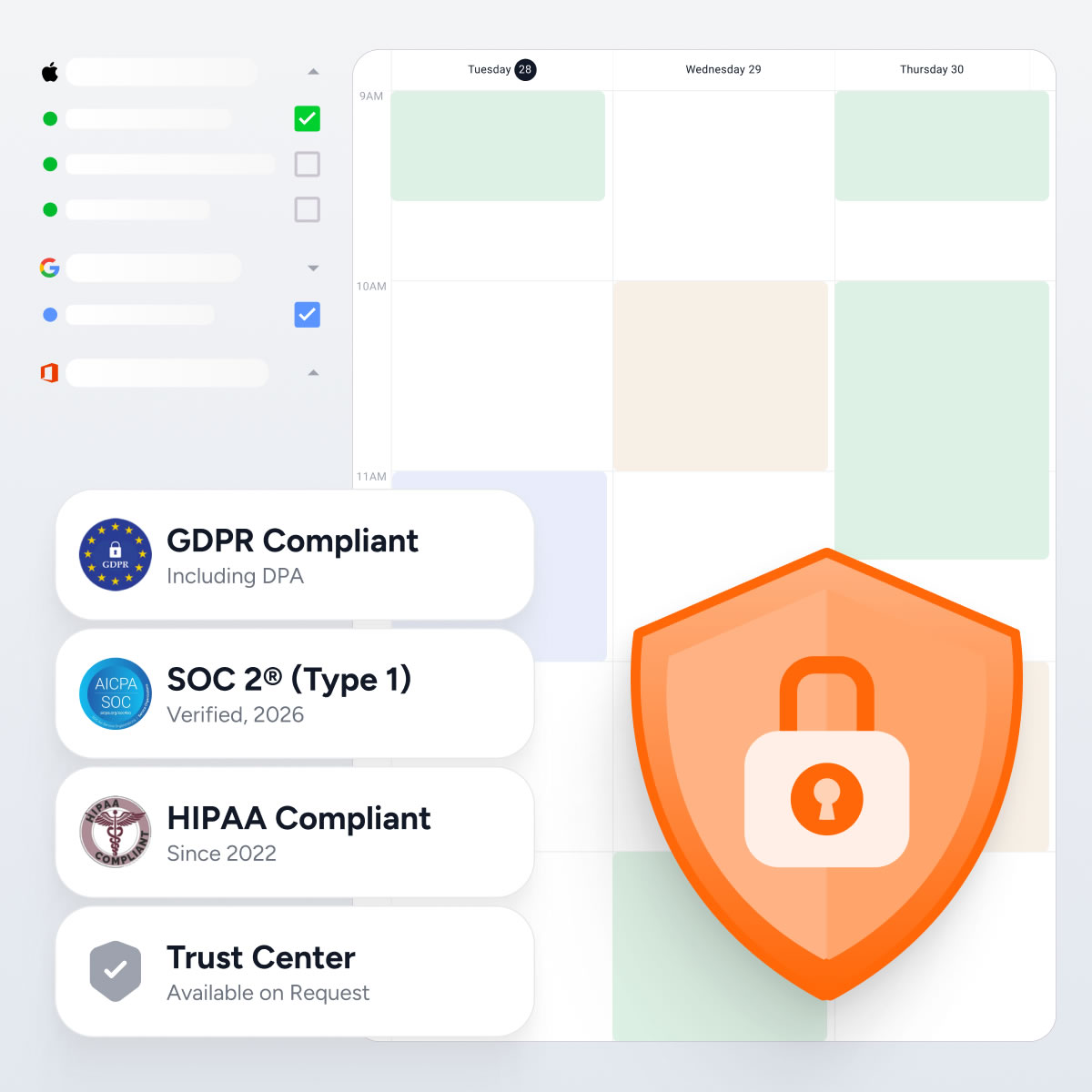
CalendarBridge uses calendar data only to synchronize your events and provide scheduling services. It doesn’t build a permanent copy of your calendar or analyze and sell your data. Organizations can review the latest security and compliance information through the CalendarBridge Trust Center and documentation.
6. How quickly do calendar changes synchronize?
Not all calendar sync tools update changes at the same speed. Some synchronize events in real time, while others only refresh every few minutes, every few hours, or on a fixed schedule. Some calendar types, such as ICS subscriptions, may only update once or twice a day.
If your schedule changes throughout the day, those delays can leave your connected calendars showing different information.
Before choosing a calendar sync tool, ask:
- Does it synchronize changes in real time?
- How long do updates typically take?
- How are connection problems detected?
- Will I be notified if a sync stops working?
CalendarBridge supports real time synchronization across Google Calendar, Microsoft Outlook, Microsoft 365, Exchange, and Apple iCloud. When an event is created, moved, updated, or canceled, the change is reflected on connected calendars within seconds.
CalendarBridge also monitors sync connections and alerts you if a connection requires attention.
One executive assistant we interviewed was managing multiple executive calendars using Outlook’s native Google synchronization. When the connection stopped working without warning, she wasn’t alerted that calendar changes had stopped syncing until a scheduling conflict exposed the problem.
“That experience made me realize I needed a sync tool with safeguards.”
7. Will syncing create duplicate events?
When a calendar sync tool copies an event to another calendar, it creates a new copy so each connected calendar knows you’re busy.
The important question is whether those copies are recognized as copies or treated as new events. If a tool synchronizes them again, duplicate events can quickly spread across your calendars. This is called a synchronization loop, and it’s one reason many tools only support one way synchronization.
Before choosing a calendar sync tool, ask how it prevents synchronization loops.
CalendarBridge supports one way, two way, and multidirectional synchronization without creating synchronization loops. It tracks every event copy it creates so it isn’t synchronized again. If you don’t want to see multiple copies of the same event, the Unified Calendar can automatically hide CalendarBridge synced events while still showing your complete schedule.
8. Will your organization approve the tool?
If you’re connecting a work account, your organization’s IT or security team may need to approve the software before you can use it. Choosing a calendar sync tool with clear security documentation can make that process much easier.
Before choosing a calendar sync tool, check whether it provides:
- Permission scopes
- A simple explanation of how data moves between calendars
- Security and compliance documentation
- Instructions for revoking user and administrator access
- Deployment options for individuals and organizations
CalendarBridge provides technical documentation, security information, and deployment guidance to help organizations evaluate and approve the connection.
Learn more about authorizing access for managed syncs.
Real world example:
One customer needed approval before connecting CalendarBridge across two organizations. After explaining that CalendarBridge synchronized availability without exposing confidential meeting details, the IT director not only approved the connection but recommended it over the alternatives.
“Once I explained what it did, the IT director loved it. He said, ‘That’s better than what other people are doing.'”
9. Are there hidden costs?
Calendar sync tools don’t all charge the same way. Some charge by the number of calendars or sync connections, while others charge extra for advanced features or higher usage limits.
Before comparing prices, ask:
- How are sync connections counted?
- Which features are included in each plan?
- Which features require a higher tier or an additional subscription?
- Will the plan still fit your needs as you add more calendars, clients, or team members?
CalendarBridge sync plans are based on the number of sync connections you need, making it easy to choose a plan that matches your workflow today and upgrade as your scheduling needs grow. Every plan includes the same reliable synchronization technology.
Learn about our pricing for individuals or teams.
10. What happens when you remove a sync connection?
Before creating a sync, understand what it will copy and what happens when you remove it.
Ask questions like:
- Does it sync only future events or past events too?
- Can you choose which events are synchronized?
- When you delete a sync, are the copied events removed automatically?
- If you make a mistake, how easy is it to clean up?
If a tool copies months of historical events or leaves copied events behind after a sync is removed, cleaning up becomes a long manual process.
CalendarBridge lets you choose which events are synchronized and is designed to remove the event copies it creates when a sync connection is deleted.
“If I only need a sync for a few months, I shouldn’t have to manually delete hundreds of copied events when it’s over.“
Frequently Asked Questions
Look for a calendar sync tool that supports the calendar providers, account types, and workflows you actually use. You should also evaluate sync direction, privacy controls, permissions, sync speed, duplicate prevention, security documentation, pricing, and what happens when a sync connection is removed.
Not always. A good calendar sync tool should let you decide which event details are copied between calendars. In many cases, you may only want to sync busy blocks so other calendars know you are unavailable without exposing meeting titles, attendees, notes, or client information.
For busy professionals, calendar changes should sync as close to real time as possible. If a tool only refreshes every few hours, or if it relies on delayed calendar subscriptions, your connected calendars may show outdated availability.
Before connecting a calendar sync tool, review whether it uses secure OAuth authentication, whether it asks for your account password, which calendar permissions it requests, and whether you or your administrator can revoke access later.
If you connect a work calendar, your IT or security team may need to approve the tool. Clear documentation around permissions, data handling, compliance, deployment, and access removal can make that approval process easier.
Before choosing a tool, ask whether copied events are removed when the sync is deleted. This matters because some tools may leave copied events behind, which can create manual cleanup work if you only needed the sync temporarily.
Final Thoughts
A calendar sync tool should do more than copy events from one calendar to another. It should keep your availability accurate, protect your privacy, fit the way you work, and earn the trust of both you and your organization.
CalendarBridge was built to meet these same standards, helping individuals and organizations keep their calendars synchronized without compromising privacy, reliability, or control.