Summary
There are plenty of AI scheduling assistants on the market, but they don’t all work the same way. Calendly recently introduced Callie, an AI scheduling assistant that works a lot like ours at CalendarBridge. You bring it into an email conversation, tell it what you need, and let it handle the scheduling for you.
But the similarities start to break down once the scheduling gets more complicated. Callie’s email scheduling currently supports 1:1 Event Types. CalendarBridge AI Scheduling Assistant can coordinate meetings with multiple participants, follow specific instructions about who needs to attend, and handle the follow-up required to get everyone on the calendar. And meeting scheduling is only part of what you can hand off to CalendarBridge.
In this article, we’ll compare Calendly Callie and the CalendarBridge AI Scheduling Assistant to help you understand those differences and decide which one is right for you.
Side by Side Comparison
Task
Calendly Callie
CalendarBridge AI Assistant
Starting price with AI scheduling
$18/user/month billed annually
$8/month billed annually
Schedules through email
Yes
Yes
Multiple-calendar availability
Yes — checks connected Calendly calendars (1–6 accounts, depending on plan)
Yes — 1 primary calendar + free/busy from up to 3 others; Calendar Sync can extend availability
External AI agent / MCP support
Yes — via Calendly MCP for scheduling and account actions
Yes — via CalendarBridge MCP for calendars, syncs, and scheduling
Multi-participant & group scheduling via email
No (1-on-1 only; Calendly recommends using booking links for groups)
Yes (coordinates across multiple attendees directly in the thread)
Multiple AI assistants
No
Yes
Custom assistant name
No
Yes
Custom assistant email/domain
No
Yes, on eligible plans
Multilingual scheduling
No, English only
Yes
Follow-ups with attendees
Limited*
Yes
Reschedule meetings
Yes
Yes
Cancel meetings through the assistant
Not currently documented
Yes
Create events from photos, screenshots, and documents
Not currently documented
Yes
Chat with the assistant in a mobile app
Not currently documented
Yes
Organization-wide assistant configuration
Not currently documented
Yes
*Capabilities and pricing reflect publicly available Calendly and CalendarBridge documentation as of August 27, 2026. Callie is currently in beta.
Key Differences Between Callie and the CalendarBridge AI Scheduling Assistant
Meeting Scheduling and Follow-Through
Callie and CalendarBridge can both coordinate 1:1 meetings over email, but CalendarBridge can also schedule meetings with multiple participants. Callie email scheduling currently requires a 1:1 Event Type, so more complex group scheduling still relies on Calendly’s other scheduling tools.
With CalendarBridge, you can bring the assistant directly into a group email and let it coordinate the meeting from there. It can find a time across participants, follow up when someone hasn’t responded, and work with specific instructions about whose attendance or availability matters most.
Both assistants can also add video meeting links.
Calendly and CalendarBridge integrate with Zoom, Microsoft Teams, and Google Meet, while CalendarBridge also lets you give your assistant instructions about which platform or meeting link to use in different situations.
CalendarBridge can coordinate across languages and time zones, while Callie currently communicates in English.
For organizations, CalendarBridge admins can configure AI Scheduling Assistants across users with shared defaults for scheduling rules, meeting lengths, follow up behavior, and other preferences. Calendly does not currently document comparable organization-wide configuration for Callie.
A PMO user recently gave us a great example of the value of being able to give your assistant specific instructions.
She explained that a meeting might have six participants, but if one key stakeholder can’t attend, the meeting can’t accomplish what it needs to. She can tell her CalendarBridge assistant to get that person’s availability first, then schedule everyone else around them. As she put it, she spends less time chasing people and can trust that she isn’t blocking everyone’s time for a meeting that will ultimately need to be rescheduled.
How and Where You Can Use Your Assistant
Callie is associated with the email address on your Calendly account. Currently, its name can’t be changed, and you can’t create multiple Callies for different email accounts or roles.
With CalendarBridge, one assistant can manage scheduling across all your connected calendars, or you can create separate assistants for different email accounts when that works better for you. Each assistant can have its own preferences, or you can configure them the same way for a consistent experience across Gmail, Outlook, and the CalendarBridge app.
You can name your assistant too. Bridget might manage your work Outlook account while Parker handles your personal calendar.
For consultants, fractional executives, and others working across organizations, that means you can use an assistant from the email account you’re already working in instead of routing everything through one email address. Organizations can take this further with assistant configurations across users and, on eligible plans, custom assistant email addresses and domains.
One CalendarBridge user told us she’d gotten so used to sending scheduling tasks to her work assistant that when a friend texted her weekend plans, she took a screenshot to send to it before remembering it only managed her work calendar. She opened the CalendarBridge app, set up another assistant for her personal calendar, sent over the screenshot, and that was it. Now she has a personal assistant too.
Beyond Meeting Scheduling
Both assistants can do more than find a time, but they extend beyond scheduling in somewhat different ways.
Calendly explicitly positions Callie around meeting context as well as scheduling. Callie can help users prepare for upcoming meetings, look back at past meetings, retrieve action items, analyze meeting history, and create scheduling email templates.
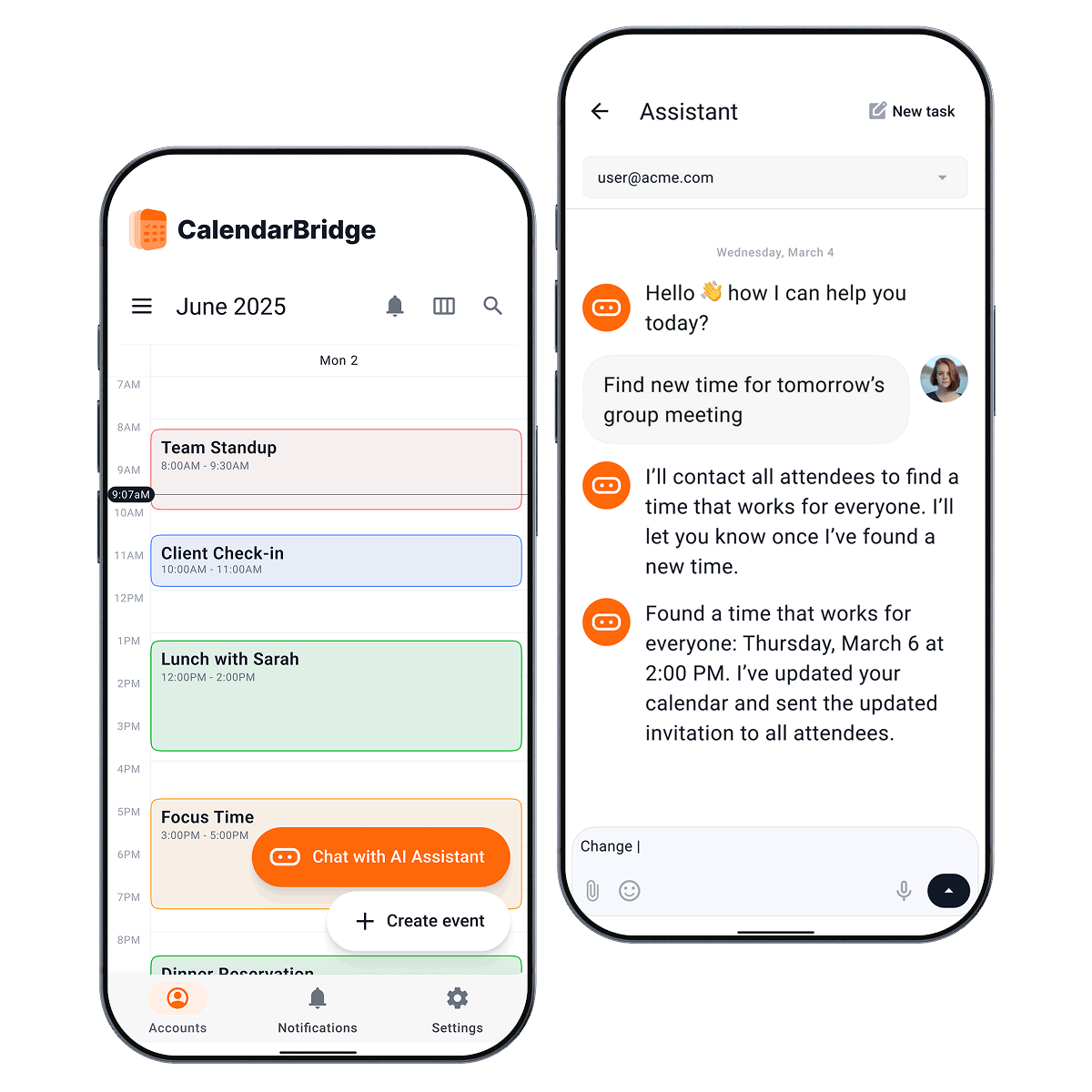
CalendarBridge combines scheduling with broader calendar management. You can ask the AI Scheduling Assistant to create, move, or cancel events, block focus time, add travel or preparation time, set reminders, and turn information from emails, screenshots, photos, or documents into calendar events.
CalendarBridge can also use the event information it has access to when answering questions about your schedule. On the AI Scheduling assistant’s primary calendar, it can work with event details and context. Additional calendars can be included for availability, but those are treated as free/busy unless their events have been synced with details into the primary calendar.
So the practical difference is not that one assistant understands meetings and the other does not. Callie currently documents a broader set of meeting-history and preparation features, while CalendarBridge puts more emphasis on taking action on the calendar itself.
For example, you can send CalendarBridge a conference agenda and ask it to add the sessions you want to attend, forward an email containing project milestones and turn those dates into events, or ask it to protect blocks of focus time around an already busy week.
Take a three-day conference or summit, for example. You can send your CalendarBridge assistant a photo of the agenda and have the sessions, times, locations, and other details added to your calendar in seconds. From there, you can easily see where you need to be, which optional events fit, and make the most of your time there.
You can even automate lead capture and follow up from trade shows.
No credit card required
Frequently Asked Questions
Both Calendly Callie and the CalendarBridge AI Scheduling Assistant can coordinate meetings through email, but their capabilities differ. Callie currently focuses on 1:1 scheduling, while CalendarBridge can coordinate meetings with multiple participants, follow up with attendees, work across multiple connected calendars, and handle additional calendar tasks.
Callie emphasizes approval before changes. CalendarBridge emphasizes configurable delegation and automation.
Calendly Callie is designed with a human approval step: according to Calendly, Callie will not make scheduling changes without the user's approval. Calendly also says Callie uses enterprise-grade encryption and follows its security protocols for communication and scheduling actions.
Learn more about Calendly Privacy and Security
CalendarBridge also gives users control over what the AI Scheduling Assistant can do, with configurable scheduling instructions and calendar access. For organizations evaluating either product, the more important comparison is the specific data each assistant can access, what actions it can take without confirmation, how information is retained, and what administrative and security controls are available.
Callie currently requires a one-on-one Calendly Event Type for scheduling over email. For meetings involving multiple participants, Calendly offers other scheduling options such as Group and Collective Event Types. CalendarBridge can coordinate multi-participant meetings directly within an email thread.
Yes. You can add the CalendarBridge AI Scheduling Assistant to a group email and ask it to coordinate the meeting. It can work with participant availability, follow up when needed, and follow instructions about which attendees need to be available before a meeting is scheduled.
Both can account for availability across connected calendars. CalendarBridge can also work across multiple connected calendar accounts and allows users to configure separate AI assistants for different email accounts when needed.
Calendly currently does not allow users to rename Callie. CalendarBridge lets users name their AI Scheduling Assistants, making it possible to create different assistants for different accounts or scheduling roles.
Callie currently works in English. The CalendarBridge AI Scheduling Assistant can coordinate scheduling across languages as well as time zones.
Calendly Callie or CalendarBridge: Which Should You Choose?
If you already use Calendly and want an AI assistant for coordinating 1:1 meetings over email, Callie brings that capability into the Calendly experience. CalendarBridge can handle those meetings too, along with group scheduling and more complex scheduling workflows.
But that’s not where its usefulness ends. It’s built to take more calendar work off your plate, with more flexibility in how you use your assistant, more control over how it handles scheduling, and capabilities that go beyond meetings altogether. The more you use it, the more you realize how many of those small calendar tasks you can hand off, adding up to more time, better productivity, and less calendar work spilling into the rest of your day.
And with the ability to connect CalendarBridge through MCP, there are even more ways to put your assistant to work.