
Introduction
Apple’s ecosystem, especially the iPhone and macOS, is known for its sleek design and loyal user base. Meanwhile, Outlook Calendar remains a go-to tool for professionals and enterprise teams around the world.
If you use Apple devices but rely on Outlook for scheduling, you might be wondering how to sync your Outlook Calendar with Apple Calendar. In this guide, we’ll walk through how to connect the two, what limitations to expect, and the most efficient way to keep everything in sync. If you use Android, learn how to sync Outlook to your Android phone or tablet.
Sync Outlook Calendar with Apple Calendar Using the macOS Calendar App
Apple Calendar doesn’t offer native iCal support for a true two-way sync with external calendars like Outlook to iPhone, which means you’re limited in how quickly updates are reflected.
One way to view your Outlook Calendar in Apple Calendar is by using the built-in Add Account feature on macOS. By connecting your Outlook account directly through the Calendar app on your Mac, you can display your Outlook events alongside your Apple Calendar, though it’s more of a connection than a full sync. Learn more about sharing and syncing calendars.
If You Need True, Real-time Calendar Sync from Outlook to Apple Calendar, You Need CalendarBridge!

Step by Step Using MacOS
Press Command + Space to launch Spotlight Search, then type “Calendar” and open the app from the results.

With the Calendar app open and active, look at the top of your screen and click “Calendar” in the macOS menu bar to access additional settings.

This option lets you connect calendars from different providers like Outlook and Google, so you can manage everything in one place.

Connect your Outlook Calendar to the Apple Calendar app.
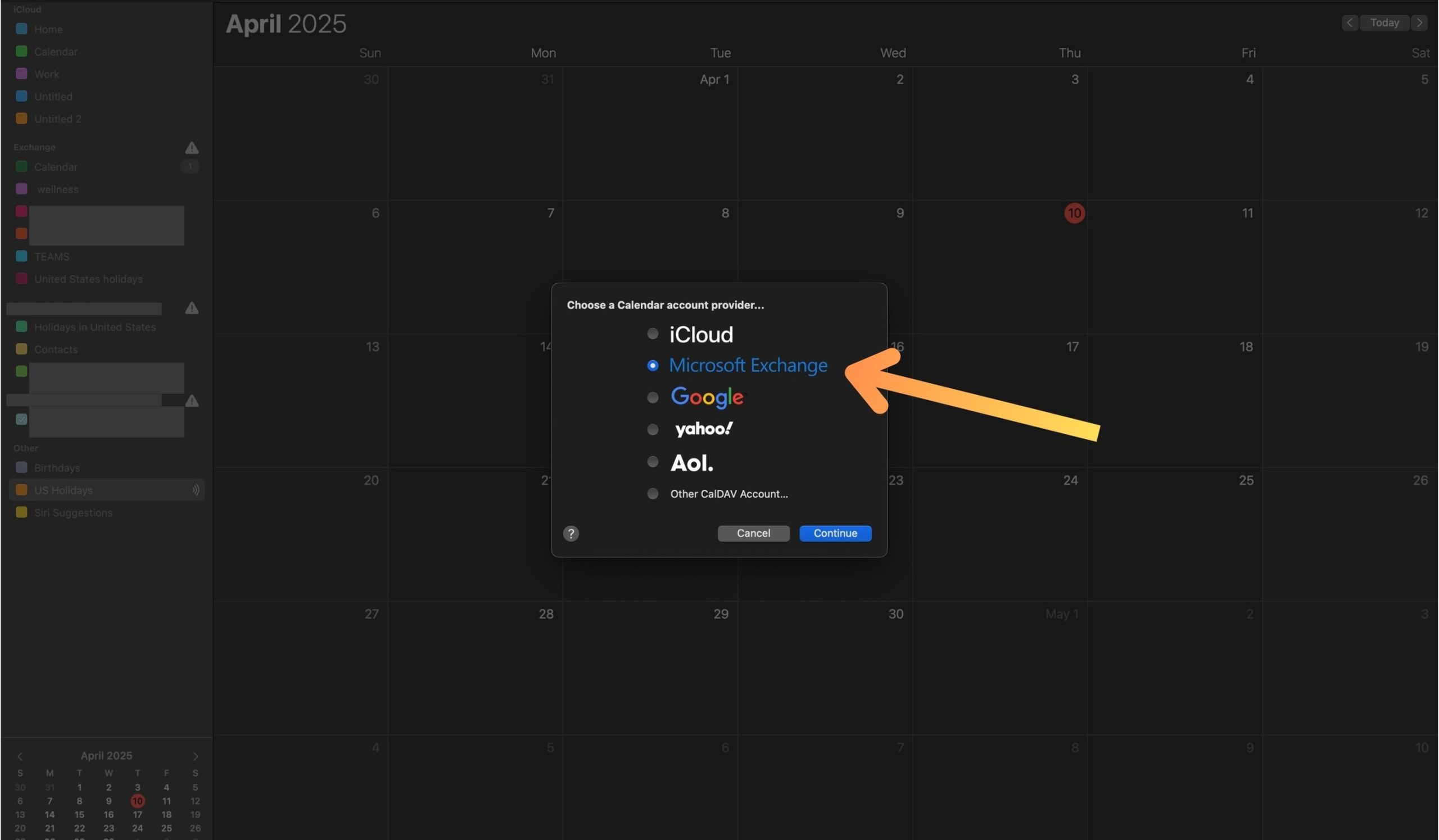
Proceed to sign in with your Outlook account.

Use the address linked to the calendar you want to add.

Use Outlook’s built-in authentication for an easier setup.
Enter your email and password, then choose “Calendars” when prompted. Your Outlook calendar accounts are now synced with your Apple device, and under the ‘Exchange’ section in your settings, you’ll see all your connected Outlook calendars.

Sync Outlook With all Your Calendars in Real-time with CalendarBridge
Frequently Asked Questions
No, the built-in method only allows you to view your Outlook events in the Apple Calendar app. For two-way syncing, you'll need a dedicated sync tool like CalendarBridge.
Not when using the built-in integration. Events created or edited in Apple Calendar won’t sync back to Outlook.
Connecting lets you see multiple calendars in one place, but syncing your calendars means that changes made in one calendar reflect in the other automatically.
Yes, CalendarBridge is platform-agnostic and supports syncing calendars across macOS, Windows, iOS, Android, and all major calendar services.
It’s the most reliable built-in method on macOS. However, if you’re using a non-Exchange Outlook account (like Outlook.com), you may need to choose “Other CalDAV Account” or use a sync tool.
Final Thoughts
While macOS makes it easy to view your Outlook Calendar inside the Apple Calendar app, it’s important to remember that this setup doesn’t offer full two-way syncing. If you need real-time updates across devices and platforms, especially for managing multiple calendars, consider using a purpose-built tool like CalendarBridge. It takes the guesswork out of calendar management so you can stay organized without the hassle.
If you’re looking for more ways to organize your Outlook calendar across devices, check out other guides on the CalendarBridge blog.
