Introduction
Are you using an Apple Watch with your iPhone but can’t see your Google Calendar events? You’re not alone. In this quick calendar sync guide, we’ll show you the simplest and most reliable way to view your Google Calendar directly from your Apple Watch with no confusing workarounds or additional apps required.
Steps to Sync Your Google Calendar to Your Apple Watch
Start by tapping the Settings icon on your home screen.

Scroll down and tap on Mail. (Depending on your iOS version, this may also be under Calendar or Accounts & Passwords.)
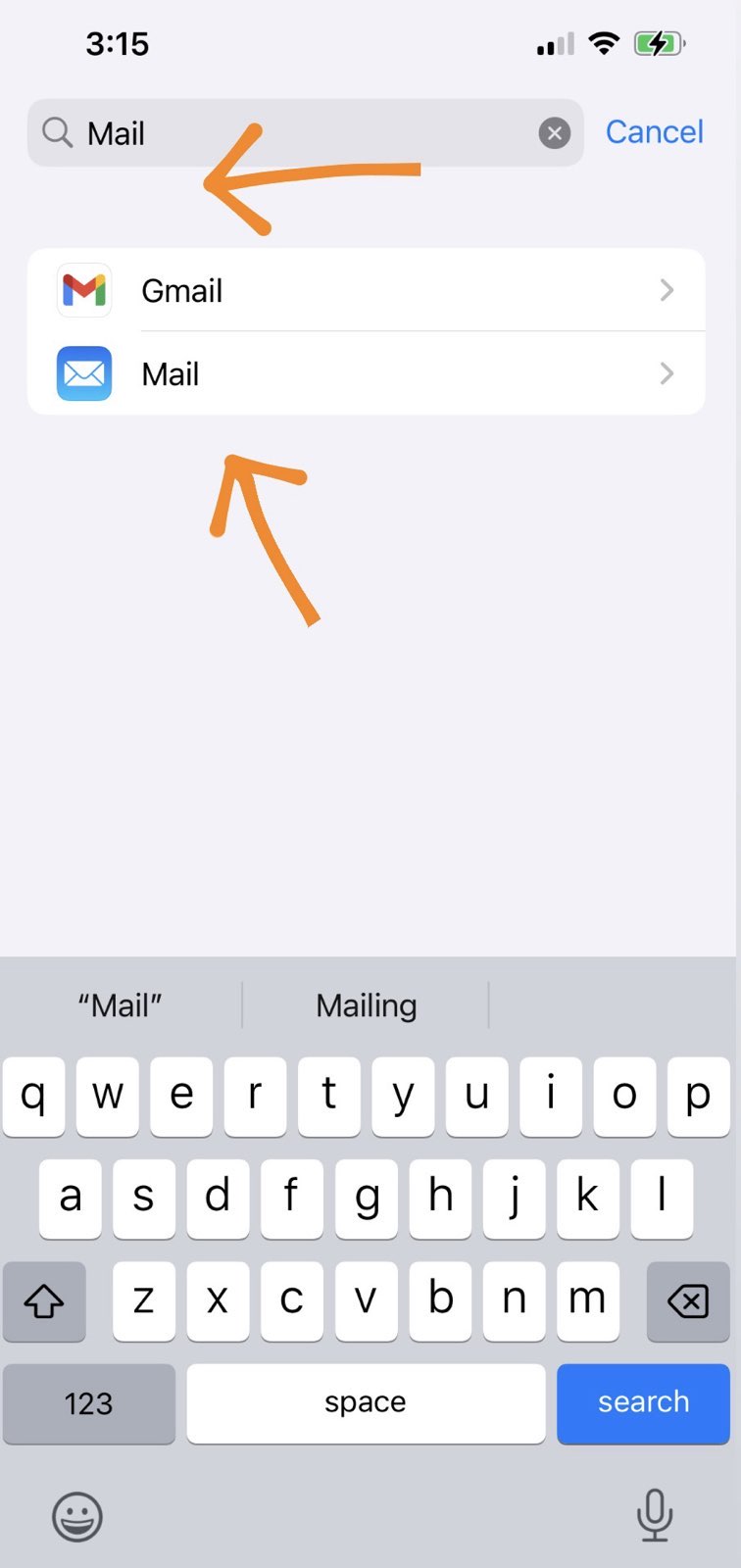
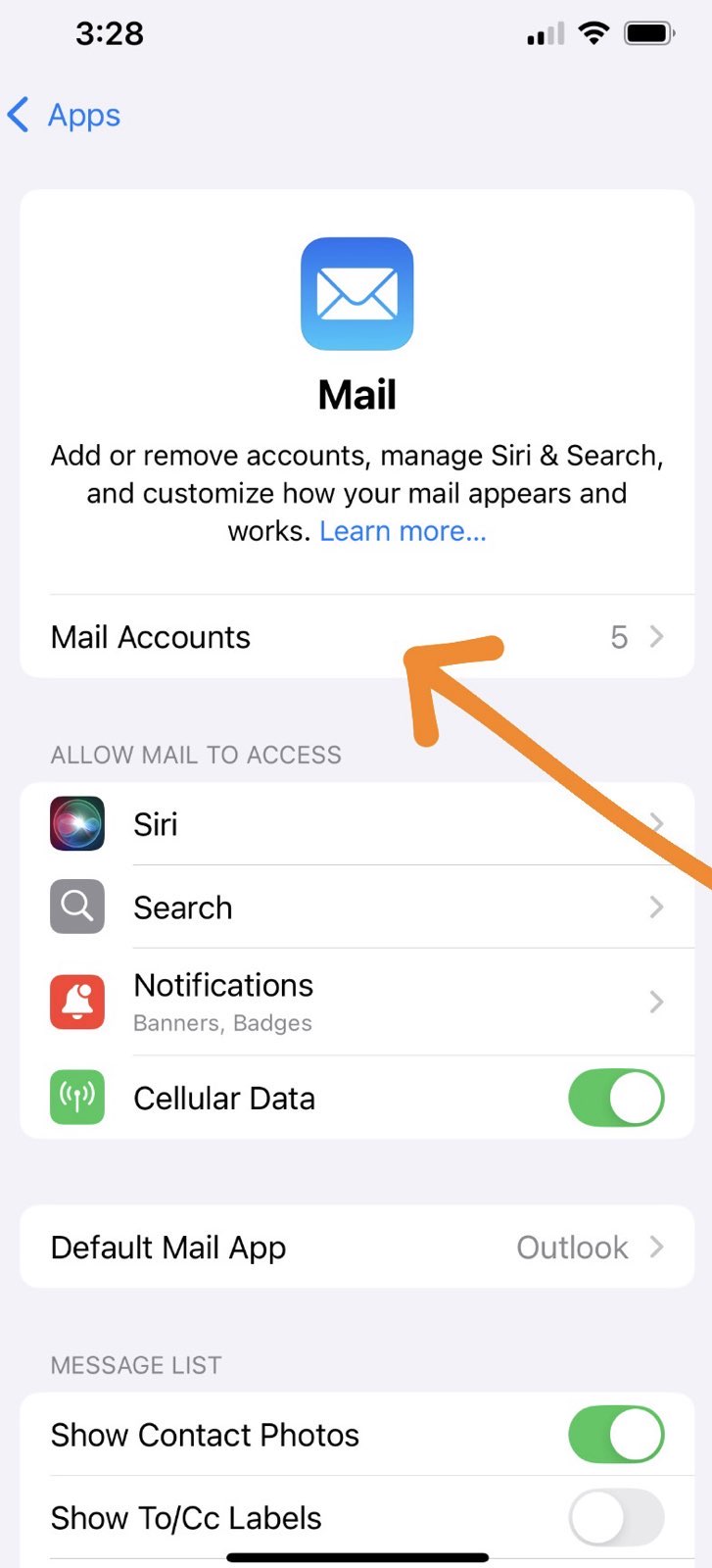
Inside the Mail settings, choose Accounts to view the accounts currently connected to your iPhone.
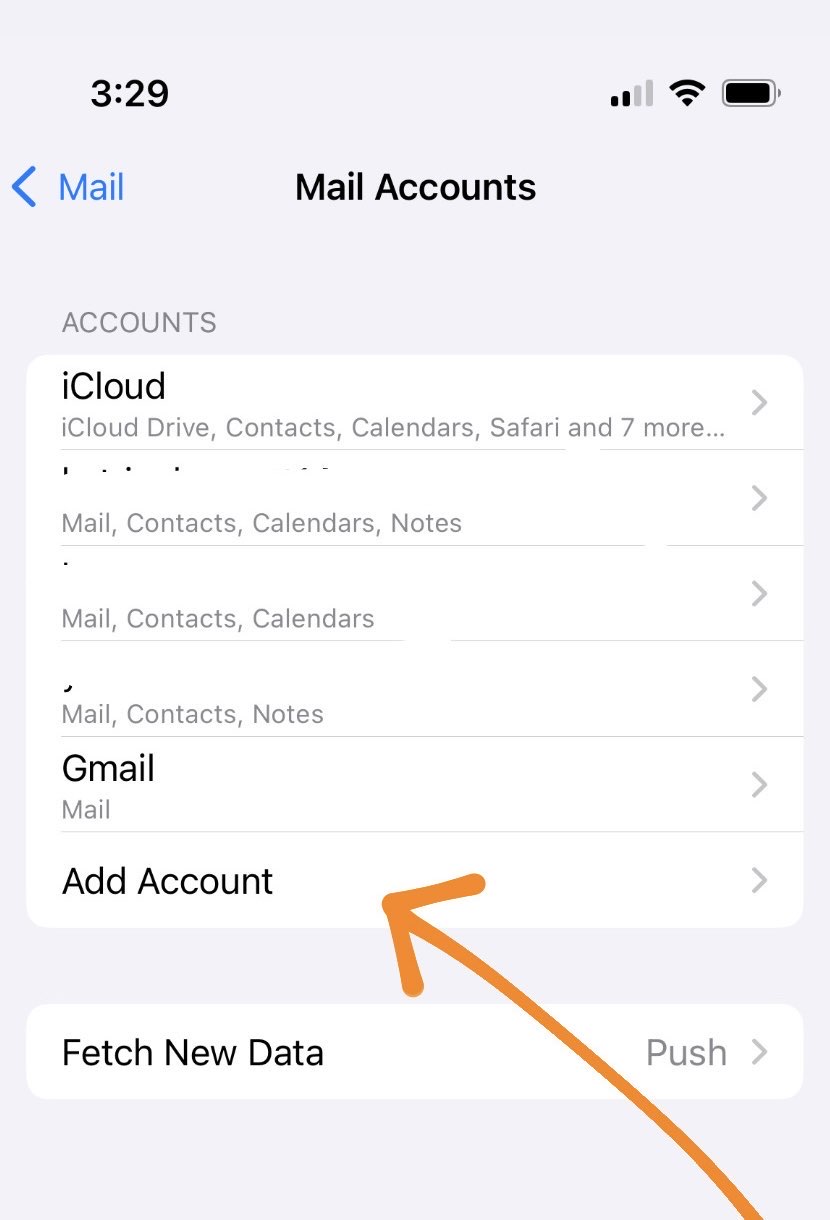
Now tap Add Account to connect a new email account.
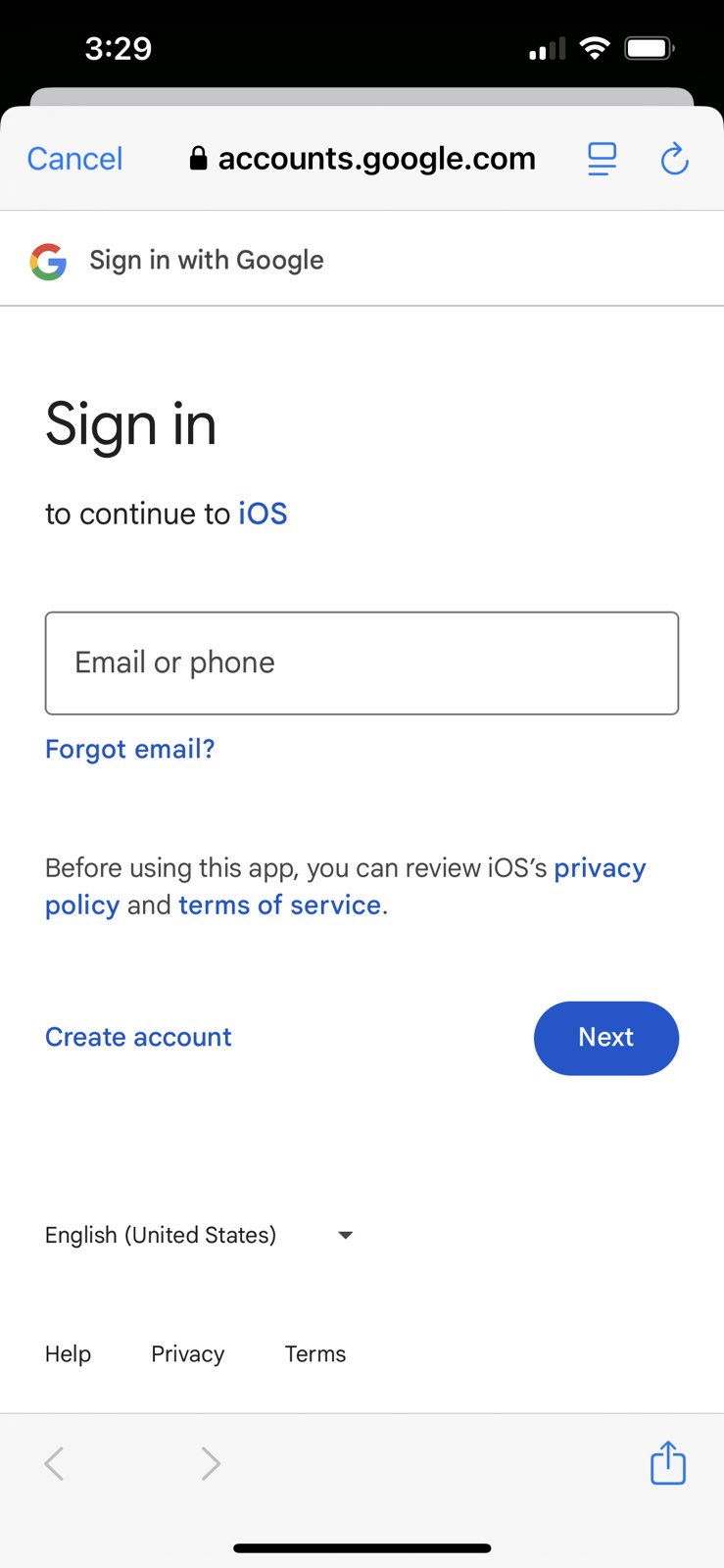
From the list of options, choose Google.

Enter your Google email and password. Be sure to allow access to Calendars when prompted.
After signing in, you’ll see several toggle options (Mail, Contacts, Calendars, etc.)
Wait a few moments, then open the Calendar app on your Apple Watch. Your Google Calendar events should appear.
Sync Calendars with All Devices in Real-time with CalendarBridge

Limitations to Be Aware Of
While this method works well for most users, keep the following limitations in mind:
- You can view events, but you can’t create or edit them directly from your Apple Watch.
- It may take a few minutes for newly added Google events to appear on your watch.
- If you use multiple Google accounts or calendars, only the selected calendars will appear. Learn how to sync multiple Google calendars.
Bonus Tip: Show or Hide Specific Google Calendars
If you’re not seeing the events you expect, make sure the correct Google calendars are enabled in your iPhone’s Calendar settings:
- Open the Calendar app on your iPhone.
- Tap Calendars at the bottom of the screen.
- Make sure the calendars you want to see on your Apple Watch are checked.
Frequently Asked Questions
Yes. Once you’ve synced your Google account with your iPhone and enabled calendar access, your events will appear on your Apple Watch through the built-in Calendar app.
Make sure the specific calendars you want to see are enabled in the iPhone’s Calendar app under the “Calendars” tab.
Not at this time. The Apple Watch Calendar app is read-only for Google Calendar events, you can view them but not create or edit.
It can take a few minutes for newly added or updated events to sync from your Google Calendar to the watch, depending on background sync activity.
Yes, but only calendars selected for display in your iPhone's Calendar settings will show on your Apple Watch.
Double-check that the Google account is connected under iPhone Settings > Mail > Accounts, and that the Calendars toggle is enabled.
Final Thoughts
You don’t need any third-party apps to get your Google Calendar on your Apple Watch, just a quick sync via iPhone settings. It’s a fast and reliable way to stay on top of your schedule from your wrist.
If you’re looking for more ways to organize your calendar across devices, check out other guides on the CalendarBridge blog.