Introduction
Sharing your iPhone calendar is a convenient way to keep anyone, like your family, friends, and coworkers in the loop. But depending on who you’re sharing with and what calendar platform they use, the steps can vary.
In this iPhone calendar sharing guide, we’ll walk you through the steps to share your ios calendar with other iPhone users (Slightly different than syncing), as well as with Google Calendar and Outlook. You’ll also learn how to set the right sharing permissions and avoid common privacy pitfalls, plus we’ll let you know how to keep everything automatically synced using CalendarBridge.
- Share iPhone Calendar with Anyone
- Share with a Google Calendar User
- Share with an Outlook Calendar User
- Share with another iPhone User
If you’re a Google user, our complete guide to sharing a Google Calendar may come in handy also.
Getting Started - Sharing with Anyone
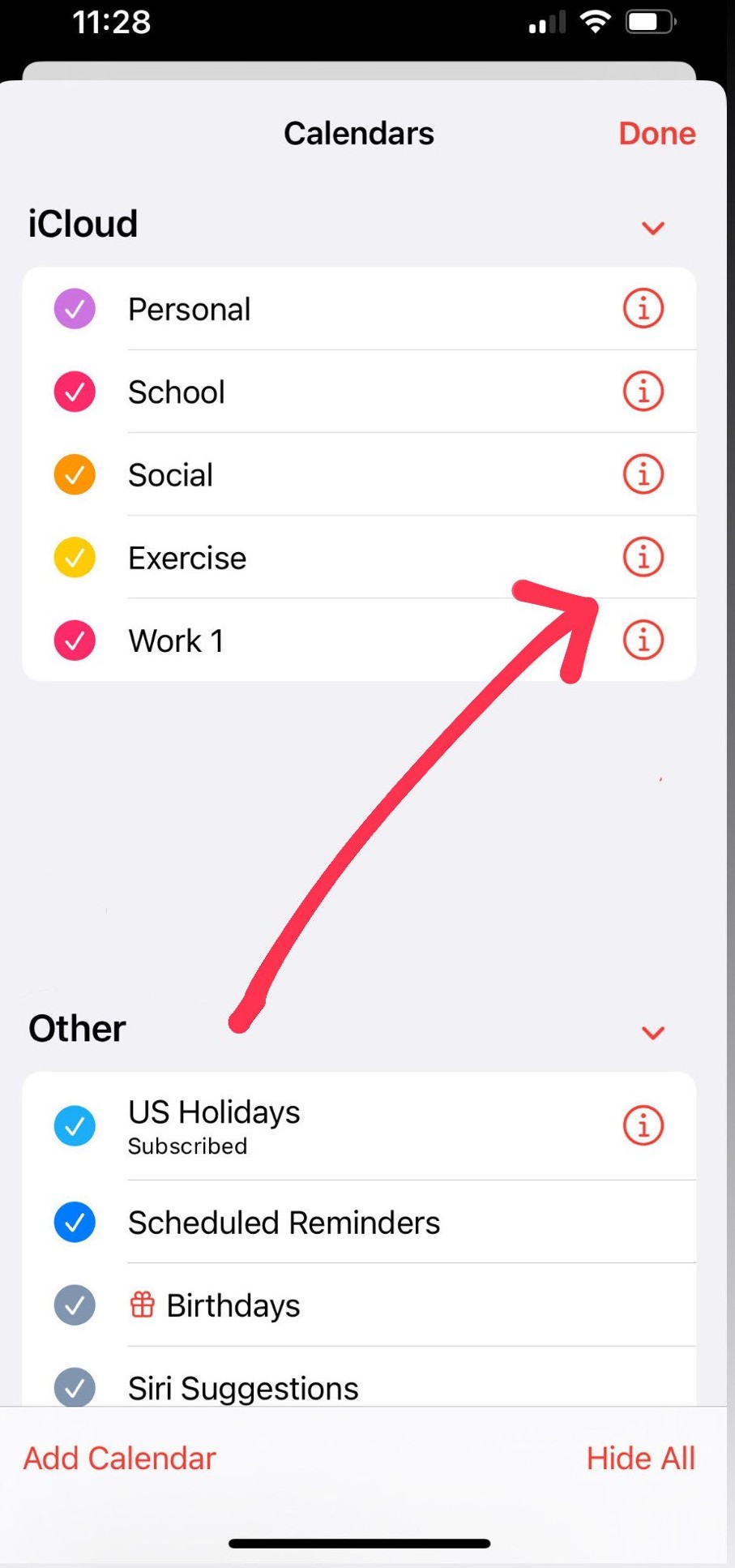
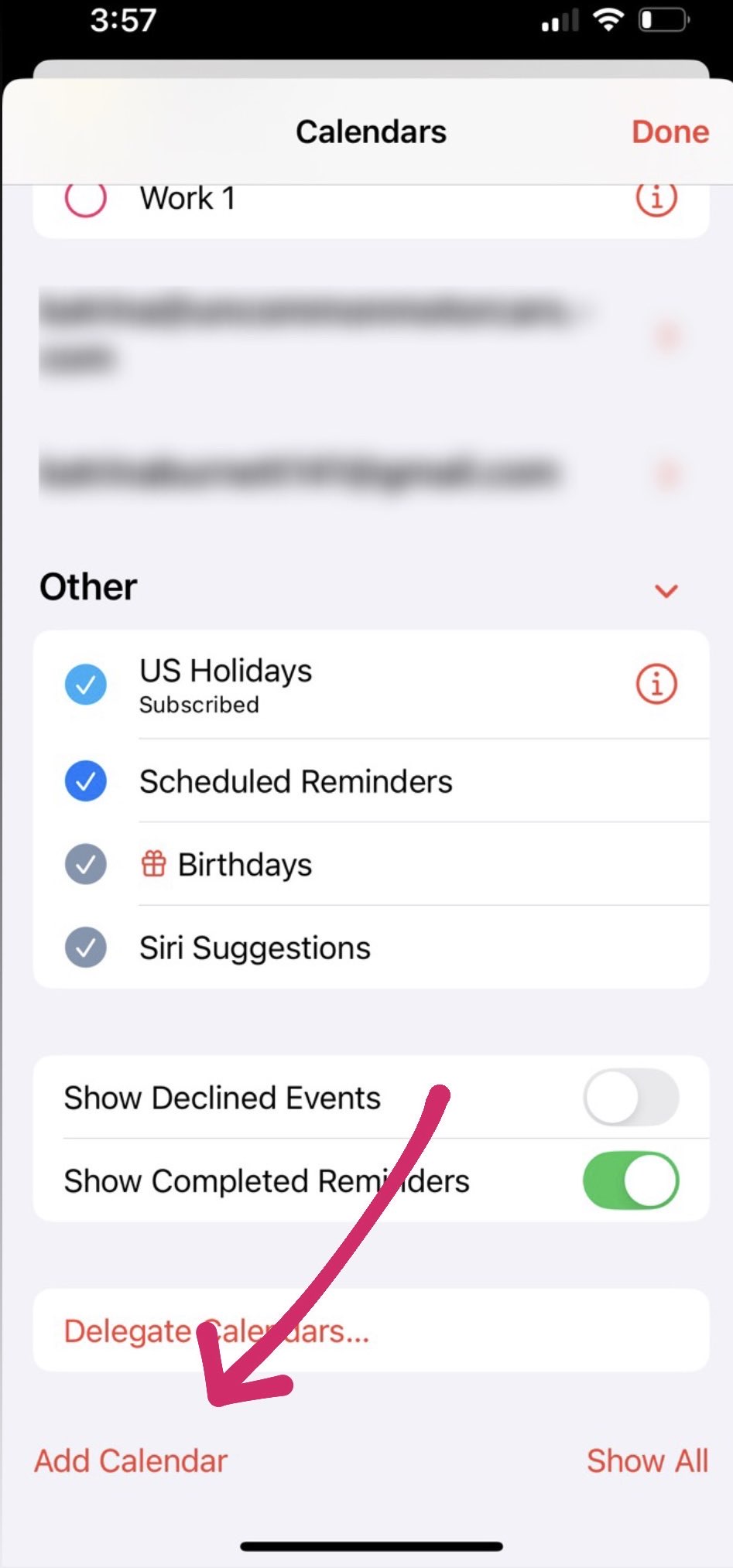
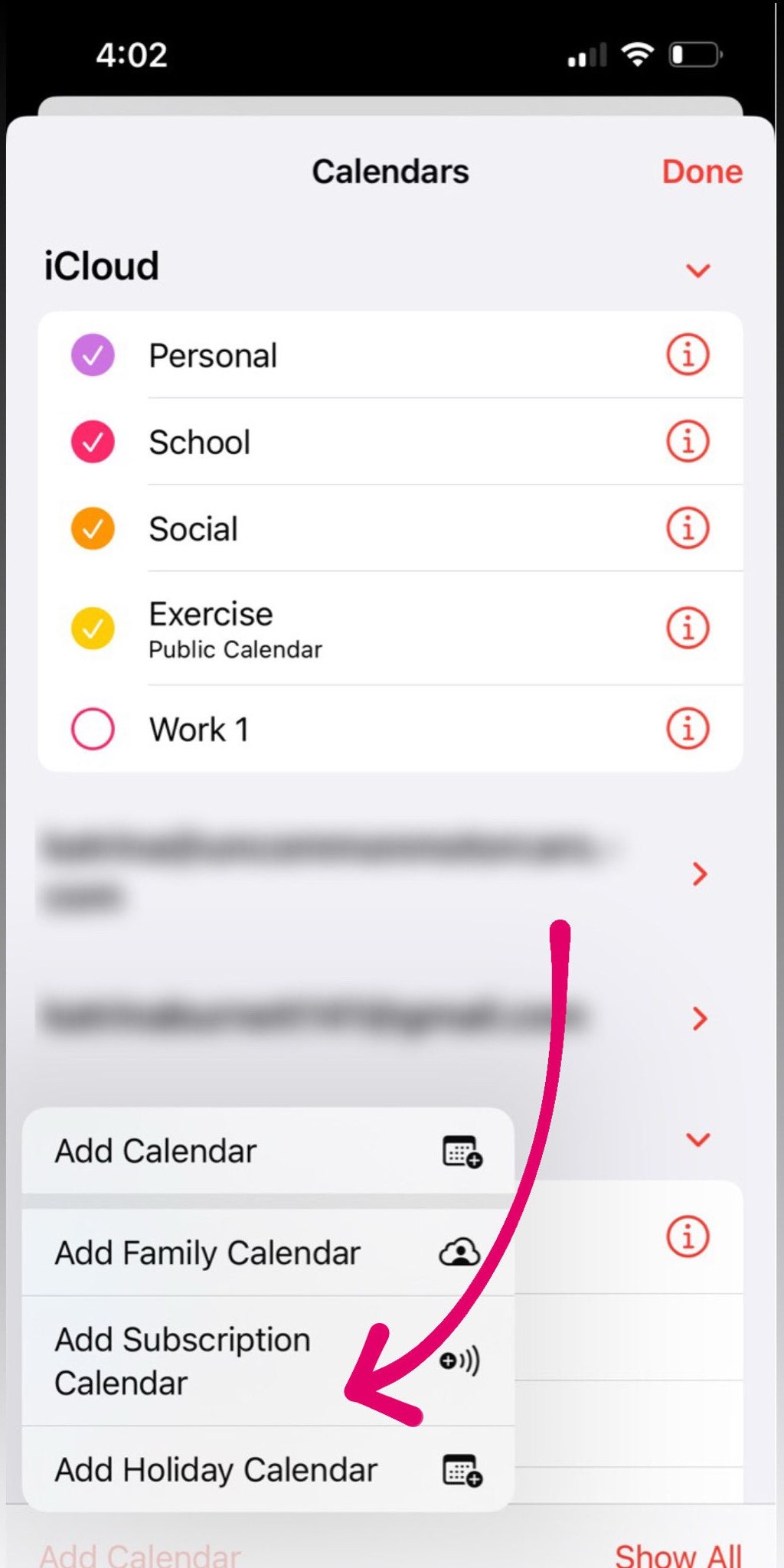
Sharing your iPhone calendar starts with a few quick taps inside the Calendar app. The first step is selecting the right calendar and accessing its sharing settings. Follow the steps below to get to the screen where you can add people, adjust permissions, and start sharing in seconds.
Don't Just Share Your iPhone Calendar - Sync It with CalendarBridge
How to Share an iPhone Calendar with a Google Calendar
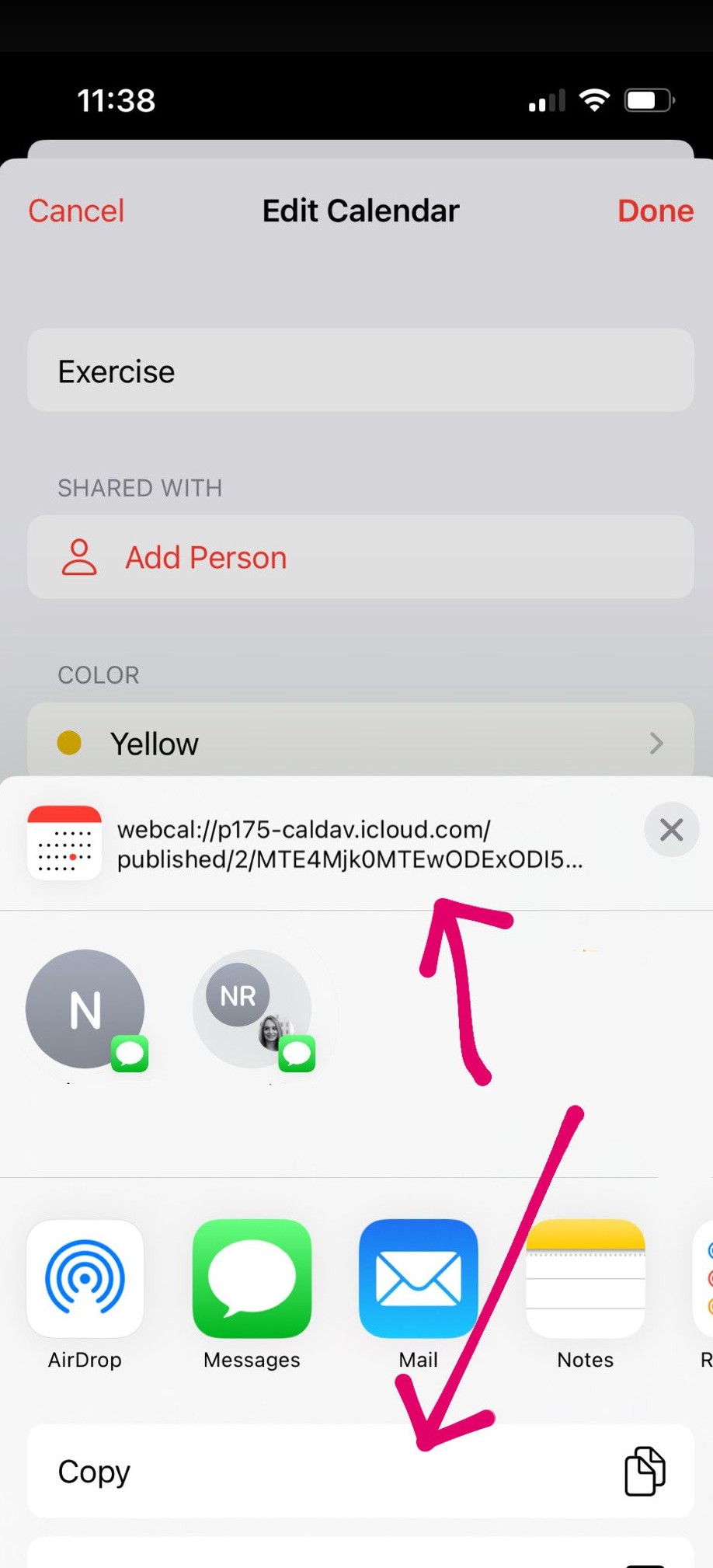
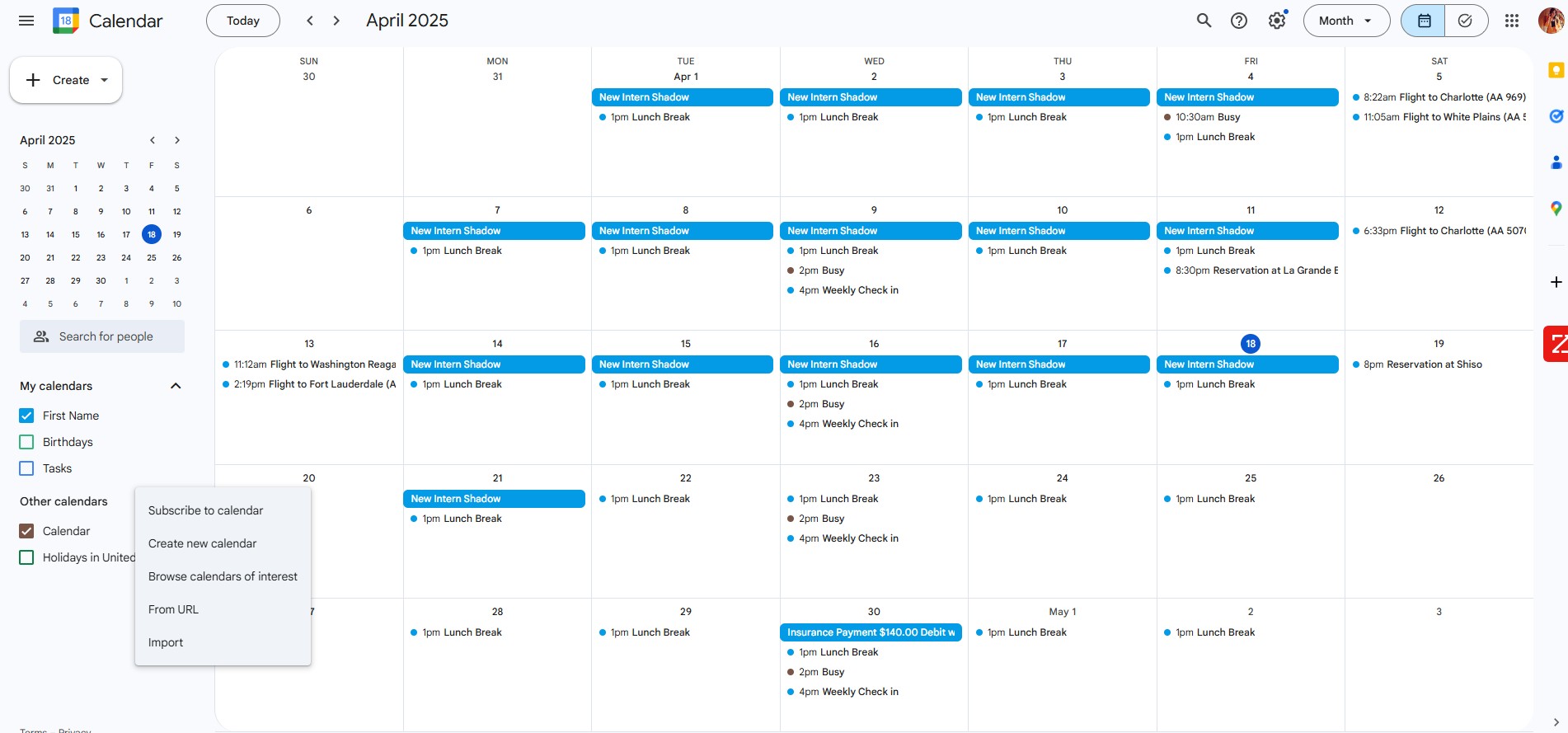
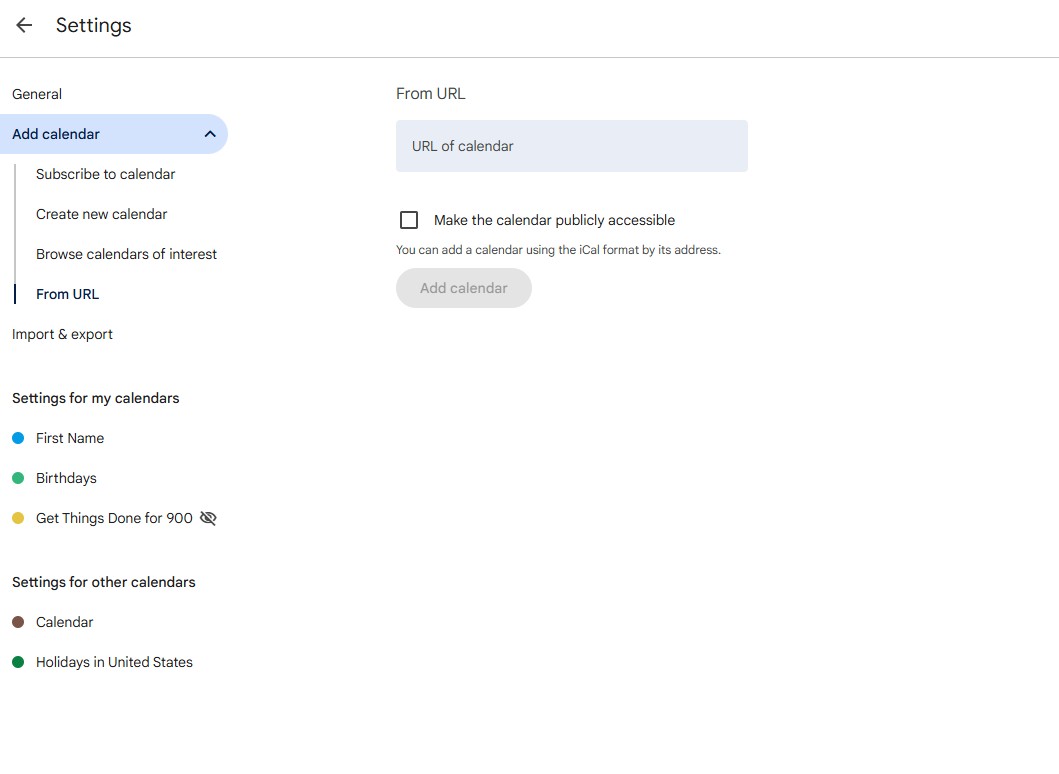
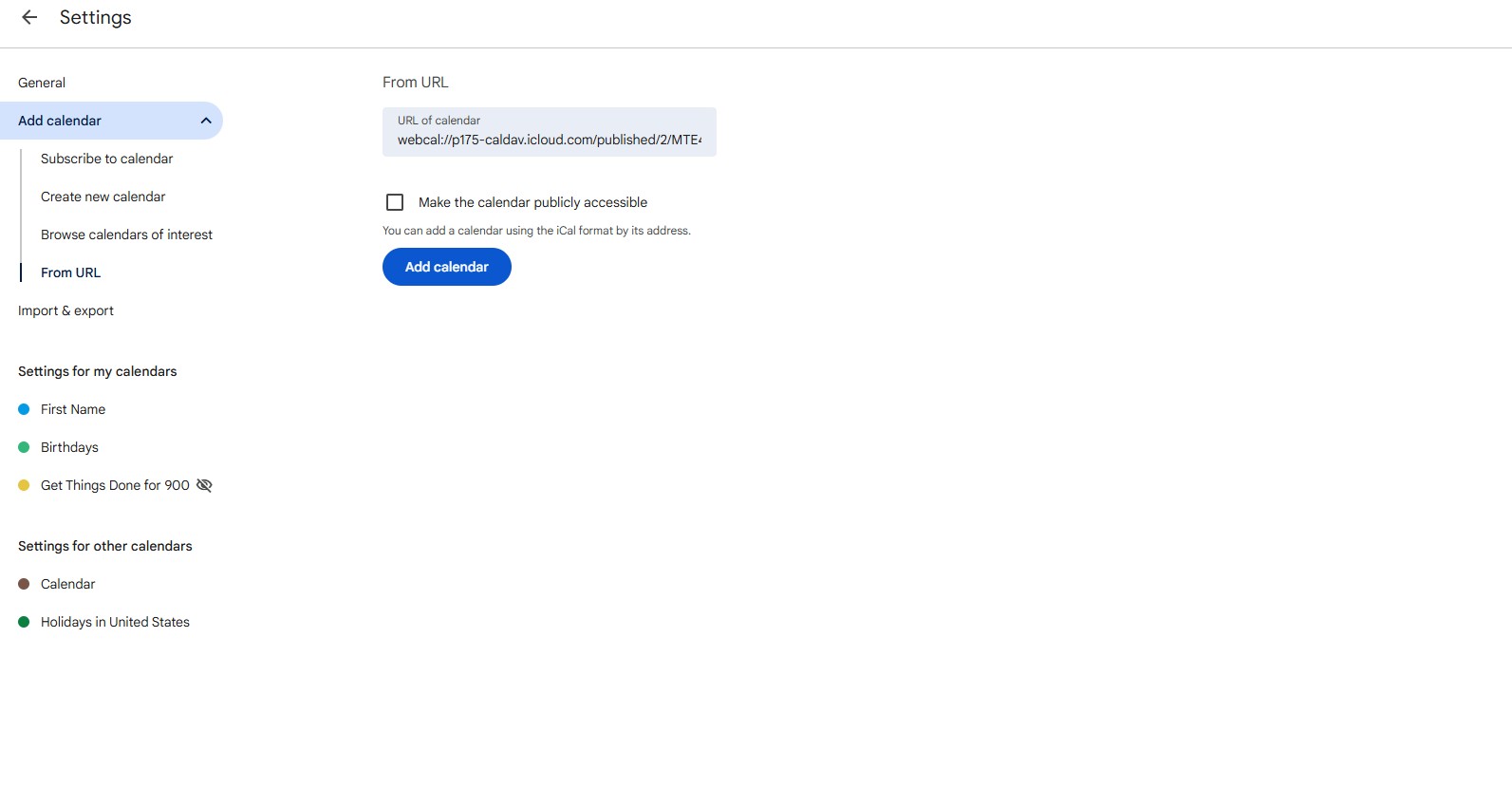
If you want to view your iPhone calendar inside Google Calendar, you’ll need to make it publicly shareable and use a Webcal link. While this method provides read-only access, it’s a quick and effective way to keep your Google Calendar updated with your iPhone events (Learn how to sync Google and iCloud calendars).
Follow the steps below to set it up using your iPhone and a desktop browser.
Share and Synchronize Your iPhone and Google Calendars with CalendarBridge
How to share an iPhone Calendar with an Outlook Calendar
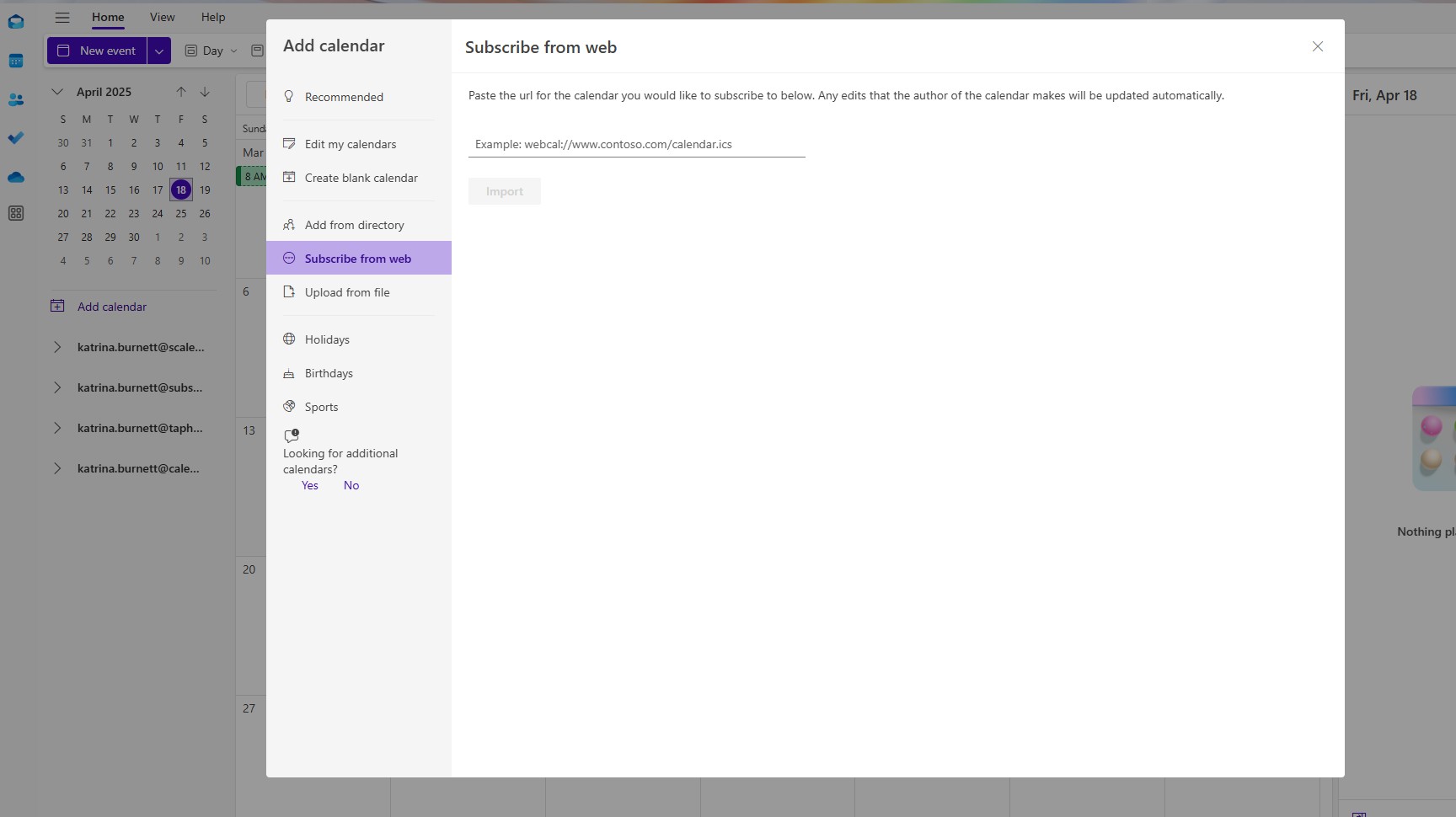
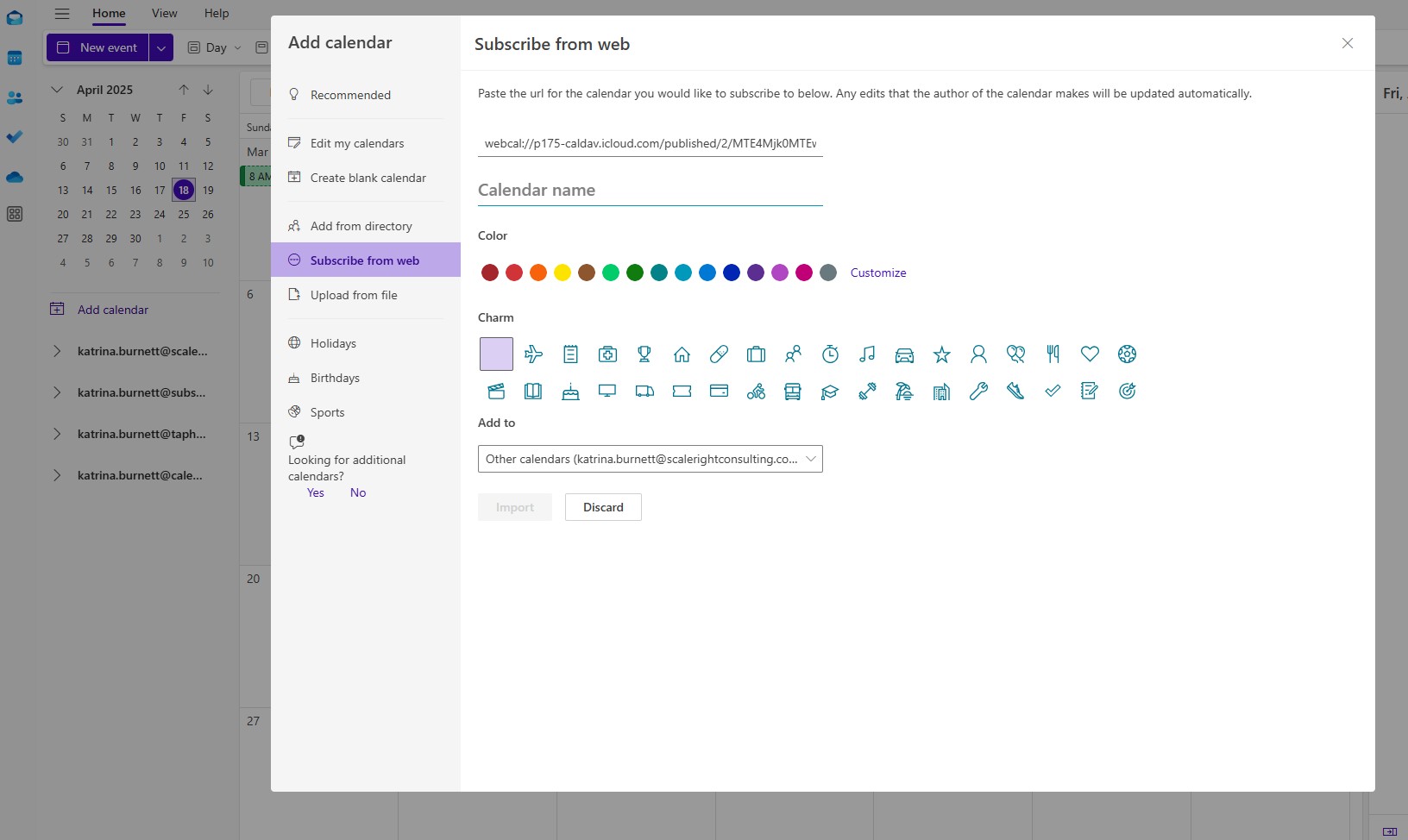
To share your iPhone calendar with Outlook, you’ll follow a similar process to sharing with Google Calendar, by enabling public sharing and using a Webcal link. Since Outlook doesn’t support direct calendar sharing from the mobile app, you’ll complete the setup through the Outlook web calendar interface. If you need a more accurate and complete picture of your schedule, consider syncing your iPhone calendar to Outlook.
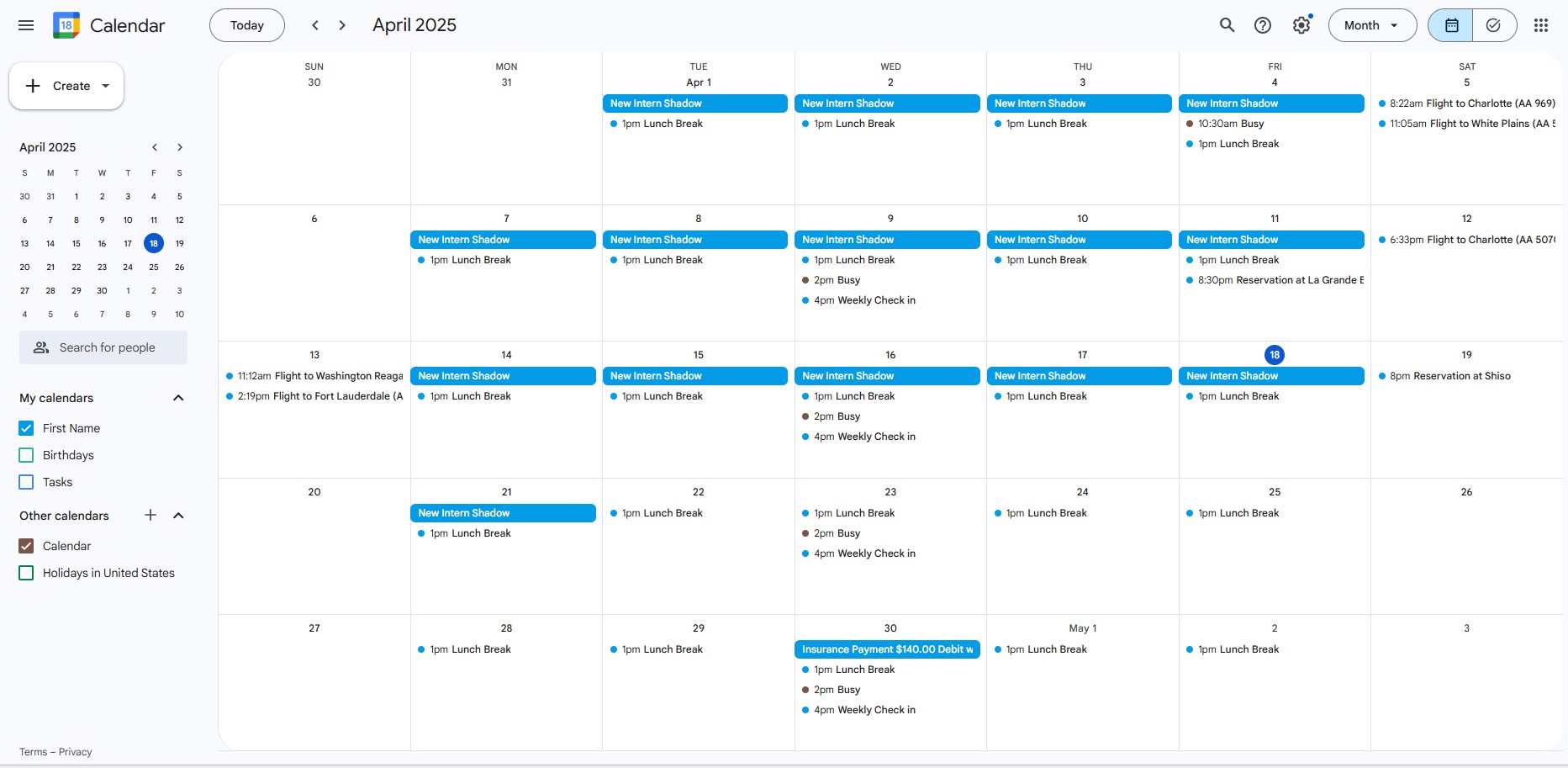
You’ll now see all your iPhone events right inside your Outlook Calendar, making it easier to stay organized across devices.
Share and Sync iPhone and Outlook Calendars with CalendarBridge
How to Share Your iPhone Calendar with Another iPhone User
Sharing your iPhone calendar with another iPhone user is simple and seamless. By using iCloud’s built-in sharing options or a Webcal link, you can let someone else view your schedule directly in their Calendar app. Follow the steps below to set it up and keep everyone on the same page.
FAQ: iPhone Calendar Sharing Permissions
When you share your iPhone Calendar, especially through iCloud, you’re giving others access to view your events. Unlike Google Calendar, sharing your iPhone Calendar usually means making it public via a Webcal link, or inviting someone with edit access by default. That’s why it’s important to review your sharing permissions carefully.
There are two main ways to share your iPhone calendar:
- Public Calendar (Read-Only) -
When you enable the Public Calendar option, Apple creates a Webcal link. Anyone with this link can subscribe to your calendar and view its events, but they won’t be able to make changes. - Private Sharing via iCloud (Editable by Default) -
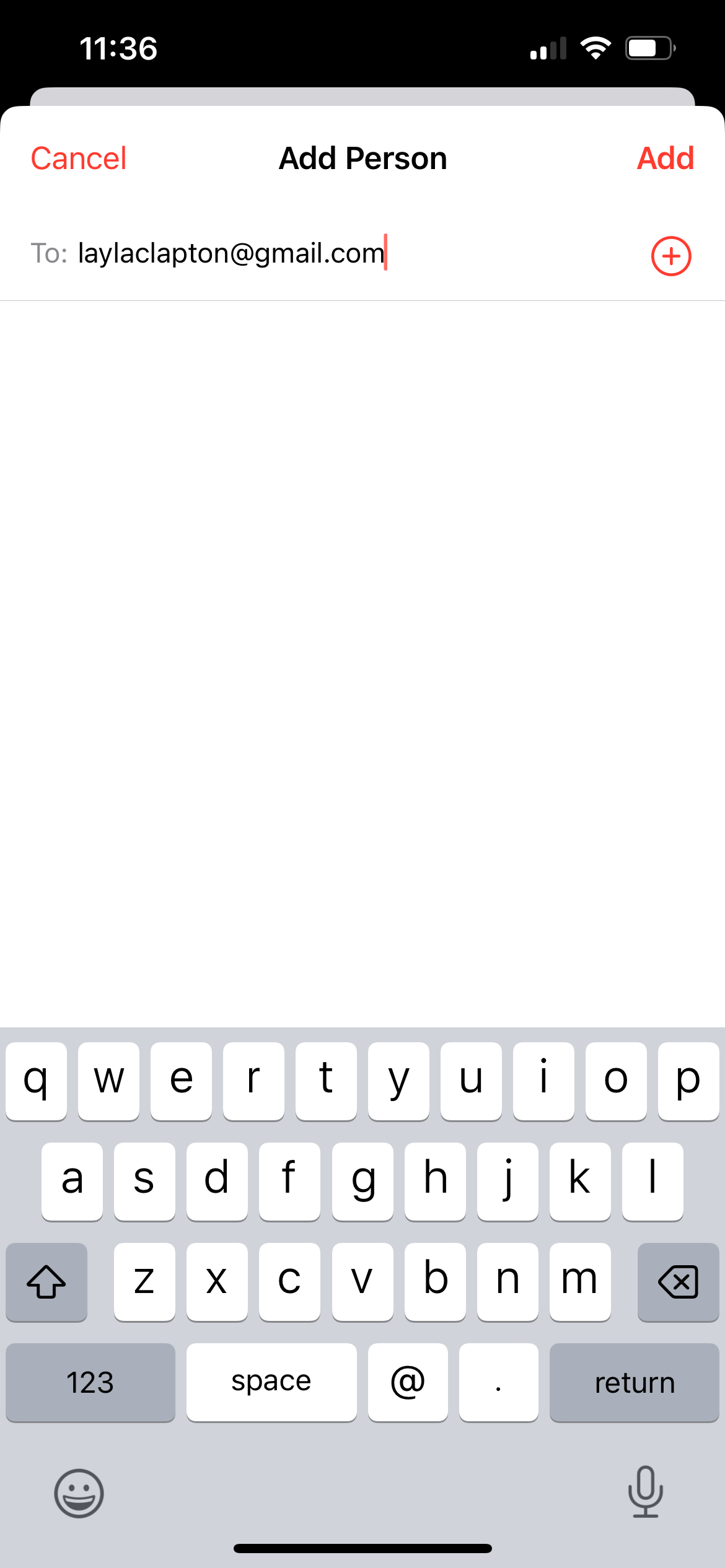
If you invite someone directly through iCloud, they’ll be able to add, edit, and delete events by default. This is great for close collaboration but can be risky if you don’t want them to make changes.
Yes, but only in certain cases. If you use iCloud to share your calendar privately, you can go back after sending the invite and disable the Allow Editing option. Unfortunately, you can’t adjust this setting before the invitation is accepted.
If you just want someone to view your events without giving them editing access, use the Public Calendar option. It provides read-only access via a Webcal link. For private sharing, only invite people you trust, and remember to turn off editing rights unless collaboration is necessary.
Definitely. Always double-check which calendar you're sharing, it might include sensitive or personal events you didn’t mean to expose. If privacy is a top concern, consider using a sync tool like CalendarBridge, which keeps your calendars updated without making them public or editable.
Sync and Automate Your Shared iPhone Calendars with CalendarBridge
CalendarBridge is a powerful calendar sync tool that lets you seamlessly connect your iPhone, Outlook and Google Calendars, manage availability across accounts, and share scheduling links with ease.