Introduction
Since launching in 2017, Microsoft Teams has been steadily growing in usage by companies around the world. It is a complicated, highly-customizable piece of software that makes it equally loved and hated by both administrators and users around the world.
But the purpose of this article is not to weigh in on the overall pros of cons of switching to Microsoft Teams. Instead, the goal here is to help clear up some of the confusion we often see regarding how calendaring works in Microsoft Teams and the relationship between Teams calendars and Outlook calendars.
Four Types of Calendars in Teams
- The Teams Calendar App – this is the calendar that is accessible via the calendar icon on the left side App Bar. This calendar is simply another view of the primary calendar of your Microsoft 365 account. The primary calendar of your Microsoft 365 account is the one named ‘Calendar’ in Outlook. Learn more about the Teams Calendar App, below.
- Teams channel calendars – a Teams channel calendar (visible by adding the Channel calendar app to a Teams channel) is a partial view of a Microsoft 365 group calendar. The view is partial in that it only shows the events on the Microsoft 365 Group calendar that were created in that particular channel. If you view the Microsoft 365 Group calendar in Outlook, you will see the events of all channel calendars for that team. Learn more about channel calendars, below.
- Viewing a web calendar in Teams – if you have a publicly accessible link to a calendar, add a tab to a Teams channel that displays the calendar. This is functionally equivalent to viewing the calendar in a browser, but this approach lets you view it in Teams rather than switching between Teams and a browser. Learn more about viewing a web calendar in Teams, below.
- Shifts calendars – Shifts in Microsoft Teams is a schedule management tool that helps you create, update, and manage schedules for your team. You can learn more about it here. Unlike the Teams Calendar App and Channel calendars, Shifts not just another view of an Outlook calendar, but is an entirely separate thing. We will not cover it further in this article.
The Teams Calendar App
The Teams Calendar App is simply another view of the primary/default Outlook calendar of your Microsoft 365 account. (The default/primary calendar of a Microsoft 365 account is the calendar named “Calendar,” and it is the calendar on which invites sent to your Microsoft 365 email address will appear.)
“The Teams Calendar App is simply another view of the primary Outlook calendar (the one named “Calendar”) of your Microsoft 365 account”
If you create an event on your primary calendar in Outlook, you will see it in the Teams Calendar App. Likewise, if you create an event on the Teams Calendar App, you will see it in on your primary calendar in Outlook.
So, when Chad opens the Teams Calendar app, he see the same events as on his ‘Calendar’ in Outlook:


Likewise, when Adele opens the Teams Calendar App, she sees the events that are on her primary Outlook calendar:
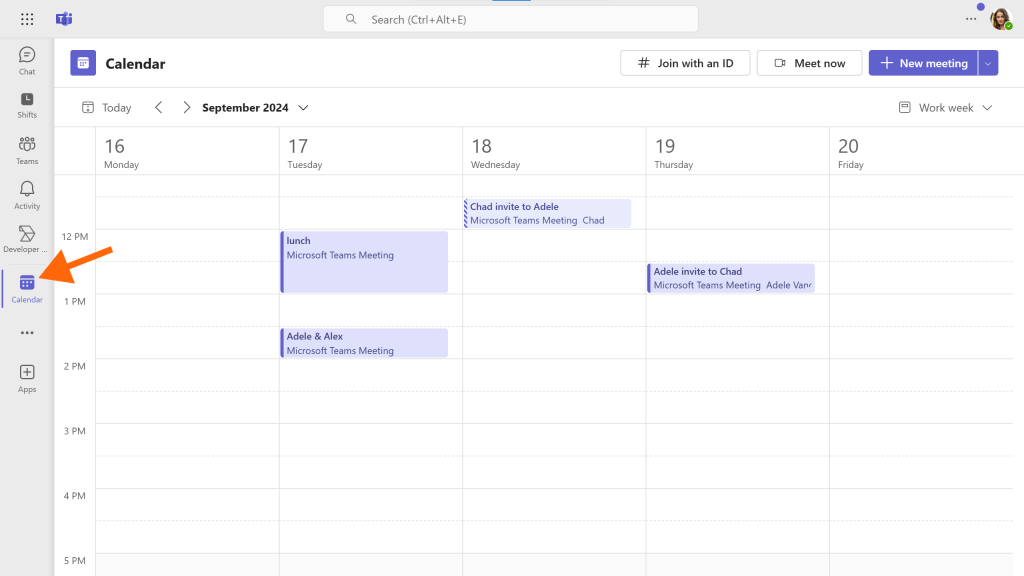
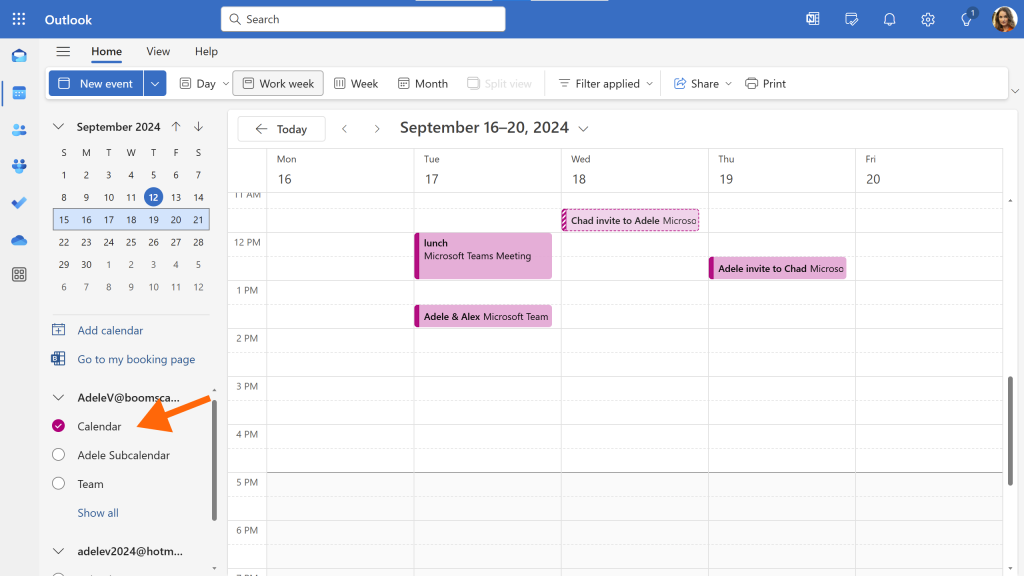
In summary, the Teams Calendar App: is simply a way to view/manage your primary calendar from within Teams, instead of having to switch over to Outlook.
Teams Channel Calendars
Whereas the main Teams Calendar App simply shows the primary calendar of your Microsoft 365 account. Teams channel calendars are something different (and more confusing).
How to add a Teams Channel Calendar
1. Select “Teams” in the App bar (the left menu)
2. Select the channel for which you want to create a channel calendar.
3. Click the ‘+’ to ‘add a tab’

4. Search for ‘channel calendar’ and the select it from the search results

5. Click ‘Add’ to add the channel calendar as a new tab in the channel.

Here a Operations channel calendar has been added to the Operations channel of the team named “Team”:

Teams Channel calendars are powered by Microsoft 365 Group calendars
When you add a Channel calendar app to a Teams channel , what you are really doing is creating a filtered view into the Microsoft 365 Group calendar.
The Channel calendar will show events that exist on the Microsoft 365 Group calendar and that are associated with that particular channel. It will not show other events on the Microsoft 365 Group calendar that are not associated other channels or with no channel at all.
But this all begs the question: What is a Microsoft 365 Group calendar?
Here is Microsoft’s attempt at explaining what a Microsoft 365 Group is. If you are like me, you will not find it very helpful. Instead, I find it helpful to just think of a Microsoft 365 Group as a set of shared resources, and user’s access to those resources depends on their status/permissions within the group (e.g., whether you are an owner, member, guest, or not associated with the group). The resources that are created when you create a Microsoft 365 Group include:
- a shared email inbox,
- a SharePoint site,
- a OneNote notebook
- a shared calendar, and
- (optionally) a team in Teams.
Making a Microsoft 365 Group a “Team” basically means that additional chat, video calling, and other collaboration resources are created for the Microsoft 365 Group. Importantly, it does not mean that a “Team calendar” is created. There is no separate “Team calendar,” there is just the Microsoft 365 Group calendar.
Creating events with the Teams Channel calendar App (beware the gotchas!)
Since the way the channel calendars work is a bit confusing because (as evidenced by the abysmal 1.5 star rating of the Channel calendar app in the Teams App store), so I figured the easiest way to explain it is to just walk through an example. It may be a bit tedious, but it should leave no doubt in your mind as to how it works.
Chad is a member of a Microsoft Team named “Team.” Team has a Sales channel and an Operations channel. An Operations channel calendar has been added to the Operations channel and a Sales channel calendar has been added to the Sales channel.
To get started with the example, Chad creates a “Sales Update” event in the Sales channel using the Channel calendar app. He does not add anyone in the attendees field and he does not check the box to “Send personal invites”

Next Chad creates a “Sales Regroup” event in the Sales channel using the Channel calendar app. This time he turns on “Send personal invites”.

Here is what the channel calendar shows after creating these two events:

Now, if we look at Chad and Adele’s primary calendars (either in Outlook or in the Teams Calendar App) we will see that Chad has both of the Sales events on his calendar, but Adele only has the Sales Regroup event and not the Sales Update event.


This is the first “gotcha” for Teams channel calendars:
- The organizer of the events created on a channel calendar is the team itself (in this case “team@domains4demos.xyz”)
- The team member that creates the event on the channel calendar is automatically added as an invitee (even though an email invite is not sent; the event is simply added to their primary calendar)
- An event created on a channel calendar will not be added to the primary calendar of any other members of the team unless they are explicitly added as attendees or the “Send personal invites” option is turned on when creating the event. This means the only notice they will have of the event is a post in the channel.
Now, Chad creates two events in the Operations channel. Notice how the Channel calendar only shows those events and not the events created in the Sales channel:

BUT, if we look at the underlying Group calendar for Team in Outlook, we will see the events of both channels:
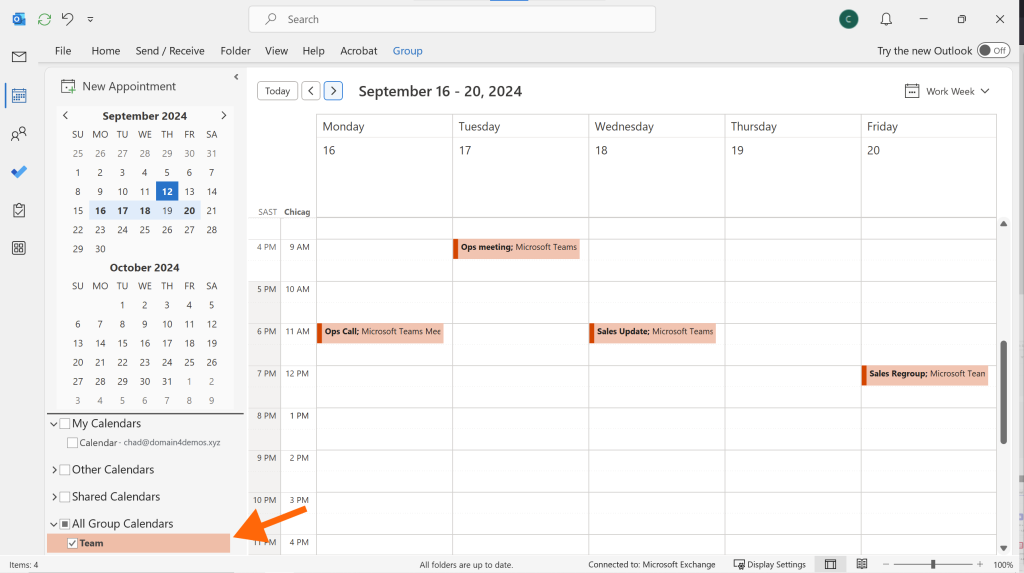
So, in summary. When you create a team in Teams, a Microsoft 365 Group calendar is created for the team. When you add events to a channel calendar in Teams, you are adding events to the Microsoft 365 Group calendar. Each channel calendar will only show events for that channel, but if you view the group/team calendar in outlook, you will see all the events for all of the team’s channels.
Note: any member of the Team/Group can edit any events on the Group calendar, even if they were not the member of the team that created the event. This is sometimes desirable (it is basically a workaround for the limitation that only one person can be the organizer of an event), but usually it’s not desirable. For example, if Chad schedules a meeting on the Sales channel calendar he probably doesn’t want Adele coming in and moving his meeting. For this reason, Teams-enabled Group calendars are often hidden in Outlook and unhiding them requires a Microsoft 365 administrator to unhide them (which can only be done with PowerShell, and not in the Exchange Admin Center).
Viewing a web calendar in Microsoft Teams
As discussed above, Teams Calendar App allows you to view your primary calendar in Teams and channel calendars allow you to view some events from a Microsoft 365 Group calendar. But about your other calendars? For example, what about any subcalendars you have created on your Microsoft 365 account in Outlook.
Unfortunately, the best you can do for other calendars is, if the calendar has a URL, you can add a tab to a teams channel and view the calendar in that tab. All this really does is allow you to view the calendar in Teams rather than having to open the URL in a web browser. That said, if there is a web calendar that everyone in a Teams channel needs to see frequently, adding it as a tab makes it easy for one team member to add it once and then everyone has access to it, rather than each team member needing to bookmark the webpage in their browser.
So here is how to add a web calendar as a tab in a Teams channel:
1. In the Teams channel in which you want to add the calendar, click the ‘+’ at the top to add a tab

2. Search for “website” and then select the website app.

3. Provide a name for the tab and paste the link to the calendar in the URL box. Note this needs to be an HTML link, not an ICS link. To get an HTML link for a Google, you will need to publish the calendar. Here is how to get a link for a Google calendar. Similarly, to get an HTML link for an Outlook calendar you will need to publish the calendar. Here’s how to publish an Outlook calendar.

4. Now all members of the team will have easy access to the calendar via the new tab in the channel. Here you can see the “Chad’s availability” tab shows the calendar we just added.

FAQs about Microsoft Teams Calendars
The Teams Calendar App is a way to view/manage the primary calendar on your Microsoft 365 account (instead of having to open Outlook). Learn more about the Teams Calendar App
Channel calendars are a way to create events that the whole team can join. Events on a Teams channel calendar are organized by the team itself and originate on a Microsoft 365 Group calendar rather than any individual team member’s calendar. Learn more about Teams channel calendars.
The answer to this question depends on which Teams events you are referring to.
If you want to see all Teams events to which you have been explicitly invited, those will appear on the primary calendar of your Microsoft 365 account. You can view that calendar in Outlook (it is the calendar named ‘Calendar’) or you can view it in the Teams Calendar App.
If you want to view events that are on a Teams channel calendar but for which you did not explicitly receive an invite, you can view them in the Teams channel calendar tab in Microsoft Teams. You may also be able to view them in Outlook on the Microsoft 365 Group calendar corresponding to the team, but this will depend on whether you have access to the Teams-enabled Group calendars in Outlook (Microsoft 365 Group calendars for Teams-enabled groups are often blocked from being viewed in Outlook).
For events on your primary Outlook calendar (the one named ‘calendar’), you can view and manage them with Teams Calendar App
For events on an Outlook calendar other than your primary calendar (e.g., a secondary calendar you manually created in Outlook), you can:
- Add the calendar as a tab in a Teams channel (requires the calendar to be published and makes the calendar visible to the team)
- Use CalendarBridge to sync your other Outlook calendars to your primary calendar.
If it is an additional calendar the whole team needs to see, then you can add it as a website tab in a Teams channel.
If it is an additional Outlook calendar that you don’t want the whole team to see, then there is not a good built-in option in Teams. One solution is to sync the additional Outlook calendar to your primary Outlook calendar using CalendarBridge.
If it is a published calendar that you want whole team to see, then you can add it as a website tab in a Teams channel.
If it is not a published calendar and/or you don’t want to add it as a tab fr everyone to see in a Teams channel, there is no built-in solution in Teams. One solution is to use CalendarBridge to sync the calendar to your primary Outlook calendar such that it is viewable in the Teams Calendar App. Here’s how to sync a Google calendar to your Outlook calendar using Calendarbridge. Here’s how to sync an Apple/iCloud calendar to your Outlook calendar using Calendarbridge.
There is no way to view a complete Microsoft 365 Group calendar in Microsoft Teams because Microsoft 365 Group calendars cannot be published and thus cannot be added by adding a web calendar to Microsoft Teams.
As discussed above, Teams channel calendars use a Microsoft 365 group calendars under the hood, but Teams channel calendars will only show events created in that channel. They will not show events for different channels or events not tied to any particular channel.
This is discussed above in the section on Teams channel calendars. In short, teams channel calendars are filtered views of the underlying Microsoft 365 group calendar. So viewing the group calendar in Outlook will show you the events across all of the team’s channels. That said, calendars for Teams-enabled Microsoft 365 groups are often hidden from Outlook – if you search for the group calendar, you will not find it – and it requires an administrator to unhide them by running a PowerShell script.
In the discussion above on the Teams Calendar App, we learned that the Teams Calendar App simply shows the primary calendar of your Microsoft 365 account. So if you want to share the calendar you see in the Teams Calendar App, you can share the calendar from Outlook. Here’s how. If you just want to share your availability on that (and/or other calendars you have) you could use a CalendarBridge Scheduler.
If, on the other hand, you want to share a Teams channel calendar, there is no way to share that calendar with people who are not members of the Team. Instead, whoever needs to view the calendar needs to be invited to the team.
Stop the multi-calendar chaos
Spend less time managing your calendars and more time getting things done.