Introduction
Most people assume sharing a Google Calendar with someone is more complicated than it really is. Once you know where to look, you can share your calendar with anyone in less than a minute by opening Settings and sharing, adding a person’s email, and choosing their permission level.
Whether you are coordinating with a coworker, a client, or a family member, Google Calendar gives you simple controls to decide exactly what they can see and do.
In this guide, I’ll walk you through the exact steps to share a Google Calendar with someone in your desktop browser or the Android mobile app, explain the different permission levels, and show you what to do if you need to share your calendar with anyone outside of Google’s system.
I’ll also explain the difference between simply sharing a calendar and keeping multiple calendars in sync, so you can understand when basic sharing works and when you may need a more reliable, real-time syncing approach across platforms like Outlook, iPhone, Apple, and other calendar apps.
The Quickest Way to Share with Another Google User
In Your Desktop Browser
If you just need the steps, here is the fastest way to share your Google Calendar with someone who’s also using Google Calendar:
- Open Google Calendar in your browser (Go here for sharing in the mobile app)
- Find your calendar on the left side under “My calendars”
- Hover over the calendar and click the three dots
- Click “Settings and sharing”
- Scroll to “Share with specific people”
- Click “Add people”
- Enter the person’s email address
- Choose their permission level
- Click “Send”
Once they accept the invitation, they will be able to see your calendar based on the permissions you selected.
In the Google Mobile App
- Open the Google Calendar app
- Tap the upper-left menu icon (three lines) and choose “Settings“
- Tap on the calendar you want to share.
- In the Shared with section, “add the people or groups” you want to give access.
- Set permissions for the people or group.
- Tap “Save” in the upper-right, the user(s) will get an invitation by email.
Google Calendar Sharing Permissions Explained
When you share a Google Calendar with someone, the most important decision you’ll make is what they’re allowed to see and do. Google gives you a few different permission levels, and choosing the right one makes a big difference in how your calendar is used.
Here’s how each option works.
Permission Level
What They Can See
What They Can Do
Best Used For
See Only Free/Busy
Busy and available times only
No changes allowed
Sharing availability without exposing details
See All Event Details
Event titles, times, locations, and notes
No changes allowed
Giving full visibility without editing access
Make Changes to Events
All event details
Add, edit, and delete events
Team members or assistants helping manage your calendar
Make Changes and Manage Sharing
All event details
Full control including sharing with others
Trusted collaborators with full responsibility
How To Choose the Right Permission Level
Choosing the wrong permission level is one of the most common reasons shared calendars don’t work the way people expect. Either too much is hidden, or too much control is given.
If you’re unsure which one to use, keep it simple:
- Use free/busy when privacy matters
- Use event details when someone needs visibility
- Use make changes when you need help managing your schedule
- Only use manage sharing when you trust someone completely
Note: If you want to keep some events public (for work) and restrict others (personal events), learn how to use the privacy settings in your Google Calendar.
Share your Google Workspace Calendar
If you’re using a Google Workspace account, sharing works a little differently than with a personal calendar. In many organizations, calendars are already visible to coworkers by default, and additional sharing options may be controlled by your admin.
How to Share with Someone in Your Organization
The steps are similar to sharing your personal calendar:
- Open Google Calendar in Workspace
- Go to “Settings and sharing“
- Add the person or group
- Choose permission level
- Send the invite
When Sharing Outside Your Organization
If you need to share with someone outside your company:
- You may need admin approval
- Some organizations block external sharing
- Using an ICS link may be required
Key Differences with Personal and Workspace Calendars
- Your calendar may already be shared within your organization
- You can share with groups or entire domains
- Admin settings may limit external sharing
- Permissions may be pre-defined by your company
How to Share Your Google Calendar with Outlook, iCal, iPhone, or Other Calendar Apps
If the person you’re sharing with doesn’t use Google Calendar, you can still share with them but the process is a little different. Instead of adding them directly with permissions, you’ll usually share your calendar using a specific calendar .ics link that their app can subscribe to.
This works with:
- Classic Outlook Calendar (Desktop software application)
- iPhone and Apple Calendars
- Most other calendar apps
- like Proton that use .ics
Important note about ICS sharing: This method works, but it’s not the same as native Google sharing with other Google users. Here’s what to keep in mind:
- In most cases, the calendar is read-only
- Updates may take time to appear and are not always instant
- You can’t assign individual permissions
- Changes do not sync back to your Google Calendar
Without a full synced connection, these users are viewing your calendar, not collaborating on it. If you are a New Outlook user, learn the best way to connect Google and Outlook 365.
Share Using an iCal (.ics) File Link
- Open Google Calendar in your browser
- Find your calendar under “My calendars” on the left
- Click the three dots next to the calendar
- Select “Settings and sharing“
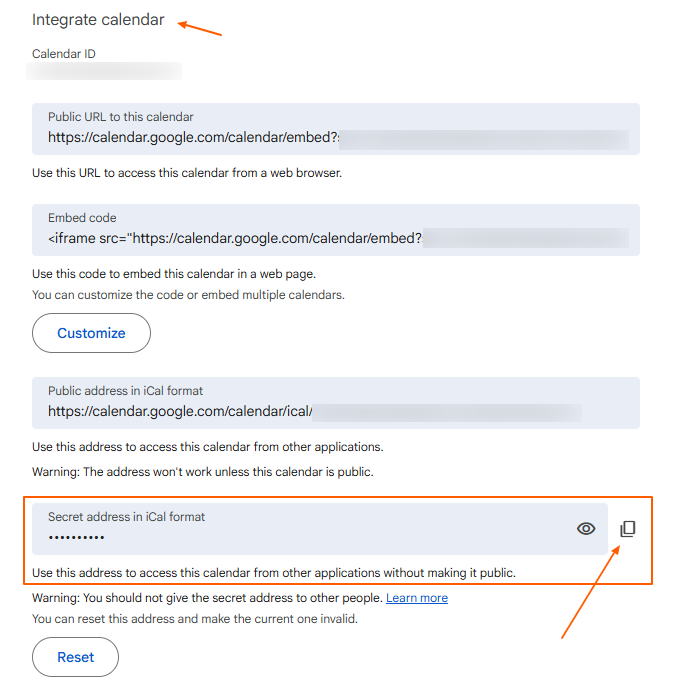
- Scroll down to the “Integrate calendar” section
- Copy the “Secret address in iCal format” link
Now send that link to the person you want to share with and when they add your link to their calendar, they’ll be able to view your schedule.
How To Add Google iCal (ICS) to Outlook, iPhone, Apple Calendars
Once they have the link, they can add it to their calendar app. The location of where you do this is slightly different for each provider, but the overall approach is the same.
- Classic Outlook: Add calendar > From internet > paste the link
- Outlook 365: Add calendar > Subscribe from web > paste the link > click on subscribe
- iPhone / Apple Calendar: Add calendar subscription > paste the link
- For other apps: Look for “Add by URL” or “Subscribe to calendar”
Once added and saved, your calendar will appear alongside their existing calendars.
How CalendarBridge Keeps Everything Aligned and Calendars Synced Across All Platforms
Up to this point, we’ve been talking about sharing a Google calendar, which is really about giving someone access to view or manage it. But in many real-world situations, that’s not enough.
What most people actually need is calendar syncing, where multiple calendars stay updated automatically across different platforms, and you have the ability to see everything in your primary calendar, or a unified calendar that allows you to manage everything from one single interface.
What Calendar Sync Actually Does
When you sync your calendars, you’re not just sharing access. you connect two or more calendars so they both reflect real-time availability that’s accurate across all of them:
- Events update in real time
- Busy times are reflected across all calendars
- Changes made in one calendar appear in the others
- Scheduling conflicts are automatically prevented
- You have one true and accurate schedule from all calendars
This is especially important if you use:
- Google Calendar for personal use
- You connect to a separate family calendar
- Outlook for work
- A separate calendar for consulting purposes
- An iPhone or iCal-based calendar on mobile
Without syncing in place, you still have to manage each one separately within their own calendar app.
Sharing your Google Calendar is a good start. Keeping everything in sync is better.
No credit card required
Frequently Asked Questions
Yes, you can share it using an iCal (ICS) link. They can subscribe to your calendar in Outlook, Apple Calendar, or other apps, but access is usually read-only.
Only if you give them permission. You can choose from view-only access, full event details, or editing access when sharing your calendar.
They may not have accepted the invitation, or the permission level may be too limited. Double-check sharing settings and confirm the correct email was used.
Google Calendar sharing is typically at the calendar level, but you can control visibility by marking events as private or using multiple calendars.
Go to “Settings and sharing,” find the person under shared users, and remove them. Their access will be revoked immediately.
Sharing gives someone access to view or manage your calendar, while syncing keeps multiple calendars updated in real time across platforms.
You can use calendar sync tools like CalendarBridge to keep your calendars aligned in real time across Google, Outlook, and Apple devices.
Conclusion
Sharing a Google Calendar is a simple way to coordinate with others, but it has limits once you start working across multiple platforms. As soon as you introduce Outlook, iPhone, or additional calendars, keeping everything aligned becomes more difficult.
That’s where the difference between sharing and syncing really matters. If you want your availability to stay accurate, avoid conflicts, and manage everything in one place, real-time calendar sync becomes essential.
CalendarBridge builds on basic sharing by keeping all your calendars connected, updated, and working together so you can focus on your schedule instead of managing it.