
Introduction
Looking for a simple way to let others book time on your calendar without endless back-and-forth? Google Calendar’s Appointment Schedule feature is a built-in tool that allows anyone to reserve time with you based on your availability, which makes it even more useful when you use AI to schedule group meetings.
In this guide, we’ll cover:
- How to set up an appointment schedule in Google Calendar
- What your booking page looks like
- How to control availability, set limits, and customize confirmations
- Why this is a smarter option than sharing your full calendar
- Using CalendarBridge to sync all your calendars, Google, Outlook, Apple and more
Whether you’re hosting virtual meetings, offering office hours, or just trying to stay organized, Appointment Schedules make it easy to control your time, and share the visibility of your appointment slots on google calendar. If you want to take scheduling to the next level, try our new AI scheduling assistant. Once configured, it can handle meeting availability and booking with others automatically!
Step by Step, Creating a Google Calendar Appointment
- Go to your Google Calendar
- Click Create
- Choose Appointment schedule

Add your meeting title, choose a meeting length, and define the days and times you’re available. You can create recurring availability or pick specific windows.
Google will block off any time you’re already booked.

You can fine-tune how people book with you. Google lets you control things like minimum notice before meetings, buffers between appointments or blocked time, daily booking limits, and email verification for guests, helpful if you’re trying to avoid last-minute meetings or back-to-backs.
You can also personalize your booking page by adding a meeting description, specifying the location (like phone, in-person, or video call), and customizing the form people fill out when booking. Want to collect a phone number or a quick note about the meeting? You can add those fields directly as well.
These options help keep your schedule organized and make sure you have what you need before the meeting starts.

After creating your appointment schedule, you’ll get a unique link to your booking page. You can copy and paste it anywhere: email, website, calendar invite, or profile.
People can use this link to see your availability and book a time instantly.
- First, click on “Share”
- Then copy the link and share where needed


What People See When They Book an Appointment
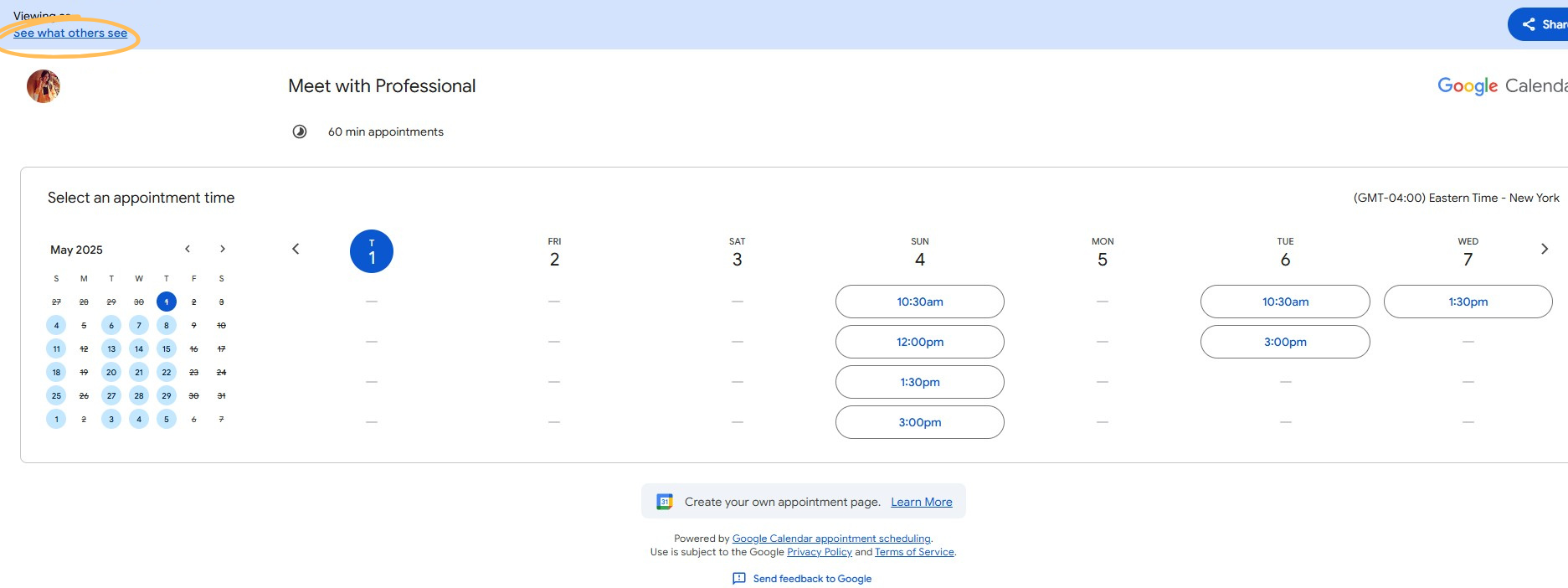
The person booking with you will see your name, the appointment type, and available time slots. Once they choose a time, they confirm with their name and email. Both of you will receive a confirmation email and calendar invite.
No need to manually follow up or enter anything yourself.
Do You Want More Control Over Your Booking Links?
Google Appointment Schedules are great if you only use one calendar. But most of us don’t. Between work and personal calendars, family calendars, or even more than one Google calendar synced with another, it can be pretty easy to get yourself in a scheduling nightmare quickly.
CalendarBridge scheduling links can pull availability from ALL of your calendars: personal, work, iCloud, Outlook, side gigs, even that old Gmail you only check when someone emails out of the blue. It’s the leading platform for multi-calendar syncing, trusted by over 10,000 users, including Fortune 500 companies and global teams, to ensure your booking links reflect everything, not just your main calendar.
So the quick date you added on your phone? Covered. That last-minute client meeting someone scheduled to your old account? Covered. Your weekend plans sitting quietly on a personal calendar? Covered!
CalendarBridge also gives you more control than Google:
- Add buffers between appointments
- Set availability by the minute
- Personalize your booking page
- Hide event details while still blocking the time
If you’re serious about keeping your time under control, CalendarBridge doesn’t just sync calendars, it bridges them.
All your calendars. None of the conflicts.
Keep All Your Calendars Synchronized Regardless of Platform, with CalendarBridge

Frequently Asked Questions
It’s a built-in feature that lets people book time with you through a shared booking page, based on your set availability. It lets you:
- Create a public booking page
- Define your available time slots
- Let others choose a time that works for both of you
Each booking shows up on your calendar instantly, no extra coordination required as long as you use Google calendar only.
Sharing your Google calendar reveals all your events. Appointment Schedules only show bookable time slots, keeping your other events private.
Google Appointment Schedules only check availability on your primary Google Calendar. If you have events on other calendars (work, personal, Outlook, etc.), they won’t be considered unless synced with a tool like CalendarBridge.
Yes. You can ask guests for specific information like name, email, phone number, and a message when they book time with you.
CalendarBridge offers its own appointment scheduling links that check all your connected calendars, not just one. It’s ideal for anyone managing multiple accounts or avoiding meeting or scheduling conflicts across platforms.
Google’s appointment scheduling feature is only available to Google Workspace (formerly G Suite) users. If you're using a personal Gmail account, you won’t see this option.
Final Thoughts
Google Calendar Appointment Schedules are an easy, built-in way to let others book time with you. If you use one Google account and don’t need cross-platform syncing, it’s a simple and effective option. Google also offers a Workspace subscription with advanced scheduling features, designed for users who only use Google Calendar.
If you manage multiple calendars across platforms like Outlook or iCloud, CalendarBridge keeps everything in sync. It blocks time across accounts, protects your privacy, and gives you more control, no manual updates required.
