Introduction
When groups of people need to coordinate their time across different calendar platforms, scheduling quickly becomes more than just a convenience, it’s essential.
Remote teams often work across Google Workspace and Microsoft 365 accounts. Contractors and advisors may use their own iCloud or Apple calendar or other separate systems. Families share responsibilities across personal and work calendars. Friends planning events juggle school schedules, sports, and travel. And in high stakes environments like mergers and acquisitions, integration teams must coordinate scheduling across entirely separate organizations.
In every one of these scenarios, the challenge is the same. If availability is not synced in real time, meetings get double booked, invites are missed, and planning slows down.
The solution is not forcing everyone to switch to the same calendar app. It is creating a cross platform group availability calendar that keeps everyone in sync, no matter which system they use.
In this guide, I’ll show you how to create a cross platform group availability calendar using CalendarBridge, so your team, family, or transition group can coordinate smoothly without changing the way they already work.
Step 1: Connect All Relevant Calendars Across Accounts
The foundation of a cross platform group availability calendar is real time synchronization.
Start by connecting every calendar that affects your availability. This may include:
- Google and Microsoft accounts
- Google to Google across separate organizations
- Microsoft to Microsoft across separate organizations
- Personal and work accounts
- Shared family calendars
CalendarBridge syncs calendars across tenant accounts in both directions. When a meeting is created, updated, or canceled in one account, the change appears in the connected calendar within seconds.
This keeps availability accurate everywhere. No double bookings. No hidden conflicts. No guessing which calendar is the source of truth.

Step 2: Decide the Level of Visibility for Each Connection
Not every shared calendar connection should display the same level of detail, and you may want to control exactly what information is visible to everyone else.
CalendarBridge allows you to choose what data syncs between connected accounts:
- Time and date only
- Subject line
- Attendees
- Description
- Location
- Conference links
- Reminders
For many remote teams, syncing availability only is enough. Meetings appear as Busy, allowing others to schedule around them without exposing internal details. Families may prefer limited detail between work and personal accounts to maintain privacy. Consultants and advisors working across clients may need time visibility without revealing client information.
In M&A or other sensitive transition environments, early stage coordination often requires availability only. After close, leadership teams may move to full detail sync to accelerate collaboration and reduce friction.
This flexibility allows you to build a group availability calendar that balances transparency, privacy, and speed based on your specific needs.
Step 3: Apply Advanced Filters to Show Meaningful Availability
A cross platform group availability calendar should reflect real commitments, not noise.
Not every calendar event needs to be shared. Personal reminders, tentative invites, and informational holds can clutter a shared view and create confusion. The goal is to present availability that actually matters for coordination.
CalendarBridge includes advanced filtering options that allow you to:
- Exclude free events
- Exclude unaccepted invites
- Limit syncing to business hours
- Restrict syncing to specific days
- Filter by color category
- Automatically mark copied events as private
For example, a remote team member may choose to sync only weekday meetings between 9 AM and 6 PM so evenings remain personal.
A consultant working across multiple clients may filter by color category to sync only project related meetings into a shared availability calendar. Here are a few tips for managing a consultant calendar.
Families may choose to sync school and sports events, but exclude personal reminders.
An M&A integration lead might sync only deal related meetings during defined working hours, to assure a single source of truth during a transition.
These filters keep the group availability calendar clean, intentional, and aligned with how each person actually works.

Step 4: Create a Unified Calendar View to Reduce Context Switching
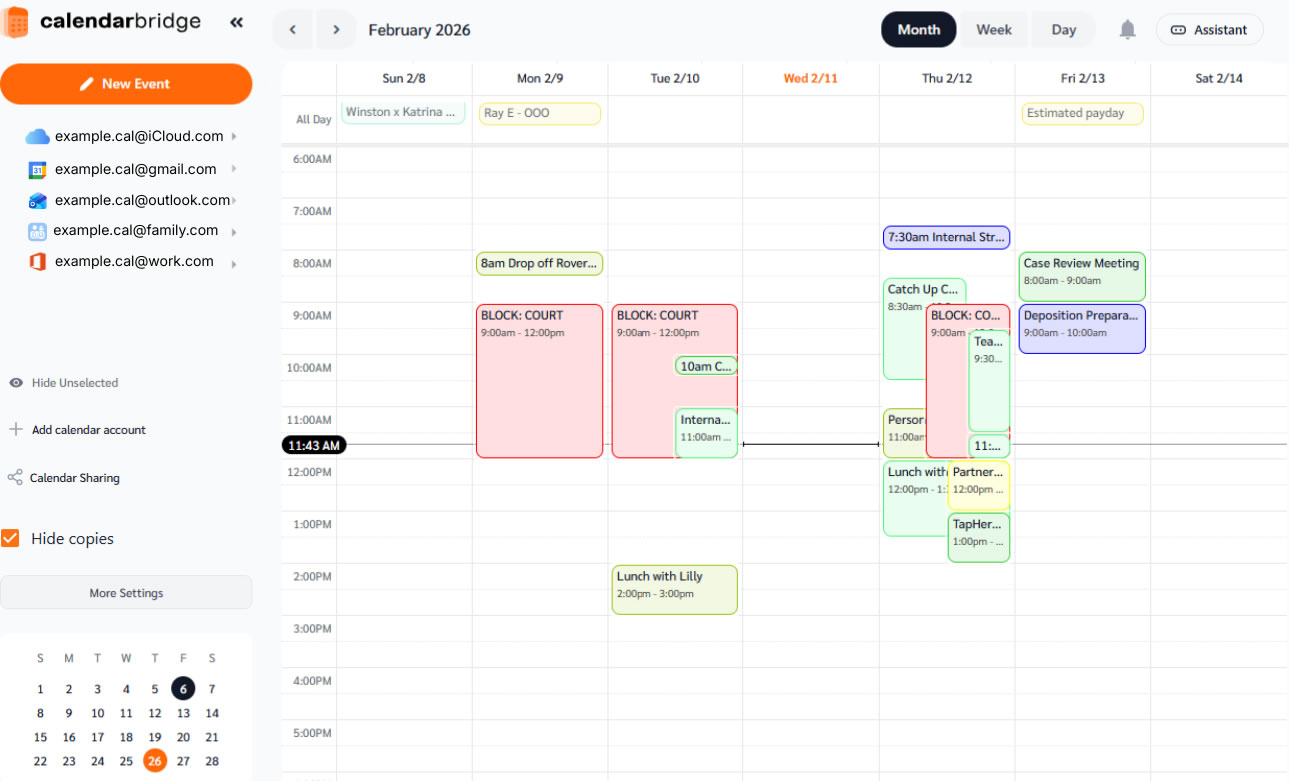
Once calendars are synced, the next step is reducing context switching. CalendarBridge provides a Unified Calendar that merges events from connected accounts into one combined schedule inside Google Calendar or Outlook.
This means:
- No logging in and out of multiple accounts
- No manual reconciliation of two separate schedules
- No guessing which calendar is the most current
You can easily toggle between views depending on what you need. View one calendar at a time or display all connected calendars together. Turn on Hide Copies to remove duplicate synced events and keep the schedule clean.
This allows you to move between a focused account view and a full cross platform view without switching tenants.
For busy executives, distributed teams, shared households, and high intensity environments like M&A transitions, this unified view significantly reduces scheduling friction and keeps everyone aligned.
Step 5: Create a Dedicated Group Calendar for Shared Planning
Once calendars are synchronized and visibility rules are defined, the next step is creating the actual cross platform group calendar.
In practice, this means creating a dedicated shared calendar inside one primary account. That calendar becomes the coordination hub for the group.
Examples might include:
- Remote Leadership Team
- Product Launch Calendar
- Family Schedule for a Digital Calendar
- Event Planning Calendar
- Integration Steering Committee
- Day 1 Readiness Calendar
This shared calendar lives inside a single domain or account. Because each participant’s individual calendars are already synchronized across platforms, availability inside that primary account reflects real commitments across all connected systems.
A typical workflow looks like this:
- Sync participant calendars across accounts
- Create a shared group calendar in the primary account
- Grant appropriate access to core members
- Use synchronized availability to schedule meetings and events into that shared calendar
Because CalendarBridge ensures real time bidirectional sync, anyone operating across multiple accounts will see those group meetings appear automatically in each connected calendar.
The result is one operational calendar for the group, without forcing anyone to abandon the calendar platform they already rely on.

Step 6: Automate Scheduling Into the Shared Group Calendar
With a dedicated group calendar in place and availability synchronized across accounts, the next step is automation. At this stage, you are no longer just syncing calendars, you’re turning synchronized availability into an automated schedule coordination.
The CalendarBridge AI Scheduling Assistant operates on top of this synchronized infrastructure. When a team member sends a request such as:
- Email everyone on the Leadership Team and schedule a meeting
- Find time next week with Marketing about the product launch
- Coordinate a family dinner this weekend around the baseball tournament
- Set up a check-in with Legal and Finance regarding a patent
The assistant automatically:
- Identifies the participants in the group
- Checks real time availability across all synced calendars
- Accounts for business hour filters and privacy settings
- Proposes available time slots directly in the email thread
- Notifies all attendees
- Manages the back and forth automatically
- Creates the finalized event on the designated shared calendar
If you have meeting rooms that are often used, as long as you add them to the group, the AI assistant can even book the meeting room for you.
Because the shared calendar exists inside one primary account, but participant availability reflects all connected accounts, meetings are scheduled into a single operational calendar while still appearing correctly in each person’s native system.
This is what transforms simple calendar synchronization into a true cross platform group availability system.
AI Assistant scheduling a group meeting
Step 7: Adapt and Manage Ongoing Coordination With the CalendarBridge App
CalendarBridge gives users the flexibility to manage this on both the web and with an app that shares your calendars and availability. Users can:
- Manage multiple sync connections
- Adjust visibility controls as needs change
- Modify filtering rules
- Pause or update syncs at any time
As relationships deepen and workflows mature, visibility settings can be expanded. If priorities shift, filters can be tightened. If a project ends, a connection can be paused without disrupting other sync relationships.
This makes the cross platform group availability calendar adaptable instead of rigid. It evolves with your team, your family, or your organization rather than forcing you into a fixed structure. Over time, this flexibility is what keeps shared scheduling sustainable, especially in long running projects, distributed teams, and multi domain environments.

Why This Approach Works for Teams, Families, and M&A Environments
Creating a cross platform group availability calendar is not about replacing calendar apps. Everyone continues using the calendar they already trust. Some stay in Outlook. Others remain in Google Calendar. Families keep their personal systems. Consultants stay inside client accounts. There is no migration, no retraining, and no disruption to daily habits.
CalendarBridge provides the secure and private infrastructure that keeps everything aligned:
- Real time two way synchronization
- Configurable visibility depth
- Advanced filtering controls
- Unified calendar visibility
- AI powered group scheduling
Whether you are preparing for a merger, running a distributed team, managing multiple tenants, or simply trying to coordinate a busy household, CalendarBridge makes it possible to build a cross platform group availability calendar that scales with your needs.
Frequently Asked Questions
A cross platform group availability calendar is a shared scheduling system that reflects real time availability across multiple calendar platforms such as Google Calendar, Microsoft Outlook, and iCloud. It allows a group to coordinate without forcing everyone to use the same app.
CalendarBridge allows you to control the depth of visibility for each connection. You can sync time only, or include additional details such as subject, attendees, or location. You can also apply filters to exclude personal events or limit syncing to business hours.
Yes. Families can sync work and personal calendars to create a shared master schedule. Businesses can use the same infrastructure for leadership teams, project groups, consultants, or M&A integration planning.
Yes. The CalendarBridge AI Scheduling Assistant checks real time availability across all synced calendars, proposes available time slots, manages email coordination, and creates the final event on the designated shared calendar.
No. Each user continues using their preferred calendar platform. CalendarBridge operates as the infrastructure underneath, keeping availability synchronized without requiring migration or retraining.
Final Thoughts
When scheduling spans multiple accounts, platforms, or organizations, complexity increases quickly. Most people try to solve this by forcing everyone into the same tool. That approach rarely works.
A better solution is to keep the tools people already use and connect them with the right infrastructure underneath.
CalendarBridge gives you the control and flexibility to make that happen.
