
Introduction
Digital wall calendars like Skylight, Cozyla, Hearth, and Apolosign are popular because they’re easy to use and make the family schedule readily available for everyone to see, but they also have limitations that can affect accuracy. Yes, they show your connected calendars on one screen, but they don’t have a way to reliably sync, manage or fix them without opening your calendar application itself. If your Google, Apple, Outlook, School, or any other connected calendars are messy or misaligned, the display screen will simply mirror those problems, making it easy to get confused.
This guide walks through the most widely used digital family wall calendars, their features and limitations, how each one actually syncs family calendars, and the steps you can take to assure any digital calendar display accurately.
We’ve helped many of our users connect their family calendars to their displays and solve the issues outlined below. The problem is not with the device itself, as every digital wall calendar relies entirely on the data inside your existing calendars – the issue revolves around the data itself. If the connected calendars aren’t properly synced to one unified or master calendar (what is a unified calendar?), the display can make things look more chaotic, not less. That’s where CalendarBridge comes in.
Why Families Buy Shared Wall Calendars
Families buy digital wall calendars for the same reason people love our Unified Calendar or syncing calendars to an Alexa device, because they want a simple way to keep everything on the same page. A large shared screen makes the schedule easy to see, reduces daily confusion, and removes the need to check multiple apps. These displays feel like a calm, central hub that helps the entire household stay organized. The whole family benefits from:
- One place to see everyone’s events
- Always on and easy to glance at
- Automatic updates without opening an app
- Color coding that simplifies who’s doing what
- Less reliance on paper charts or group texts
- Helps non tech savvy family members stay informed
- Reduces the mental load of managing multiple calendars
- Fewer missed appointments and last minute surprises
Even though every family buys these displays for convenience and scheduling visibility, the experience depends heavily on how their calendars work behind the scenes and keeping calendars accurately synced. Before looking at specific devices, it helps to understand the basic mechanics that power all of them.
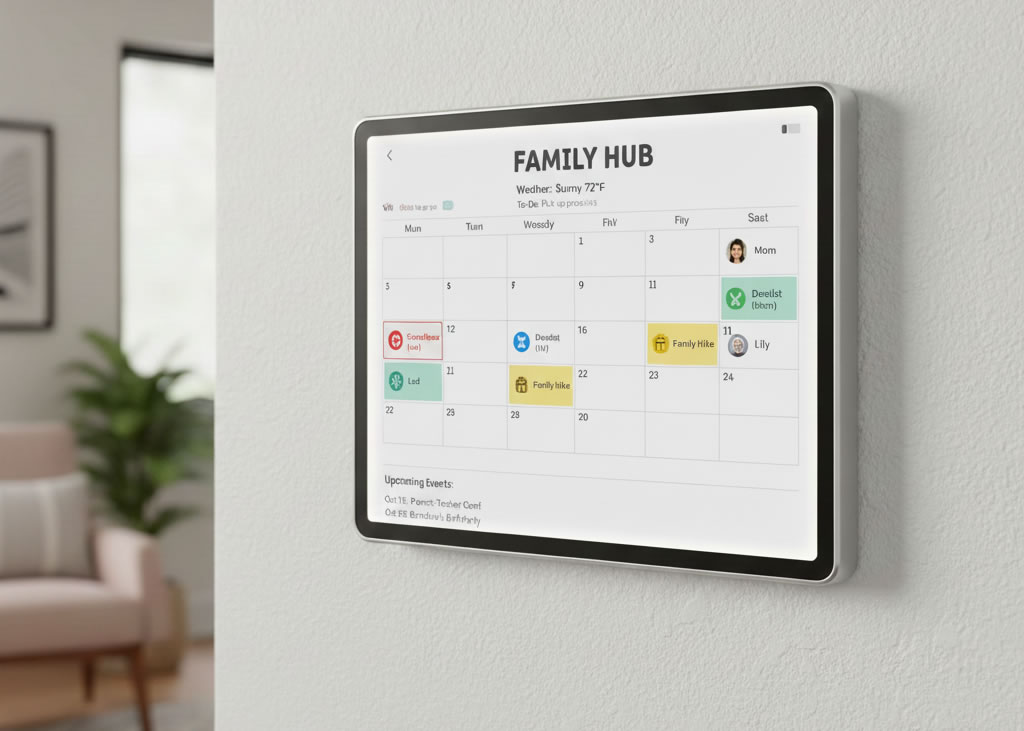
Where The Most Popular Digital Wall Calendars Struggle
Most digital wall calendars work the same way. They do not manage your schedule. They only show the calendars you already use. They do this by pulling events from your connected Google Calendar, Apple iCloud, Outlook, Cozi, school calendars, or any shared URL feed. Because of this, the accuracy of the wall display depends entirely on the accuracy of your source calendars.
This leads to a few common issues in many digital calendars:
Messy calendars stay messy.
If your Google or iCloud calendars contain duplicates, old events, or outdated school schedules, the wall display will show the same clutter.
Editing on the display is limited.
Most imported calendars are read only. Families still make real edits on their phones or computers, not on the display itself.
Some calendars refresh inconsistently and slow.
School calendars, Cozi, Yahoo, and some Outlook sources only update at intervals. New events may appear late or not at all.
Multiple accounts increase the chance of problems.
Most homes use six to ten different calendars. When one account disconnects or stops refreshing, the shared screen can fall out of sync.
Later in this guide you will see how CalendarBridge helps to prevent these issues. But first, it helps to understand how each device works with popular calendar applications so you can choose the setup that makes sense for your family.
Real Examples of Where Limitations Become Noticeable
Skylight
Skylight treats Google and iCloud calendars differently from Outlook, school calendars, and Cozi. Many of those sources only sync one way. When a school updates a field trip or adjusts a bell schedule, the change may not appear on Skylight immediately.
Parents also report that syncing is not always consistent and that deleting several events from the Skylight device does not always work. This often leads families back to their phone calendars to make corrections.
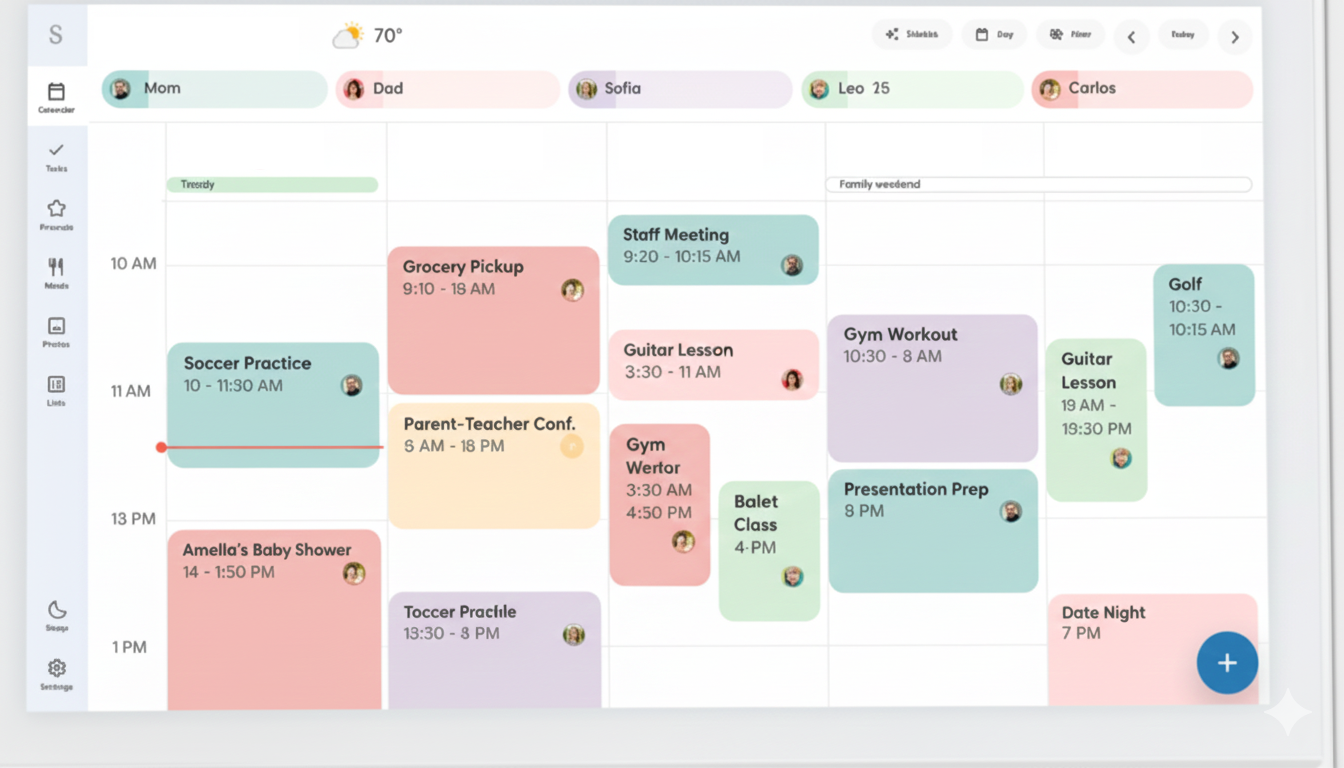
Hearth
Hearth displays your full schedule but only events created directly on the Hearth panel are editable. Imported Google and Apple calendars appear as read only. If you try to fix overlaps or remove old events from the screen, you cannot do it unless those events originate from the Hearth-created calendar.
Many families are surprised to learn that features like weather, screensavers, and chores require a subscription of eighty six dollars per year after the first year.

Cozyla
Cozyla shows every connected calendar separately. If a parent manages multiple work calendars, school calendars, and shared activity calendars, Cozyla cannot merge or filter them, which creates a crowded view.
Cozyla has no mobile app, so updates must be made at the wall display. If a schedule changes while you are away from home, you cannot fix it until you return to the device.
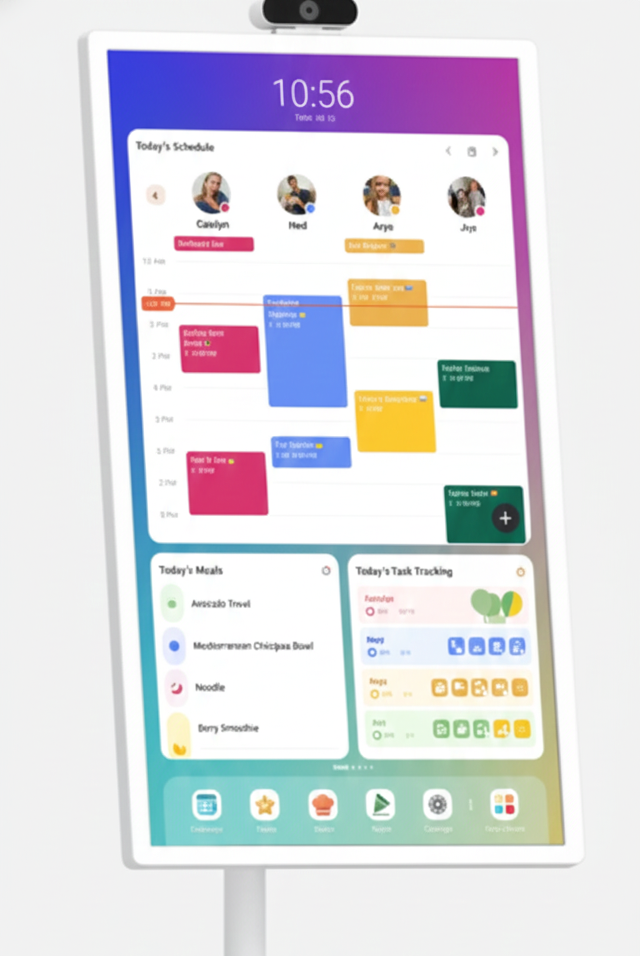
Apolosign
Apolosign relies on Android’s built in calendar syncing. If an account disconnects or refresh tokens expire, events may disappear from the wall display without warning.
The setup can feel more technical than other devices and often requires familiarity with Android settings. Families who want a simple plug and play experience frequently find Apolosign too complex.
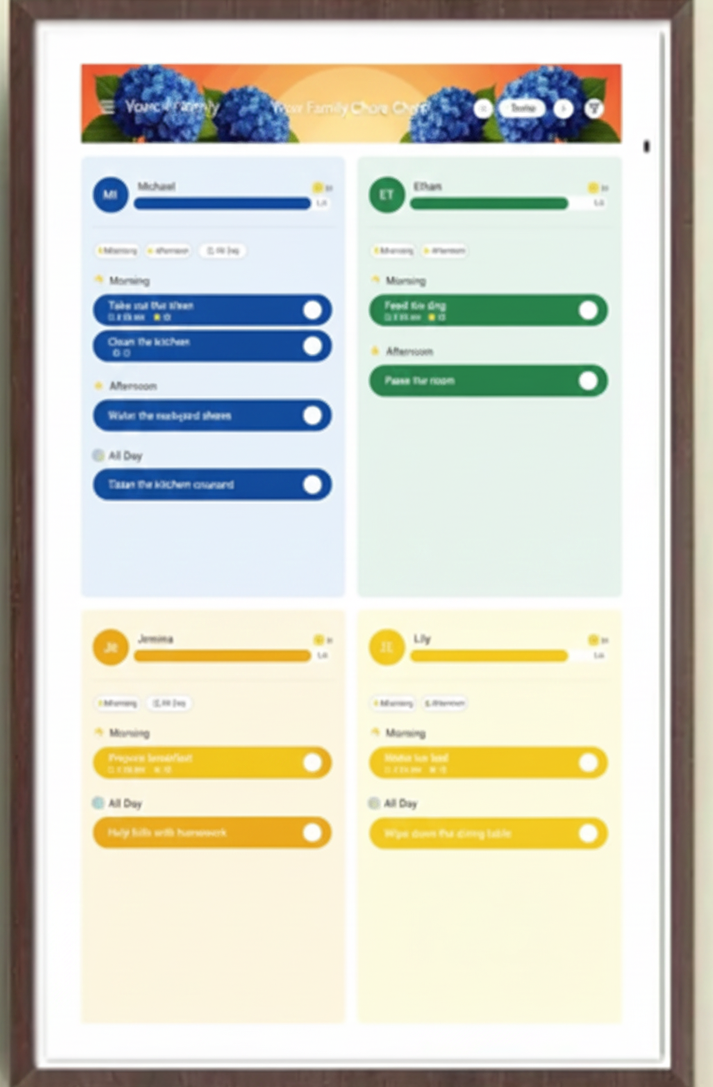
Where CalendarBridge Helps Keep Your Wall Display Accurate
CalendarBridge lets each parent connect all of their calendars, including Google, iCloud, Outlook, Yahoo, school calendars, and more, and merge them into one clean and organized Unified Calendar before the wall display ever sees them. This creates a single master calendar that stays up to date automatically anytime the original calendars change.
The wall display only needs to read one dependable feed instead of six to ten fragmented ones. This removes most of the sync delays and missing event issues that families run into with hardware displays.

How CalendarBridge Improves Accuracy
- Unifying calendars across Google, Apple, Outlook, Yahoo, and school systems into one single view
- Hiding duplicate events
- Keeping everything in sync even when tokens refresh or accounts change
- Ensuring edits made on your unified calendar view app flow through on the wall display
- Reducing clutter by allowing detailed filtering options
Advanced filtering gives you control over what appears on the wall
CalendarBridge lets you control what syncs from each calendar connection, including:
Hide descriptions, locations, or attendees
Keep sensitive or unnecessary details off the shared screen.
Control which hours and days appear
Filter events by specific days and time ranges so the wall display shows only the parts of the schedule that matter to your household
Include or exclude events by color
Choose which color categories sync to the display.
Add custom labels to identify event sources
Automatically tag events with labels like “Dad,” “Mom,” or “School.”
This keeps the shared family screen focused on pickups, sports practices, appointments, birthdays, and weekend plans rather than burying important items under work meetings or low priority reminders.
By cleaning and organizing your calendars before they reach the device, CalendarBridge gives the wall display a stable and accurate source of truth.

How to Set Up a Clean, Reliable Wall Calendar with CalendarBridge’s Unified Calendar View
Step 1: Connect your real calendars
Each parent connects the calendars they already use to CalendarBridge. This can include:
- Google personal calendars
- Outlook work calendars
- iCloud calendars
- School calendars
- Sports schedules
- Shared family calendars
And more. CalendarBridge links to each of them so they stay updated automatically. Note* ICS calendars do not sync both ways from edits made in the unified calendar view.
Step 2: Choose your master calendar
To keep everything consistent, you need one real calendar to act as your family’s source of truth. This can be:
- An existing Google, Outlook, or iCloud calendar you already use, or
- A brand-new “Family Calendar” you create inside Google/Outlook/iCloud
You do not have to combine or reorganize your calendars yourself. CalendarBridge keeps each calendar separate, but copies the events into your chosen master calendar so everything appears together in one place.
The Unified Calendar App shows a clean combined view of all synced calendars.
Step 3: Choose what gets synced
Use CalendarBridge filters to decide what the display should show. This includes time ranges, color filters, and optional content removal.
Step 4: Connect the Unified Calendar to your wall device
Skylight, Cozyla, Hearth, Apolosign, and most tablet setups can all read a single calendar feed.
Once your master calendar is synced and cleaned, simply connect that calendar to your wall display.
The device only has to read one dependable, organized feed, not six to ten separate ones. This is the key to accuracy and dependability on digital family wall calendars.
Try CalendarBridge for Free and Keep Your Family Calendar Accurate Every Day
No credit card required

Frequently Asked Questions
Most wall displays read your calendars through a one way feed. If one connected account is outdated, disconnected, or slow to refresh, the screen may show old or incomplete information until the next update cycle.
Sources like school calendars, Cozi, Yahoo, and some Outlook accounts refresh at long intervals. Even if you update an event on your phone, the wall display might not see the change until hours later unless the source calendar updates immediately.
Most cannot. Devices like Cozyla, Skylight, and Apolosign show each connected calendar separately, which creates clutter when parents manage work, school, sports, and family calendars. They rely on you to organize everything before it reaches the device.
Imported calendars are read only on nearly every device. When you try to delete or adjust an event, the device cannot change the original calendar. You must edit it in Google, iCloud, Outlook, or wherever the event was created.
CalendarBridge unifies your Google, Outlook, iCloud, Yahoo, and school calendars into one clean master calendar before the wall display reads them. By giving the device a single dependable feed, it eliminates duplicate events, slow refresh cycles, broken feeds, and inconsistent updates.
My Conclusion
Family wall calendars are designed to make coordination easier, but they are only as accurate as the calendars feeding into them. Skylight, Cozyla, Hearth, Apolosign, and similar devices work best when the underlying data is organized and consistent.
CalendarBridge solves the accuracy problem by merging, filtering, and cleaning your calendars before they reach the display. Once the source is reliable, the family screen becomes reliable too.
If your goal is a shared family calendar that stays accurate, this is the setup that works.
