Introduction
If your Outlook Calendar isn’t syncing, you’re not alone. Whether you’re using Outlook on Windows, macOS, iPhone, or Android, calendar sync issues can disrupt your schedule, cause missed appointments, and lead to double bookings. If you’re using an AI meeting scheduler to handle bookings automatically, keeping all your calendars in sync is critical! Luckily, most syncing problems can be resolved with a few simple steps.
This guide covers the most common reasons Outlook Calendar stops syncing and walks you through practical solutions to get your calendar back on track. These fixes apply to both the Outlook desktop app and mobile apps.
Quick Steps to Fix Your Outlook Sync
- First, check your Internet connection
- Assure you have the latest version of Outlook
- Disconnect and reconnect your account
- Verify calendar permissions
- Clear the calendar cache and restart device
- Reinstall Outlook if needed
Also new in 2026, is added security for Exchange groups, which often requires an Account Administrator to approve connections from third-party sources like CalendarBridge.
Why Outlook Calendar Stops Syncing
Calendar sync issues in Outlook are usually caused by one of a few core problems. These include outdated software, incorrect account permissions, misconfigured settings, or a weak internet connection. In some cases, it may be related to a third-party app conflict or a corrupted cache file. Another common scenario is when changes made on one device don’t appear on another. This often happens when multiple calendars or accounts are connected and not all of them have the correct sync permissions enabled.
Steps to Fixing Outlook Calendar Sync Issues
Step 1: Check Your Internet Connection
Outlook requires a stable connection to sync calendar data across devices. If you’re using mobile data or an unstable Wi-Fi network, try switching to a more reliable connection and then refreshing the app. Click this link to get a quick answer.
Step 2: Update the Outlook App
If you haven’t updated the Outlook app in a while, syncing issues might stem from outdated software. Go to the App Store or Google Play Store and check for available updates.
On desktop, open Outlook and click “File” > “Office Account” > “Update Options” to check for updates.
Step 3: Remove and Re-add Your Account
Removing the connected account and adding it again can refresh the calendar sync process.
First, open the Outlook app and tap the three dots next to the account you’re troubleshooting and select “Manage Account”

Next, Tap on “Manage” next to the account causing an issue.

Next, Choose “Remove”
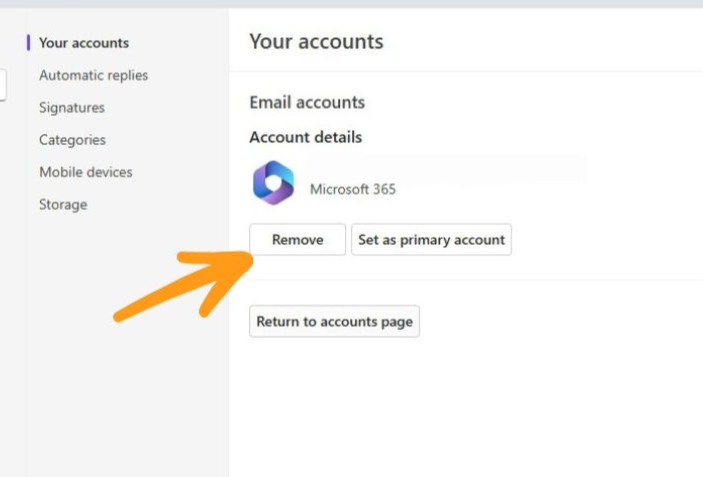
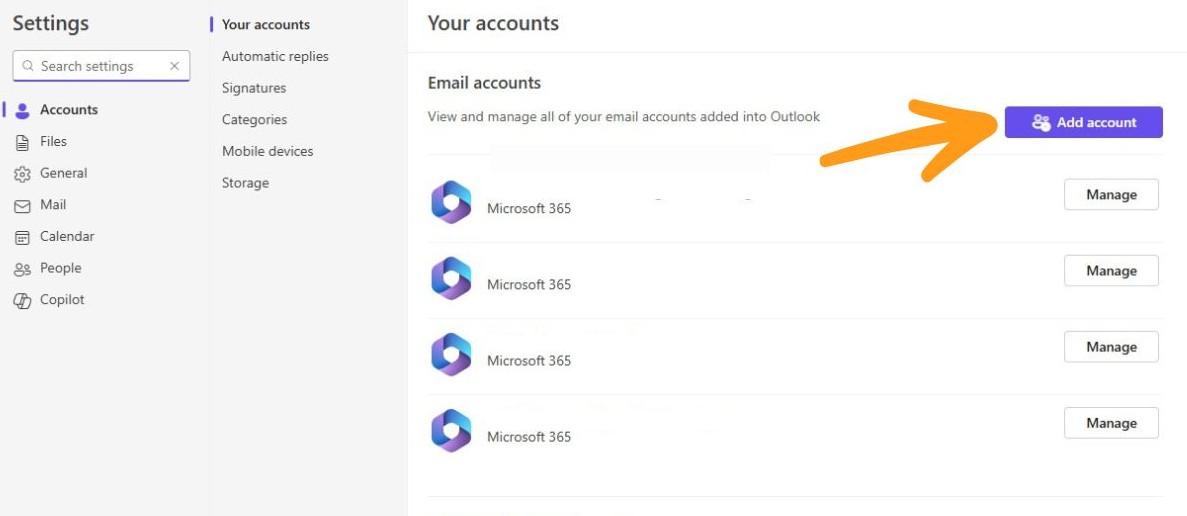
Next, Re-add it by selecting “Add Account” and signing in again
Step 4: Verify Calendar Permissions
Make sure the calendar you’re trying to sync has proper viewing and editing permissions. In shared calendar scenarios or organizational accounts, missing permissions can prevent changes from syncing. Learn more about permissions on shared Outlook calendars.
If using Microsoft 365 or Exchange, check with your admin to confirm your account has calendar access.

Step 5: Clear App Cache and Restart
Cached data can become corrupted and cause sync errors.
To clear the Outlook cache:
- On mobile: Go to your phone settings > Apps > Outlook > Storage > Clear Cache
- On desktop: Close Outlook, press Windows + R, type %localappdata%\Microsoft\Outlook, and delete any OST files. Outlook will regenerate them on the next launch.
Always restart the app after clearing the cache.
Step 6: Reinstall the Outlook App
If none of the steps above work, try uninstalling and reinstalling Outlook. This removes any corrupted installation files and gives the app a fresh start. Make sure to back up important data before uninstalling if you’re not using cloud sync.
Related Outlook Calendar Sync Guides


Bonus Tip: Use CalendarBridge for Reliable Syncing Across Accounts
If you manage multiple Outlook calendars or work across Google, iCloud, or Microsoft 365, sync issues become even more common. CalendarBridge offers direct, real-time syncing between calendars, no need for manual imports, ICS links, or multiple apps.
With CalendarBridge, you can:
- Keep all your events in sync automatically
- Set custom privacy rules for each calendar
- Share availability without exposing private events
No more jumping between disconnected calendars or dealing with missing meetings.

Sync All Your Calendars in Real-time with CalendarBridge

Frequently Asked Questions
Most sync issues come from outdated software, weak internet, or incorrect account permissions. Cached data or conflicts with third-party apps can also cause problems.
You can refresh your calendar by updating the Outlook app, checking your internet connection, or removing and re-adding your account. These steps often fix syncing errors.
Yes. Corrupted cache files are a common reason for syncing errors. Clearing the cache and restarting the app forces Outlook to rebuild its data and often resolves issues.
Check calendar permissions. If you don’t have the right access in Microsoft 365 or Exchange, changes won’t sync. Ask your admin to confirm your permissions.
This usually happens if multiple accounts are connected but not all are set to sync. Re-adding the account and confirming sync permissions usually fixes it.
Yes. CalendarBridge ensures real-time syncing between Outlook, Google, iCloud, and Microsoft 365 calendars. It eliminates common problems like missed updates and double bookings.
Conclusion
An Outlook Calendar not syncing can be frustrating, but most issues are fixable in just a few minutes. Start with your connection and app updates, then check account settings, permissions, and cache. If you’re still having trouble and juggling multiple calendars, consider streamlining everything with a syncing tool like CalendarBridge.
It keeps your calendar connected so you never miss a meeting, no matter which account it’s on.