Introduction
This was me almost every day for months.
My Zoom meeting started in one minute. I had already snoozed three reminders. I spent another two minutes hunting through multiple calendars trying to find the invite. When I finally clicked the link, my browser opened first and asked if I wanted to open Zoom. Of course I did.
That was the moment I decided I needed every meeting visible directly inside Zoom, and with a unified calendar, this becomes effortless.
This guide explains how Zoom’s calendar integration works and how to make sure Zoom always shows your full schedule, even if you manage multiple calendar accounts.
Syncing All Your Calendars Together
Zoom integrates with Google Calendar and Microsoft Outlook or Microsoft 365. This works well if you only use one calendar account, but most of us manage several and need real time syncing to keep them accurate.
The limitation is that Zoom can display events from only one connected calendar account at a time. While you can switch between accounts, Zoom does not merge multiple calendars into a single unified view.
If your schedule spans multiple Google, Outlook, Microsoft 365, or other calendar accounts, some meetings will always be missing inside Zoom.
CalendarBridge solves this by syncing all of your calendars together into one unified calendar. Once your calendars are consolidated, you connect that single calendar to Zoom so Zoom always sees your complete availability and all upcoming meetings in one place.

With CalendarBridge, your Google events, Outlook events, work events, and personal events can flow into one account. Once that primary account connects to Zoom, Zoom can display every meeting in one place without requiring multiple integrations.
Connecting with the Zoom Calendar Client
Zoom connects to your calendar through its Calendar and Contacts Service, also referred to as the Zoom Calendar Client. This allows Zoom to display your schedule inside the Zoom app and add Zoom meeting details to calendar events.
Supported calendars
Connect Google Calendar to Zoom
1: Sign in to the Zoom web portal.
2: Open Profile and go to Calendar and Contacts Service.
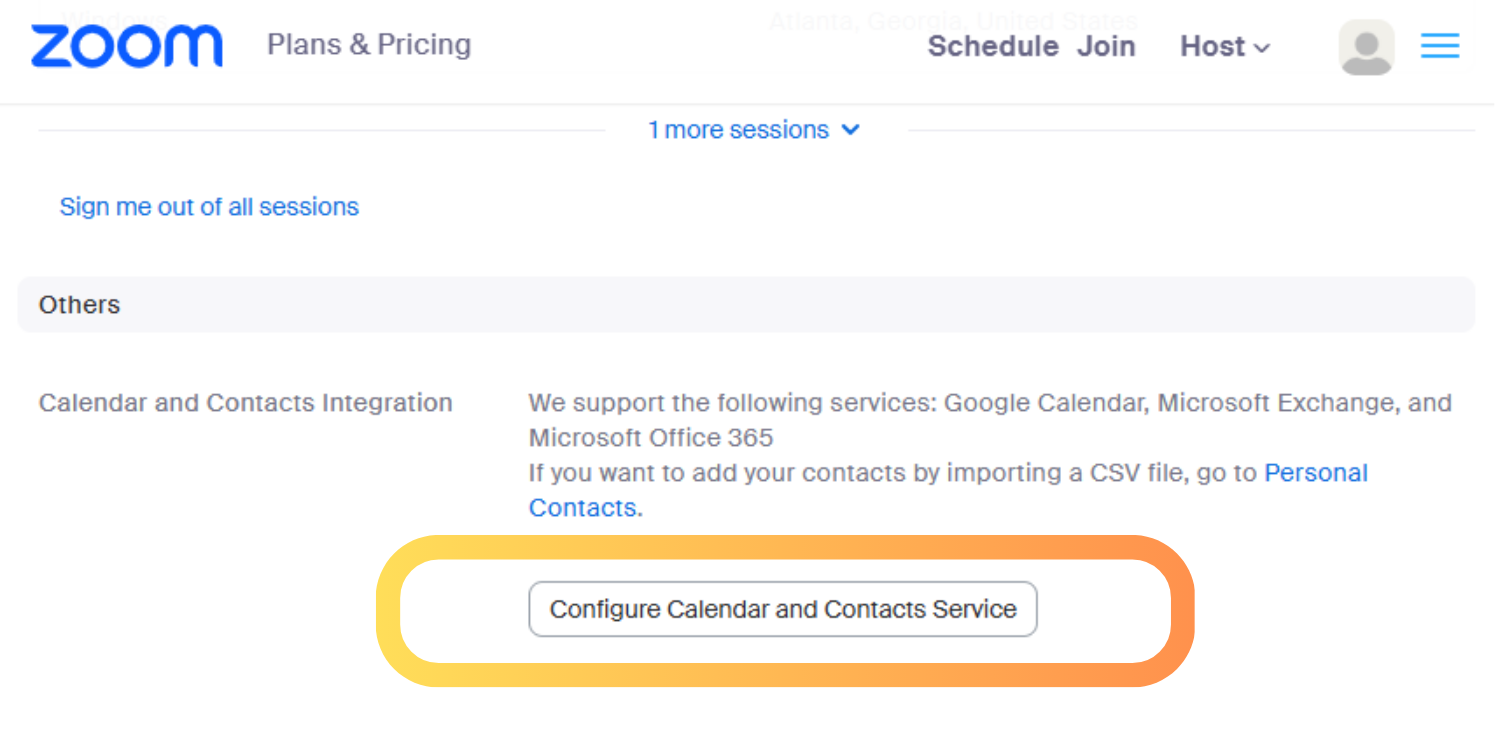
3: Select Google Calendar and choose Next.
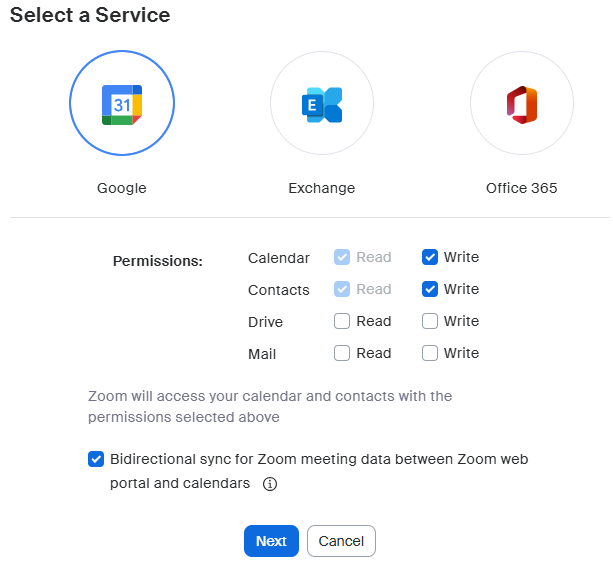
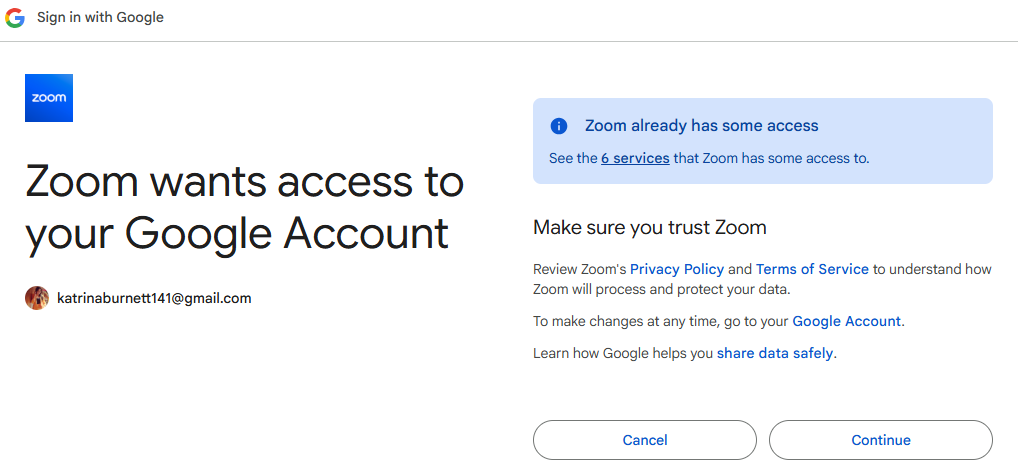
4: Sign in with the Google account you want Zoom to use.
5: Approve the requested permissions
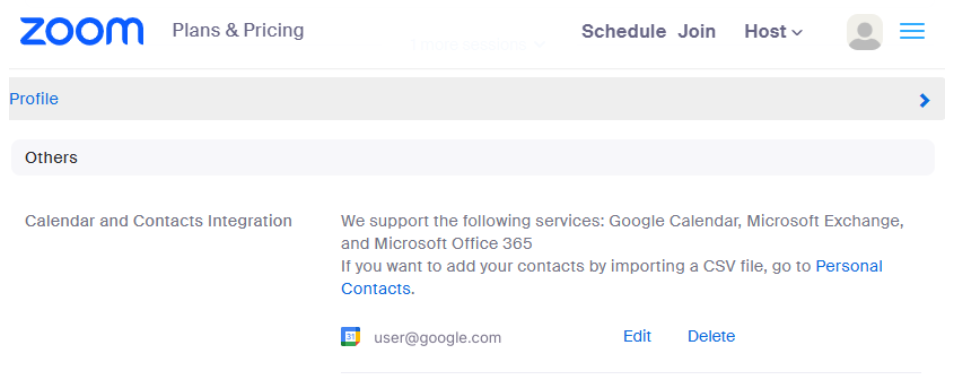
6: Return to Zoom and confirm the account shows as connected.
Optional: You can install the Zoom add-on for Google Calendar to create Zoom meetings directly from Google Calendar events. This does not affect Zoom’s ability to read or display your calendar inside the Zoom app.
Connect Office 365 or Outlook to Zoom
1: Sign in to the Zoom web portal.
2: Open Profile and select Calendar and Contacts Service.
3: Choose Office 365.
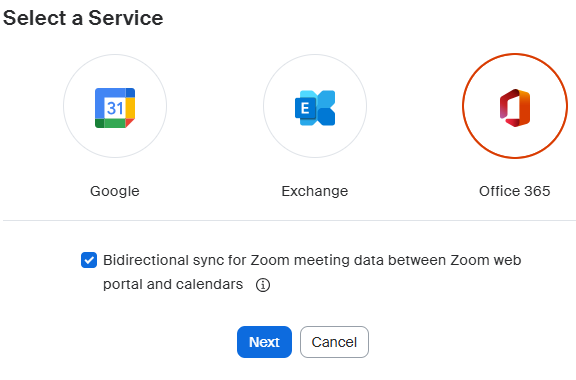
4: Sign in with your Microsoft account.
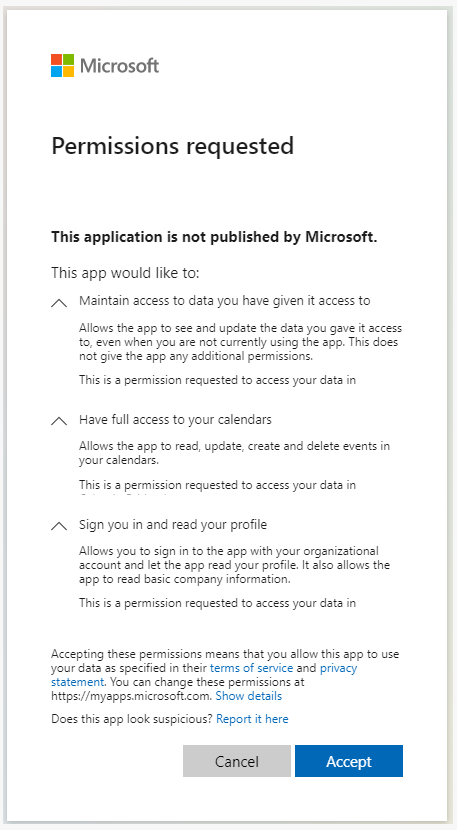
5: Approve the requested permissions.
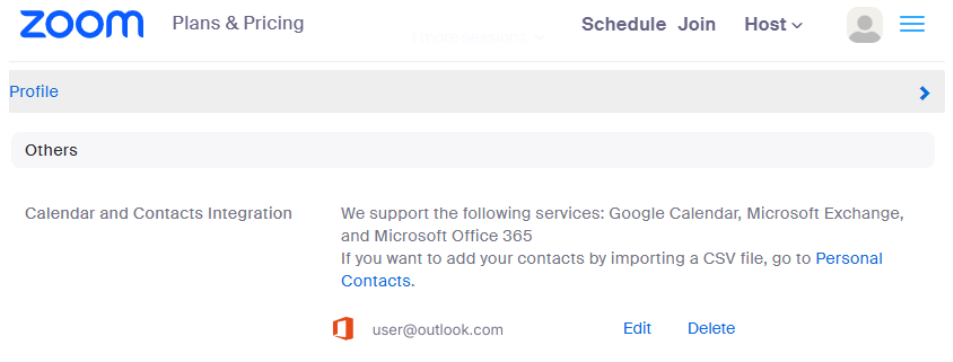
6: Return to Zoom and confirm the account is listed as connected.
Optional: You can install the Zoom add-in for Outlook to insert Zoom meeting links when creating Outlook events. This works alongside the main Zoom calendar connection that allows Zoom to display your schedule.
Connect a Microsoft Exchange Calendar to Zoom
Zoom also supports on-premise Microsoft Exchange calendars. This option is not the same as Microsoft 365.
Choose Exchange only if your company runs its own Exchange server (for example, Exchange 2016 or 2019) and does not use Microsoft 365.
To connect an Exchange calendar:
1: Sign in to the Zoom web portal.
2: Open Profile and go to Calendar and Contacts Service.
3: Choose Exchange.
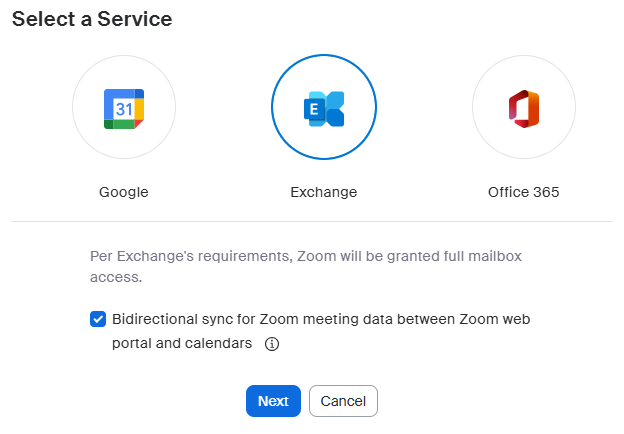
4: Enter your Exchange login username or UPN and password.
5: Select your Exchange server version.

6: Enter the EWS URL provided by your IT team.
7: Select Authorize, and confirm to complete the connection.
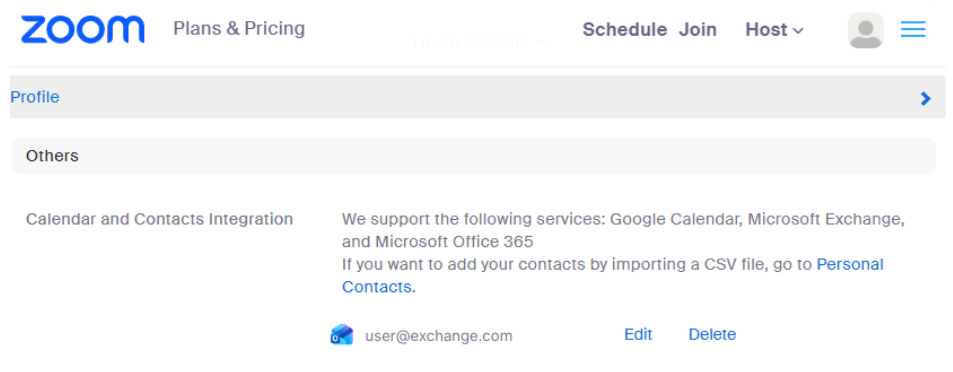
Note: The EWS URL (Exchange Web Services URL) is required for on-premise Exchange and must be provided by your organization’s IT administrator. If you do not know this URL, your account is likely Microsoft 365 and you should go back and choose Microsoft 365 instead.
Connecting with the Zoom Calendar Client
After connecting a calendar:
1: Sign in to the Zoom desktop app.
2: Click the Calendar tab.
3: If prompted, complete calendar configuration. Otherwise, your calendar will open automatically.

From the Calendar tab, you can:
- View all events from your connected calendar (not just Zoom meetings)
- Switch between Day, Work Week, or Week views
- Click events to see details, attachments, and attendee information
- Start or join Zoom meetings directly
- Create and edit calendar events, with changes syncing back to Google Calendar and Microsoft 365 for standard edits
Your calendar data continues to live in Google or Microsoft. Zoom uses this connection to display events, coordinate meetings, and sync updates back to your calendar service.
Why CalendarBridge Is the Missing Link for Zoom Calendar Sync
Zoom can display and edit events from one connected calendar account at a time. That works if all of your scheduling lives in a single calendar, but it quickly breaks down if your real schedule spans multiple sources.
A personal Google Calendar, a corporate Microsoft 365 account, a client calendar, or a secondary Outlook calendar all contribute to your availability. Zoom will only see the events that exist in the one calendar you connect.
CalendarBridge solves this by syncing Google, Outlook, Microsoft 365, Apple, and ICS calendars into one accurate, unified calendar. You choose the destination calendar, and CalendarBridge keeps everything aligned behind the scenes.
With CalendarBridge, you can:
- Keep all calendars aligned so Zoom always displays every meeting
- Protect the privacy of work or personal events while still blocking busy time
- Avoid conflicts and missed meetings
- Maintain one clean, complete schedule without manual copying or editing
For anyone juggling multiple calendars, CalendarBridge provides the single source of truth that Zoom needs but cannot create on its own.
Finally see every meeting in Zoom. Sync all your calendars with CalendarBridge.
No credit card required

Frequently Asked Questions
Zoom only connects to one calendar account at a time. If your meetings live across multiple Google, Outlook, Microsoft 365, Apple, or client calendars, Zoom will only display the events from the single account you connected.
No. Zoom cannot merge or unify calendars. It can only read one account at a time. This is why meetings from secondary calendars often disappear inside Zoom.
CalendarBridge syncs all your calendars into one unified calendar. When you connect that primary calendar to Zoom, Zoom finally sees your complete schedule, including work, personal, school, and client events.
Yes. CalendarBridge is designed for consultants, freelancers, and anyone who needs Zoom to recognize busy times from multiple external calendars.
My Conclusion
If you want Zoom to reliably show your full schedule, the most effective approach is to sync your calendars together first and then connect that unified calendar to Zoom. This ensures Zoom always reflects your true availability, no matter how many calendars you use.
CalendarBridge makes this setup easy with fast syncing, real-time updates, and tools designed for managing complex schedules. You can also take advantage of our AI-powered scheduling features that help you simplify coordination across every calendar you use.