
Introduction
Keeping your calendars in sync is essential, and even more so when you work across platforms. If you use both Google Calendar and Outlook, you’ve probably searched for a way to sync them, only to find partial solutions, outdated workarounds, or one-way visibility.
Here’s what two-way sync actually means, what options are out there in the native calendar apps, and the most reliable way to make a 2-way sync work when you link your Google and Outlook calendars together.
Can you Sync Google Calendar with Outlook?
The short answer is yes, but it’s a limited, read-only, and one-way connection.
Google Calendar and Outlook do not support a native two-way synchronization without a third-party tool. The built-in methods only allow view-only calendar subscriptions, meaning changes made in one calendar will not automatically update in the other.
To keep events synced in both directions between Google Calendar and Outlook, you need a calendar synchronization tool like ours, that connects the two platforms and updates events automatically.
The Meaning of Two-Way Calendar Sync
Two-way sync means that when you add, update, or delete an event in one calendar (like Google Calendar), it automatically updates in the other (like Outlook). Changes flow in both directions without any manual effort, no re-entering data, no copy-paste, and no juggling multiple tabs.
Many solutions advertised as “sync” don’t actually provide true two-way syncing. Instead, they mirror one calendar into another using a subscription feed, which typically updates on a delay and does not allow edits to flow back to the original calendar. This means edits made in one calendar don’t reflect in the other, and newly added events may appear after a delay depending on how frequently the subscription refreshes. Learn more about syncing, sharing or mirroring your calendar.
True two-way sync keeps both calendars aligned at all times, so you can schedule events or meetings confidently knowing that both systems, and anyone who sees your availability, are working from the same, up-to-date version of your schedule. It’s especially important if you’re managing multiple roles, accounts, or teams across platforms.
Why the Built-In Options Fall Short in Outlook and Google Calendars
Google and Microsoft don’t currently offer native two-way sync between Google Calendar and Outlook. The most common built-in options include:
- Subscribing to Google Calendar in Outlook: view-only access
- Adding Outlook Calendar to Google: same result – view-only access
- Export/import methods: manual, outdated, and unreliable
These options may be fine for viewing your schedule in one place, but they won’t prevent meeting conflicts on either calendar or reflect updates in real time.
The Best Way to Achieve True Two-Way Sync
To truly sync your calendars in both directions, you need a third-party tool that connects Google and Outlook seamlessly.
CalendarBridge makes this possible with just a few clicks.
You can set up one-way or two-way sync. across the most popular calendar platforms like Google, Outlook, and iCloud. To enable full two-way sync, you simply create two sync connections: one from Google to Outlook, and another from Outlook to Google.
- Works with Google Workspace and Microsoft 365
- Syncs full event details or just free/busy
- Maintains blocked time in Google and Outlook
- Updates automatically in near real time
- Preserves privacy while keeping all calendars aligned (Learn more about CalendarBridge security)
New Feature: If you’re managing multiple calendars, CalendarBridge now offers batch sync creation, making it easy to configure multiple syncs at once instead of setting them up one by one.
How to Setup a True Two-way Sync with CalendarBridge


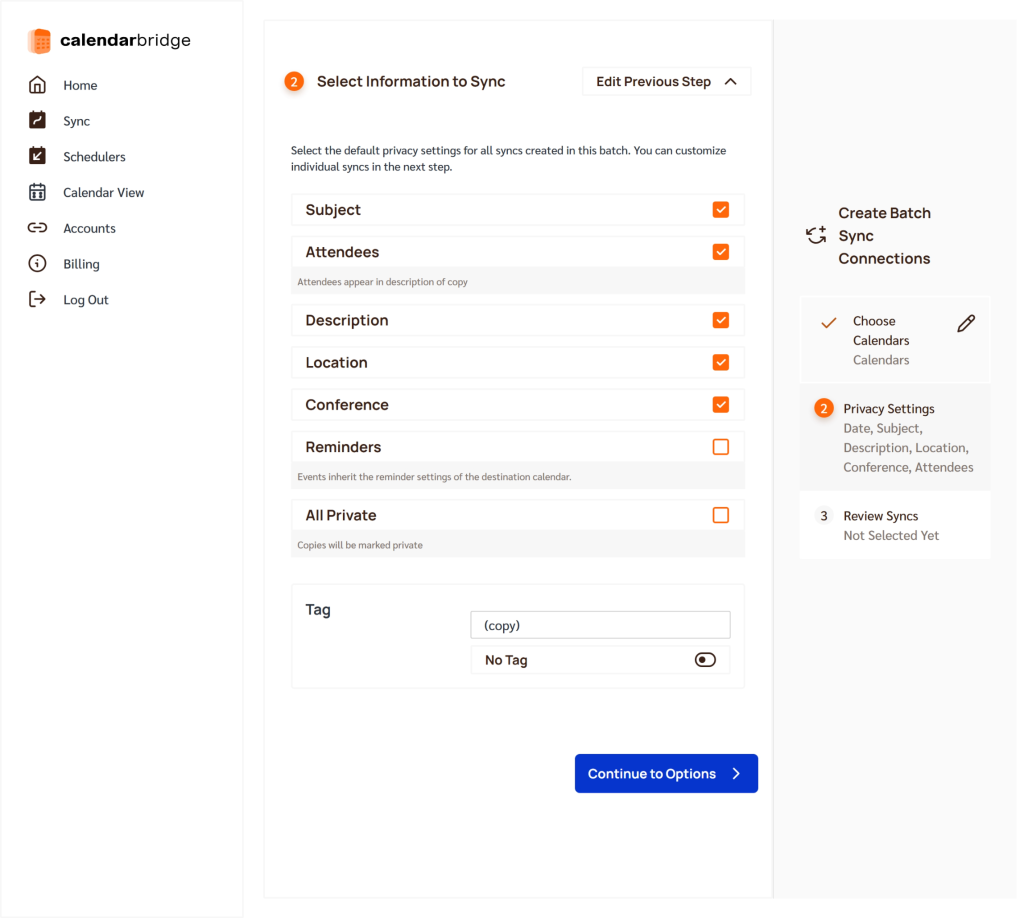

Your calendars are now linked and automatically updated!
Achieve True Two-way Calendar Sync with CalendarBridge

Frequently Asked Questions
Two-way sync means any event you create, edit, or delete in one calendar (Google or Outlook) automatically updates in the other.
No. Native options only offer one-way, view-only access. You’ll need a third-party calendar sync app like CalendarBridge for full two-way sync.
Yes, CalendarBridge updates synced calendars in near real-time, keeping both platforms in sync without delay.
Yes, CalendarBridge lets you choose whether to sync full event details or just free/busy times for added privacy.
Absolutely. CalendarBridge uses OAuth, does not store calendar content, and is governed by US laws.
Final Thoughts
If you’re switching between platforms or juggling calendars from different systems, true two-way sync can save you from double bookings, missed meetings, and manual updates.
With Unified Calendar View, CalendarBridge now also gives you one place to see everything, Google, Outlook, iCloud, and more, so you always know what’s coming up, no matter where the event was created.
