
Introduction
If you’re deciding between Google Calendar and Apple Calendar this year, the right choice depends on your devices, preferences, and how you manage your schedule. In this guide, we’ll compare the two across key features, layout, ease of use, and platform compatibility to help you decide. Then we’ll show how CalendarBridge eliminates the need to choose by letting you use both together without the hassle by synchronizing iCloud to your Google calendar, so both stay updated in real time.
Looking for something else? Browse our library of Calendar Tips to help increase your productivity and stay on top of your scheduling.
Calendar Interface and Usability
Google Calendar
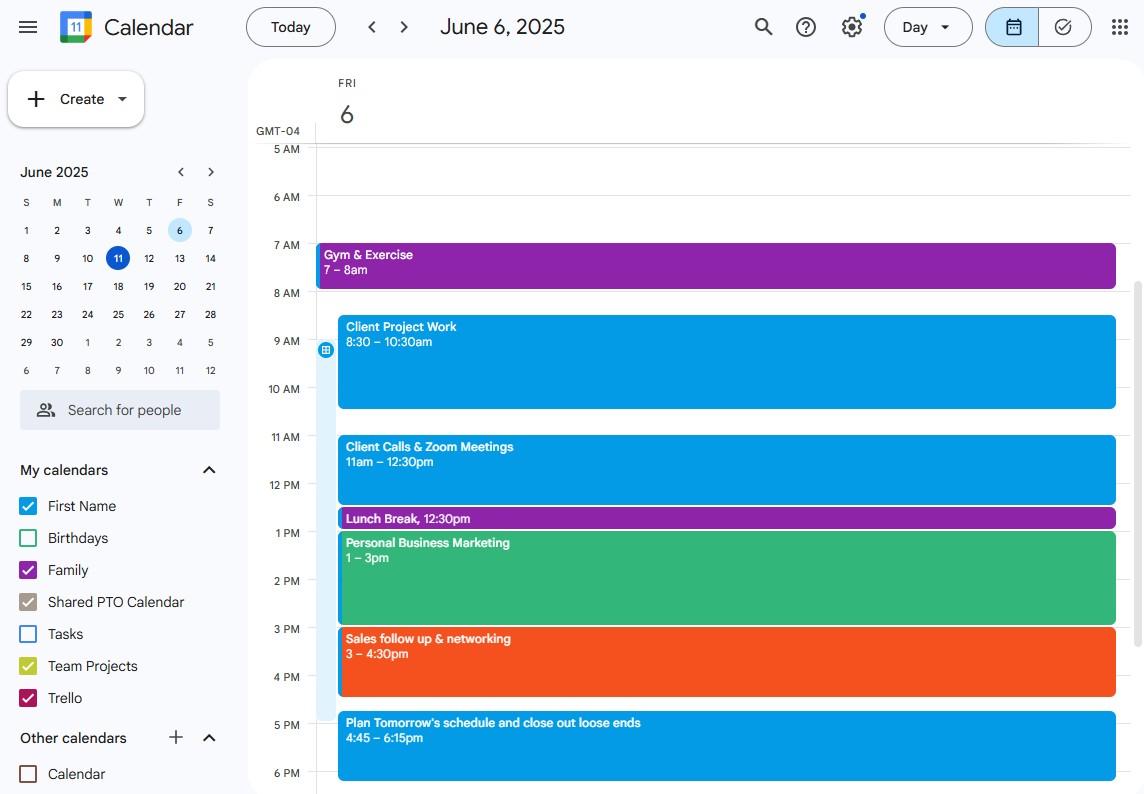
Google Calendar has a clean, modern layout that works well across web and mobile. You can drag and drop events, color-code by calendar, and access features like appointment slots and task integration. It’s especially intuitive if you’re already familiar with other Google Workspace tools.
Apple Calendar
Apple Calendar is deeply integrated into iOS and macOS. It feels native, simple, and lightweight. The interface is especially sleek on iPhone and iPad. While it lacks some of the customization options of Google Calendar, its layout is familiar to Apple users.

Cross-Platform Compatibility
Google Calendar
Google Calendar includes powerful features that help you work faster and stay organized within their platform:
- Smart suggestions for event titles
- Appointment scheduling with built-in booking pages
- Seamless integration with Google Meet, Gmail, and Tasks
- Natural language input when creating events
While the example below doesn’t show a location suggestion, it captures how Google Calendar surfaces timely reminders automatically, just one way it helps keep your schedule on track. You can even use an AI Scheduling Assistant with Google calendar.

Apple Calendar
Just like Google, the Apple Calendar works best within the Apple ecosystem, which should not be surprising. While it’s technically possible to view iCloud calendars on Windows or Android, the process is limited and clunky. If you primarily use iPhone, Mac, and iPad, Apple Calendar is seamless. If not, it may feel restrictive.
- Designed for simplicity and ease of use within the Apple ecosystem
- Fully integrated with iOS and macOS for a seamless native experience
- Create events quickly using Siri voice commands
- Event details from Apple Mail and Messages can automatically populate your calendar
Apple calendar is ideal for iPhone, iPad, and Mac users who want a lightweight, no-fuss calendar that works out of the box on all Apple devices.
Sharing and Collaboration
Both calendar platforms allow you to share calendars and invite others to events. However, Google Calendar offers more granular control with permissions (like view-only or edit access) and is more reliable when collaborating across teams or with non-Apple users.
Limitation from Sharing versus Syncing
While both Google and Apple Calendar support sharing, they handle it differently, and the limitations start to show when you try to collaborate outside their native ecosystems.
Google Calendar makes it easy to share with anyone who has a Google account, offering fine-tuned permissions like view-only, edit access, or delegate rights.
Apple Calendar, on the other hand, works best when sharing with other Apple users through iCloud. Sharing an iCloud calendar with someone on Android or using Google Calendar often results in read-only links or syncing issues. It’s also important to understand that sharing a calendar doesn’t mean it’s truly synced.
Shared calendars are often one-way views, while syncing means events are kept in real-time alignment across platforms. That’s where tools like CalendarBridge come in, bridging the gap when native sharing falls short. Learn more about sharing versus syncing a calendar.

Offline Access and Notifications
Apple Calendar performs better that Google when offline due to its local storage on Apple devices. Notifications are also more customizable through iOS system settings.
Google Calendar relies more on cloud sync, so it’s not as smooth offline unless you’re using the mobile app. However, it allows flexible notifications via email or app alerts.
Calendar Cost and Pricing
Both tools are free to use. Google Calendar comes with any free Google account. Apple Calendar is built into every Apple device.
Which is Better, Apple or Google Calendar?
Verdict: It Depends on Your Ecosystem
- Use Google Calendar if you want better collaboration tools, cross-platform access, and deep integrations with Gmail and Google Meet
- Use Apple Calendar if you’re all-in on Apple devices and want a fast, native experience without extra features
Or... Use Both with CalendarBridge
If you like different features from both calendars, you don’t need to pick just one. CalendarBridge lets you sync calendars between Google and Apple in both directions. That means you can:
- View all events in one place with a unified calendar view
- Keep work and personal calendars in sync without copying events manually
CalendarBridge lets you keep your favorite tools and your full schedule, no compromises.
Do More by Syncing Google and Apple Calendars with CalendarBridge

Frequently Asked Questions
Yes, with a tool like CalendarBridge, you can sync Apple iCloud and Google calendars and manage events across platforms without duplicating entries manually.
Generally, yes. Google Calendar offers more flexible sharing options, especially for teams using Gmail or Google Workspace.
Technically yes, but functionality is limited. Accessing iCloud calendars from Android or Windows is possible, but not ideal for everyday use.
That depends on your familiarity. Apple Calendar is more straightforward for iPhone and Mac users, while Google Calendar offers more features for those who want customization and collaboration.
CalendarBridge is a paid service (see our pricing), but we also offer a free trial. It allows real-time, two-way sync between Google, Outlook, and Apple calendars.
Final Thoughts
At the end of the day, the best calendar is the one that keeps you on time, organized, and in control of your day. If you’re fully immersed in the Apple ecosystem, Apple Calendar delivers a fast and seamless experience. If you rely on cross-platform access and advanced collaboration, Google Calendar is hard to beat.
But you don’t need to limit yourself to just one.
CalendarBridge was built for people like you, who use a mix of tools and need everything to work together. Whether it’s syncing events across platforms, avoiding scheduling conflicts, or just seeing your full day in one view, CalendarBridge helps bring it all together.
